

Do you want to delete a user in the admin area?
Here’s a step-by-step guide to deleting a user in the Munily property management area:
How to delete a user in the property management area:
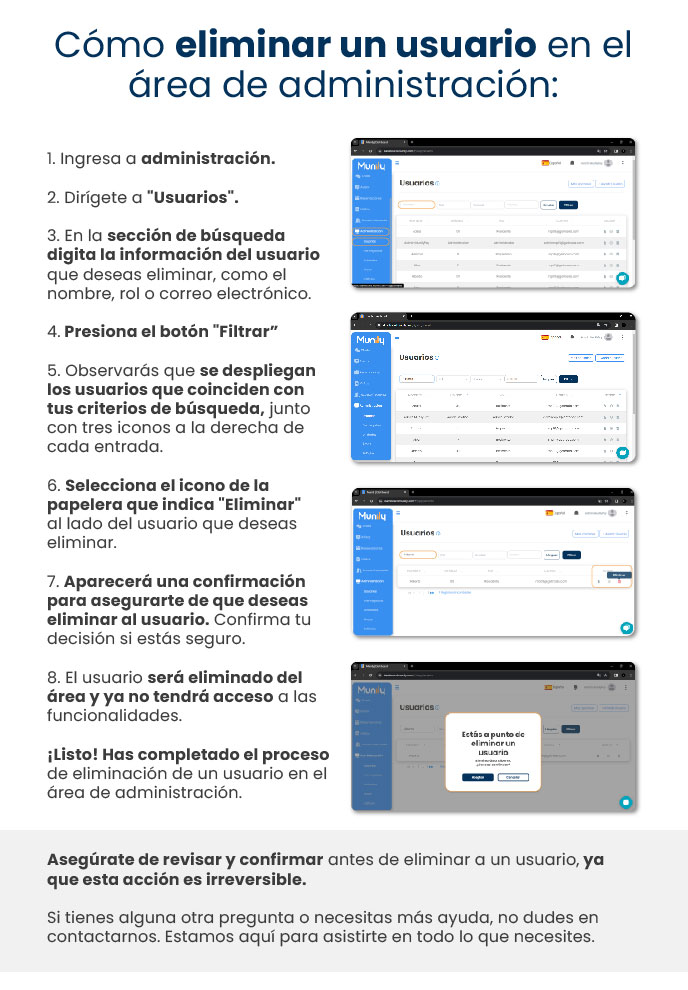
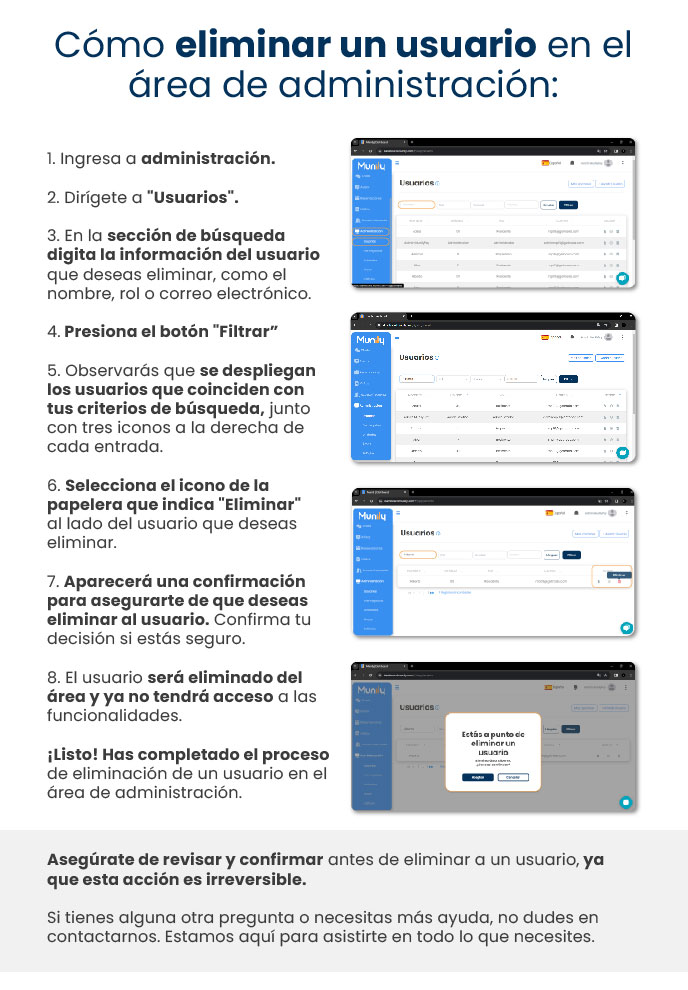
- Log in to the property management area.
- Go to "Usuarios (Users)".
- In the search section, enter the information for the user you want to delete, such as their name, role, or email address.
- Click the "Filter" button.
- You’ll see the users who match your search criteria displayed, along with three icons to the right of each entry.
- Select the trash can icon labeled "Delete" next to the user you want to delete.
- A confirmation message will appear asking if you’re sure you want to delete the user. Confirm your decision if you’re certain.
- The user will be removed from the property management area and will no longer have access to its features.
Done! You have completed the process of removing a user from the property management area.
Be sure to review and confirm before removing a user, as this action is irreversible.
If you have any other questions or need further assistance, please don’t hesitate to contact us. We’re here to help you with whatever you need.
Guide images
Still need help? Reach us on WhatsApp or at soporte@munily.com.
Con Amor 💙 Munily