

How do "Comunicados" work?
How Do “Comunicados (Announcements)
” Work?
Announcements are an essential tool on Munily
for keeping you informed about important notices from the property management of your building or residential community. Follow these steps to access and read your announcements:
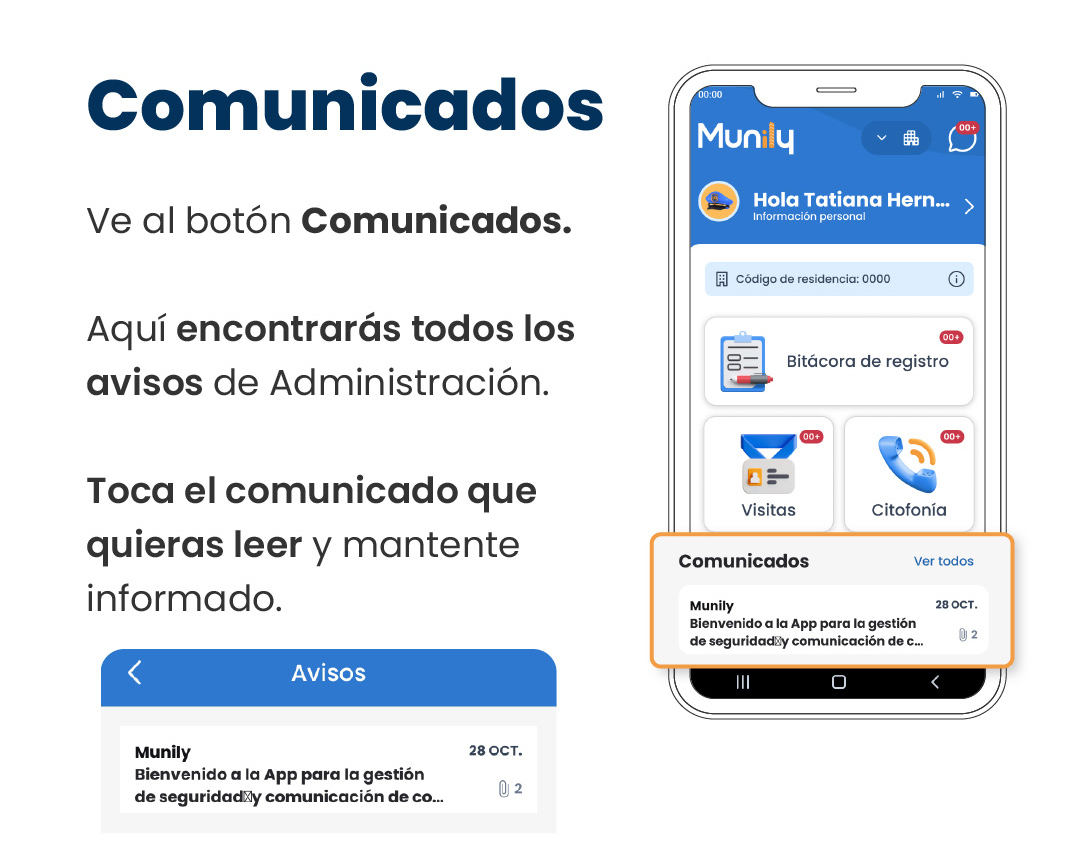
Go to the “Comunicados
” button.
On the main screen of the Munily
app, find and select the button that says “Comunicados
.”Find all notices from Administración (Administration)
.
When you tap “Comunicados
,” you’ll be taken to a section listing all notices and messages sent by property management.Tap the announcement you want to read.
Review the list of announcements. Each one will show the sender (usually “Munily
” or the property management’s name) and the date it was sent. Tap the announcement you’re interested in reading to view its full content and stay informed.On your mobile device’s screen, you’ll see the “Comunicados
” section with a button that says “View All.” Below this heading, a summary of the most recent announcement will be displayed. For example, you might see:- **Sender:**Munily
- Subject: Welcome to the App for Security and Communication Management...
- Date: Oct. 28
- Indicator: An icon with the number "2," which could indicate the number of attachments or related unread messages.
If you want to view all announcements, you can tap the “View All” button. If you’d rather view the announcement shown as a summary, simply tap it.
At the bottom of the screen, you’ll also find a navigation bar with icons that let you access other sections of the app, such as the main menu (represented by three horizontal lines), the home screen (a square), and the back button (a left-pointing arrow).
Guide images
Still need help? Reach us on WhatsApp or at soporte@munily.com.
Con Amor 💙 Munily