

How do I block a resident? ❎
Here's how to block a resident on Munily:
Blocking a Resident
How do I block a resident?
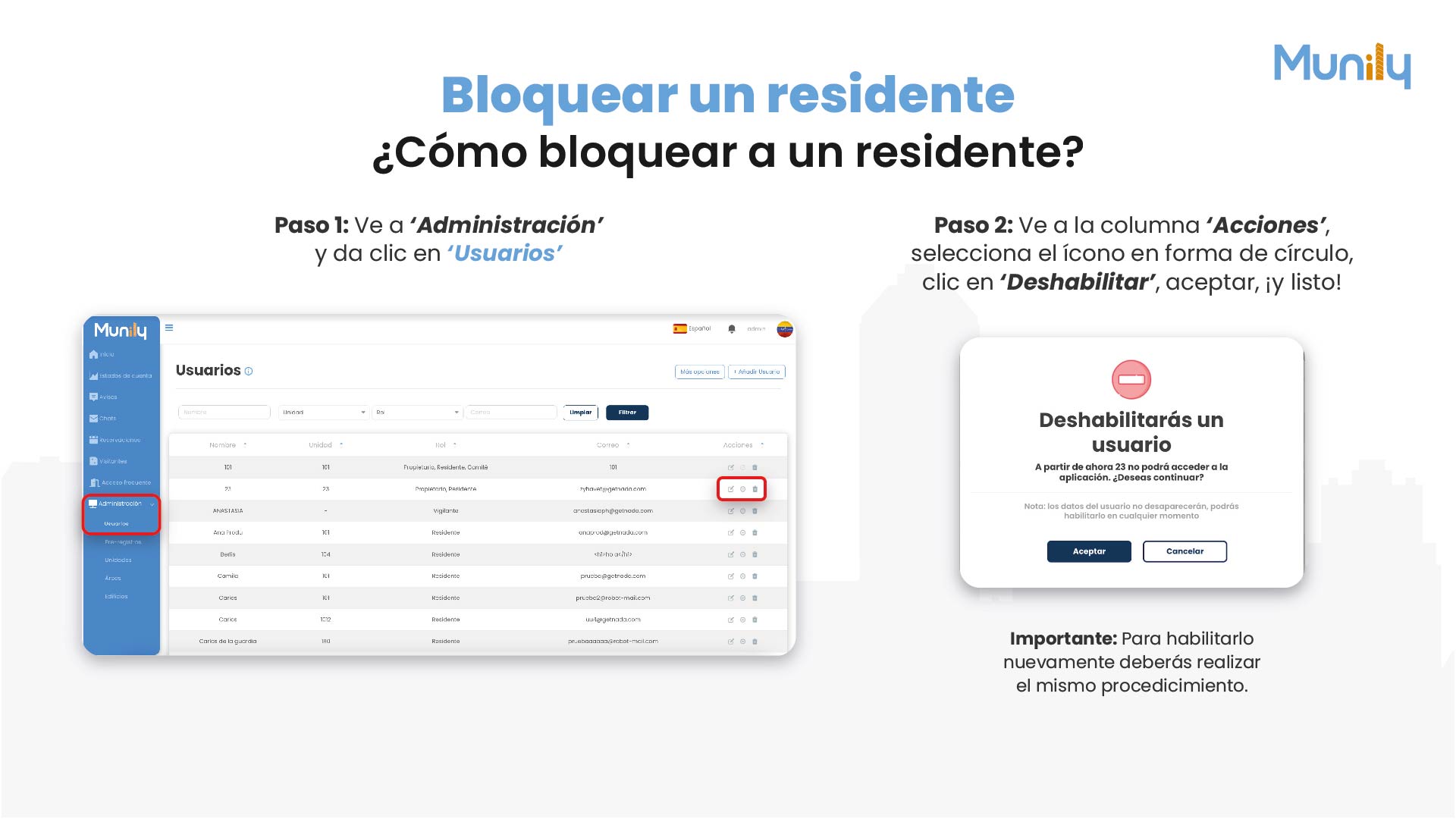
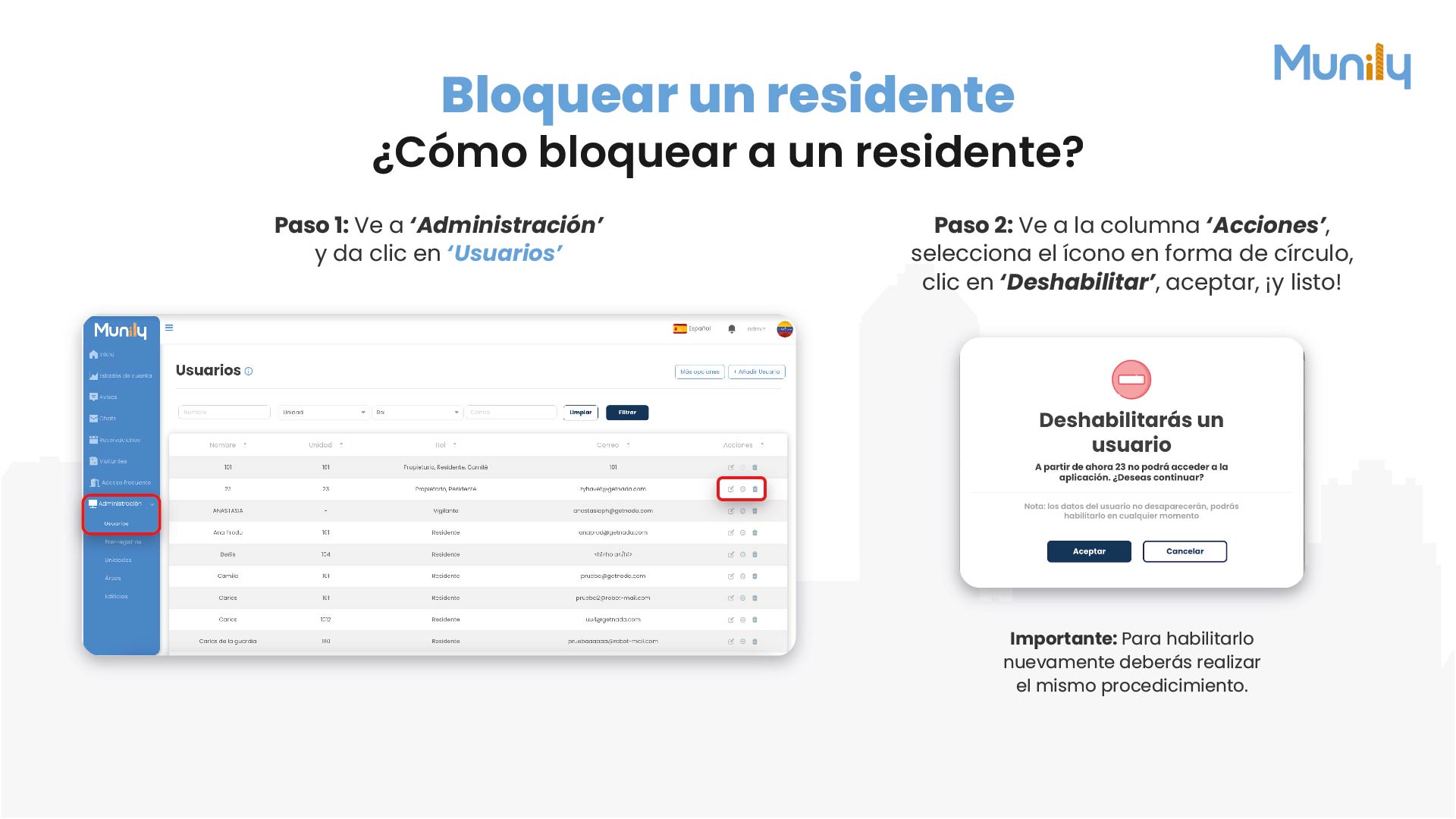
Step 1: Go to the "Administración (Administration)" section in the left-hand side menu and click "Usuarios (Users)".
- In the left-hand sidebar, you’ll see the “Administración” option. Clicking it will display sub-options.
- Select “Usuarios” from the options that appear.
Step 2: Once you’re on the user list, go to the “Actions” column.
- In the user table, look for the column titled “Actions”.
- In this column, you’ll find several icons. Look for the icon that is shaped like a circle with a horizontal line at the top. This icon represents the disable action.
- Click this icon to proceed.
Next, a pop-up window will appear with the following message:
You are about to disable a user
From now on, [User Name] will not be able to access the application. Do you want to continue?
- Note: The user’s data will not be deleted; you can re-enable the user at any time.
To confirm the action, click the 'OK' button. If you want to cancel, click the 'Cancel' button.
That’s it! The resident has been blocked.
Important: To re-enable the user, you’ll need to follow the same procedure.
Guide images
Still need help? Reach us on WhatsApp or at soporte@munily.com.
Con Amor 💙 Munily