

How do I chat with residents? 💬
Here’s how to chat with residents of your building or residential community using the Munily app.
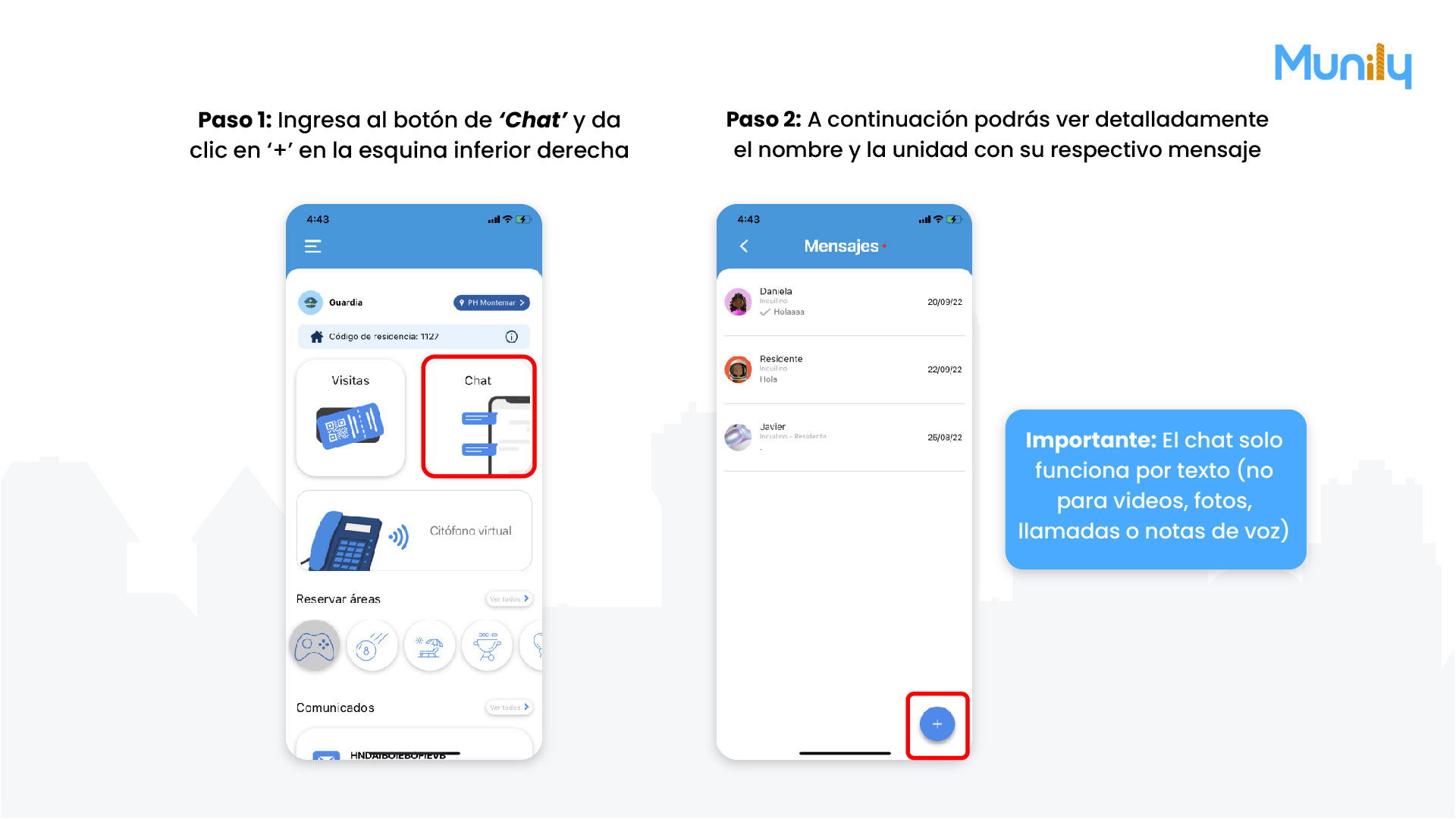
Step 1: Tap the “Chat (Chat)” button and click “+” in the lower-right corner.
When you open the app, you’ll see a main screen with several options. Look for the “Chat” icon, which is represented by two speech bubbles. This icon is located inside a box labeled “Chat.” Once you’ve located and selected “Chat,” a new screen will appear. In the lower-right corner of this screen, you’ll find a button with a plus sign (+) surrounded by a red circle. Click this button to start a new conversation.
Step 2: Next, you’ll see the resident’s name and unit, along with their message.
After clicking the '+' button, a list of residents you can chat with will appear. Each entry in this list will show the resident’s name, their unit number, and—if there has been previous communication—the last message sent and the date.
Important: The chat is text-based only (it does not support videos, photos, calls, or voice notes).
Remember that this feature is designed for text messaging only. You will not be able to send or receive multimedia files such as videos or photos, make voice calls, or send voice notes through this tool.
Video tutorial: https://www.youtube.com/watch?v=IqdZOV9uU0g
Guide images
Guide video
Still need help? Reach us on WhatsApp or at soporte@munily.com.
Con Amor 💙 Munily