

How do I check my history? 🙌🏻
How do I check the history?
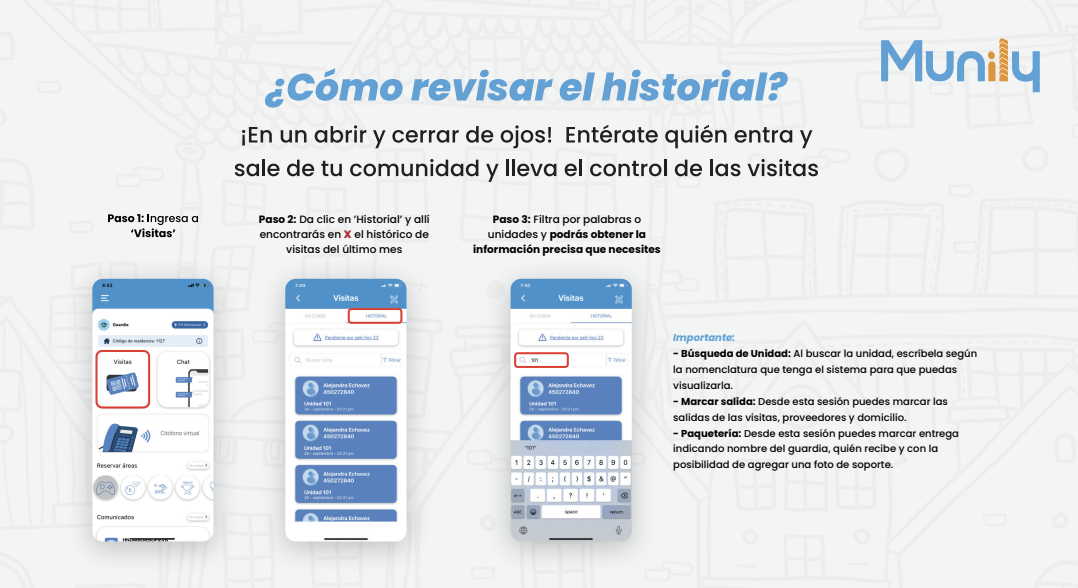
In the blink of an eye! Find out who’s coming in and out of your community and keep track of visitors.
Step 1: Go to 'Visitas (Visits)'
On the main screen at Munily, locate and select the Visitas option. This option is represented by a business card icon.
Step 2: Click on “Historial (History)” (Visitor Log) to view the visitor history for the last month
Once inside the “Visitas” section, you’ll see two tabs: “En Curso” (In Progress) and “Historial” (Visitor Log). Click on the Historial tab. This will display a record of all visitors from the past month.
Step 3: Filter by keywords or units to get the specific information you need
On the "Historial" screen, you’ll find a search field. You can filter visitors in the following ways:
- Unit Search: When searching for a unit, enter it using the system’s naming convention so it will appear in the results. For example, if you’re looking for unit “101,” type “101” into the search field.
- Mark as Outgoing: From this section, you can mark outgoing visits, service providers, and deliveries.
- Packages: From this section, you can mark deliveries by entering the security guard’s name, the recipient’s name, and adding a supporting photo.
Use the text field to enter the person’s name, the unit, or any other relevant keyword to find the specific information you’re looking for. As you type, the system will display matching results.
Important:
- Unit Search: When searching for a unit, enter its name according to the system’s naming convention so that it will appear in the results.
- Mark as Outbound: From this section, you can mark outbound shipments for visitors, service providers, and delivery addresses.
- Packages: From this section, you can mark a delivery by specifying the security guard’s name, the recipient’s name, and adding a supporting photo.
Guide images
Still need help? Reach us on WhatsApp or at soporte@munily.com.
Con Amor 💙 Munily