

How do I download the "PQRS" report? 🚀
Download your community’s “PQRS (Requests & Complaints)” report—it’s that easy
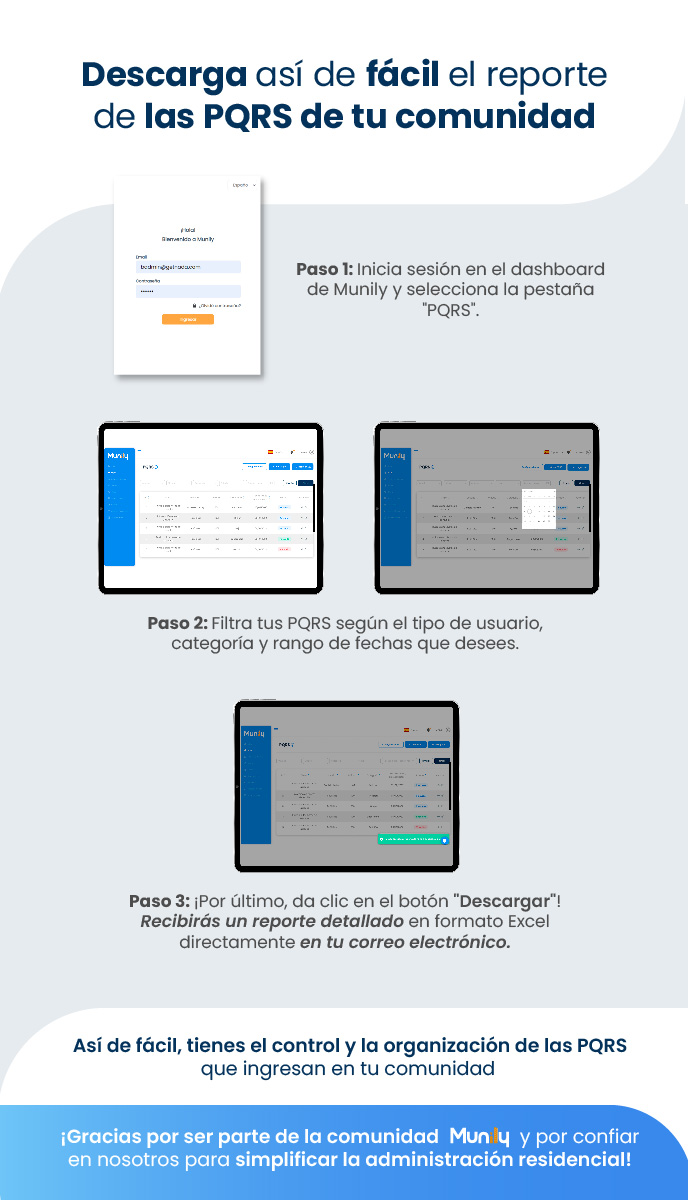
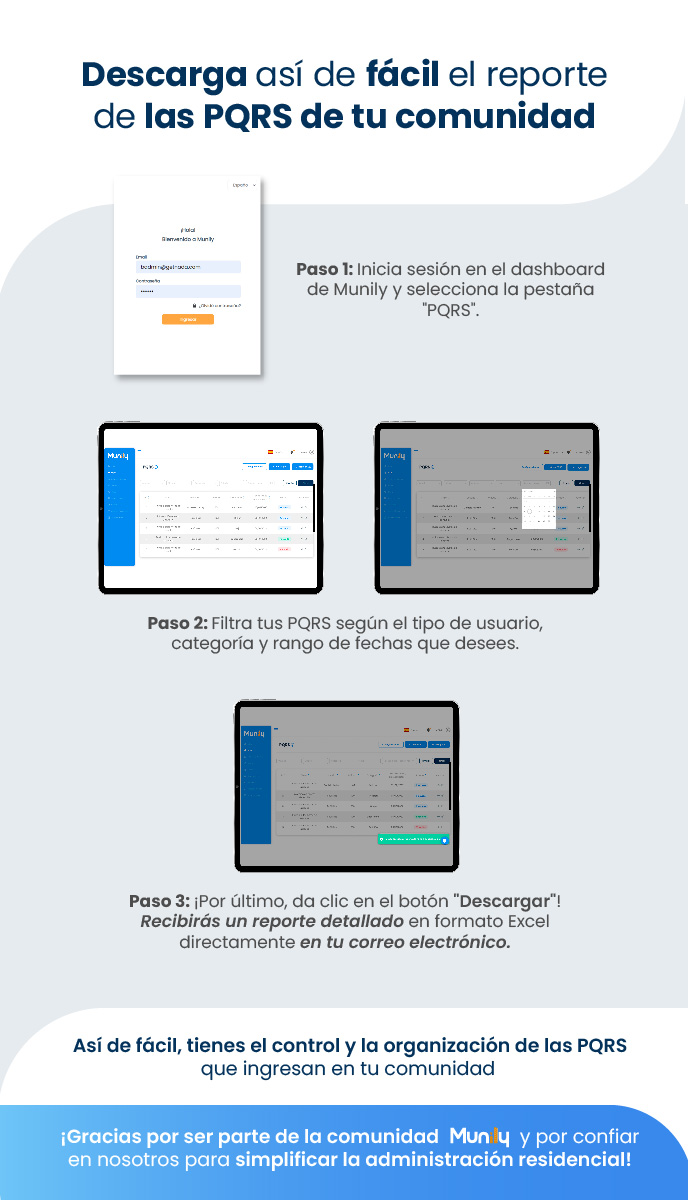
Follow these steps to get a detailed report on your community’s Petitions, Complaints, Claims, and Suggestions (PQRS):
Step 1: Log in to the dashboard at Munily and select the “PQRS” tab.
- You’ll see a login screen where you’ll need to enter your email address and password.
- Once logged in, locate and click the tab labeled “PQRS.”
Step 2: Filter your “PQRS” by user type, category, and date range as desired.
- In the “PQRS” section, you’ll find options to filter the information.
- You can select the user type that generated the PQRS.
- You can also choose a specific category for your filters.
- Finally, you can set a date range to narrow your search.
Step 3: Finally, click the "Download" button!
- Once you’ve applied the desired filters, look for the "Download" button.
- When you click it, you’ll receive a detailed report in Excel format directly in your email.
It’s that easy—you’re in control and can keep track of the PQRS that come into your community.
Thank you for being part of the Munily community and for trusting us to simplify property management!
Guide images
Still need help? Reach us on WhatsApp or at soporte@munily.com.
Con Amor 💙 Munily