

How do I log a visitor?
Here’s how to log a visit on Munily:
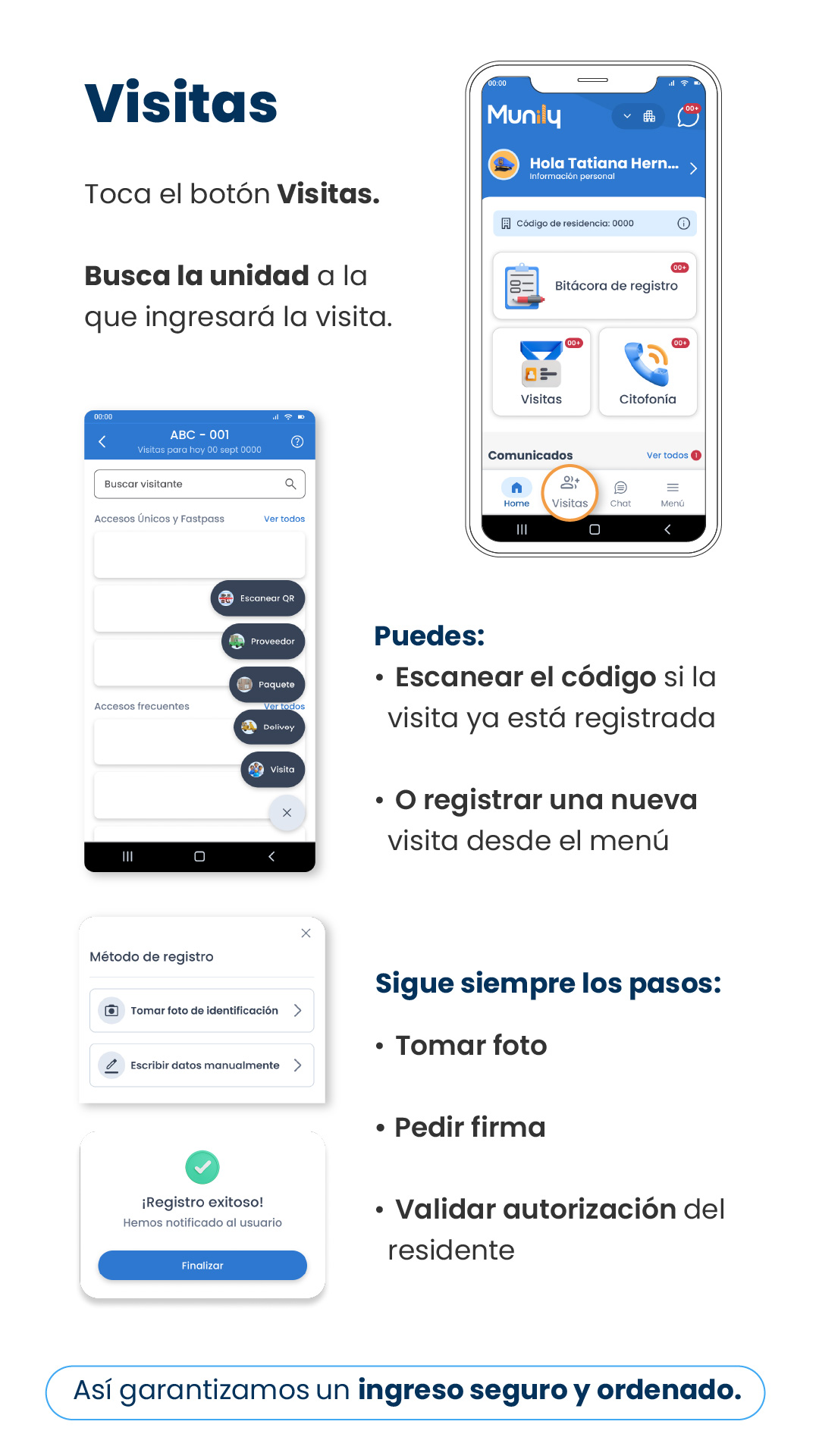
Visitas (Visits)
Tap the Visitas button.
Search for the unit where the visit will take place.
How do I log a visit?
On the app’s main screen, you’ll see a bottom menu with several options. Tap the Visitas icon, which looks like two people.
Once inside the “Visitas” section, you can:
- Scan the QR code if the visitor is already registered.
- Register a new visitor from the menu.
Steps to register a new visit:
- Search for the unit: At the top of the “Visitas” screen, you’ll find a field to search for the unit. Enter the name or number of the unit the visitor will be entering and select the correct one from the results.
- Select the registration method: A pop-up window titled "Registration Method" will appear. You have two options:
- Take a photo of ID: Tap this option to take a photo of your visitor’s ID.
- Enter information manually: Select this option if you prefer to enter your visitor’s information manually.
- Always follow the steps:
- Take a photo: If you chose the option to take a photo, make sure the image is clear and legible.
- Request a signature: You will be asked to have the visitor sign on the screen.
- Validate resident’s authorization: The resident must authorize the visitor.
Once all steps are complete, you’ll see a confirmation message: “Registration successful! We’ve notified the user.” Tap the Finish button to complete the process.
This ensures safe and orderly entry.
Guide images
Still need help? Reach us on WhatsApp or at soporte@munily.com.
Con Amor 💙 Munily