

How do I sign up for the Munily app? 📱
How do I sign up for the Munily app? 📱
In 3 easy steps! Here’s the step-by-step guide:
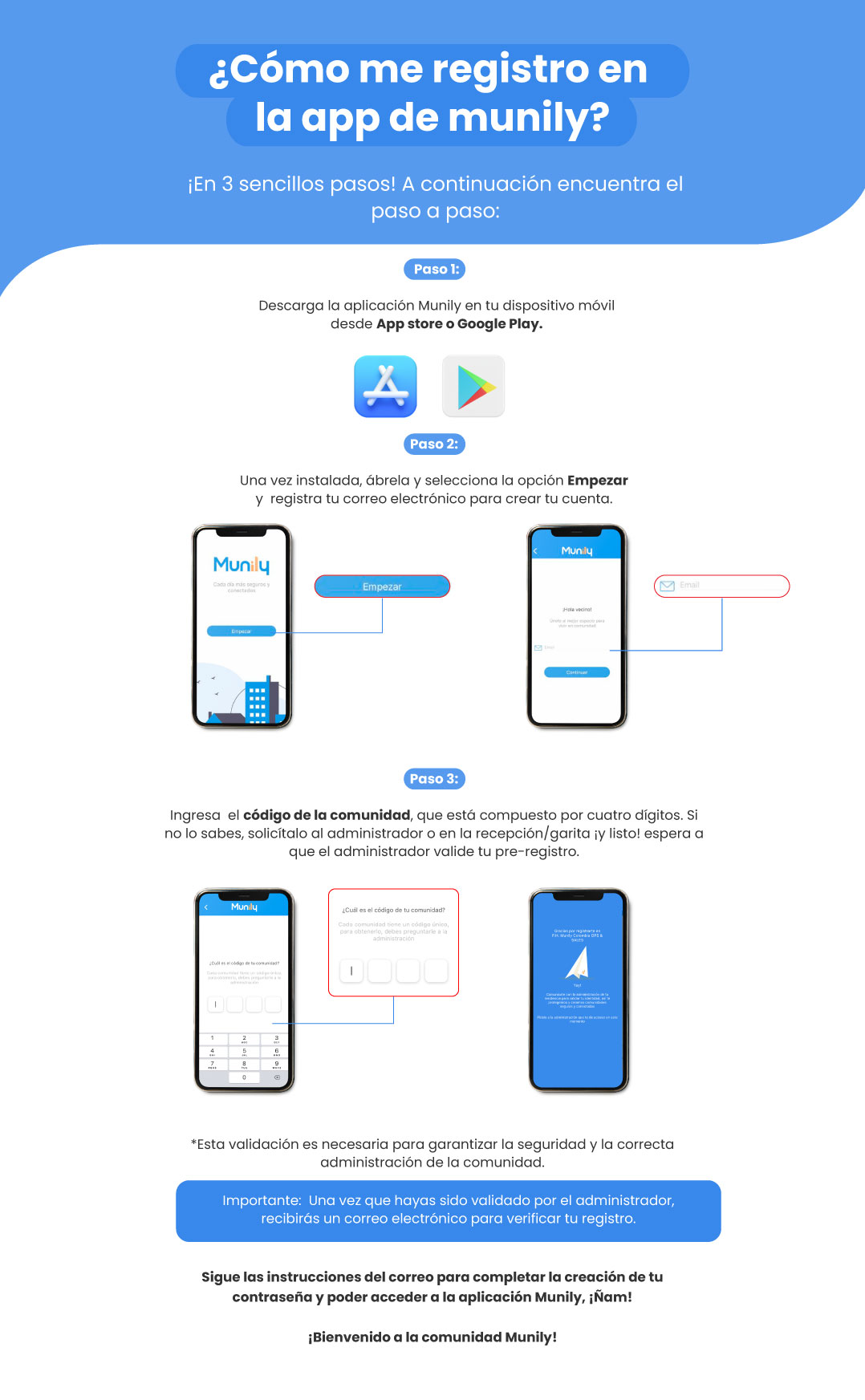
Step 1: Download the app
Download the Munily app to your mobile device from the App Store or Google Play.
- You’ll see the icons for the App Store (a blue circle with a white “A”) and Google Play (a colorful triangle).
Step 2: Start your registration
Once installed, open the app, select the Get Started option, and enter your email address to create your account.
- On the app’s first screen, you’ll see the Munily logo and the Get Started option.
- When you tap Get Started, a field will appear for you to enter your email address. Enter your email address and then tap Continue.
Step 3: Enter the Community Code
Enter the community code, which consists of four digits. If you don’t know it, ask the administrator or the front desk/gatehouse staff—and that’s it! Wait for the administrator to validate your pre-registration.
- The app will ask, “What is your community code?”
- Below that, you’ll see a field to enter the four-digit code and a numeric keypad.
- An example of what the code entry screen looks like on another device is also shown.
- Finally, a screen confirming that registration is in progress will appear.
Important: This validation is necessary to ensure the security and proper property management of the community.
Once you’ve been approved by the administrator, you’ll receive an email to verify your registration.
Follow the instructions in the email to finish setting up your password and gain access to the Munily app. Yum!
Welcome to the Munily community!
Guide images
Still need help? Reach us on WhatsApp or at soporte@munily.com.
Con Amor 💙 Munily