

How do you turn on notifications on your iPhone?
Here's how to enable notifications on your iOS device to receive alerts from Munily.
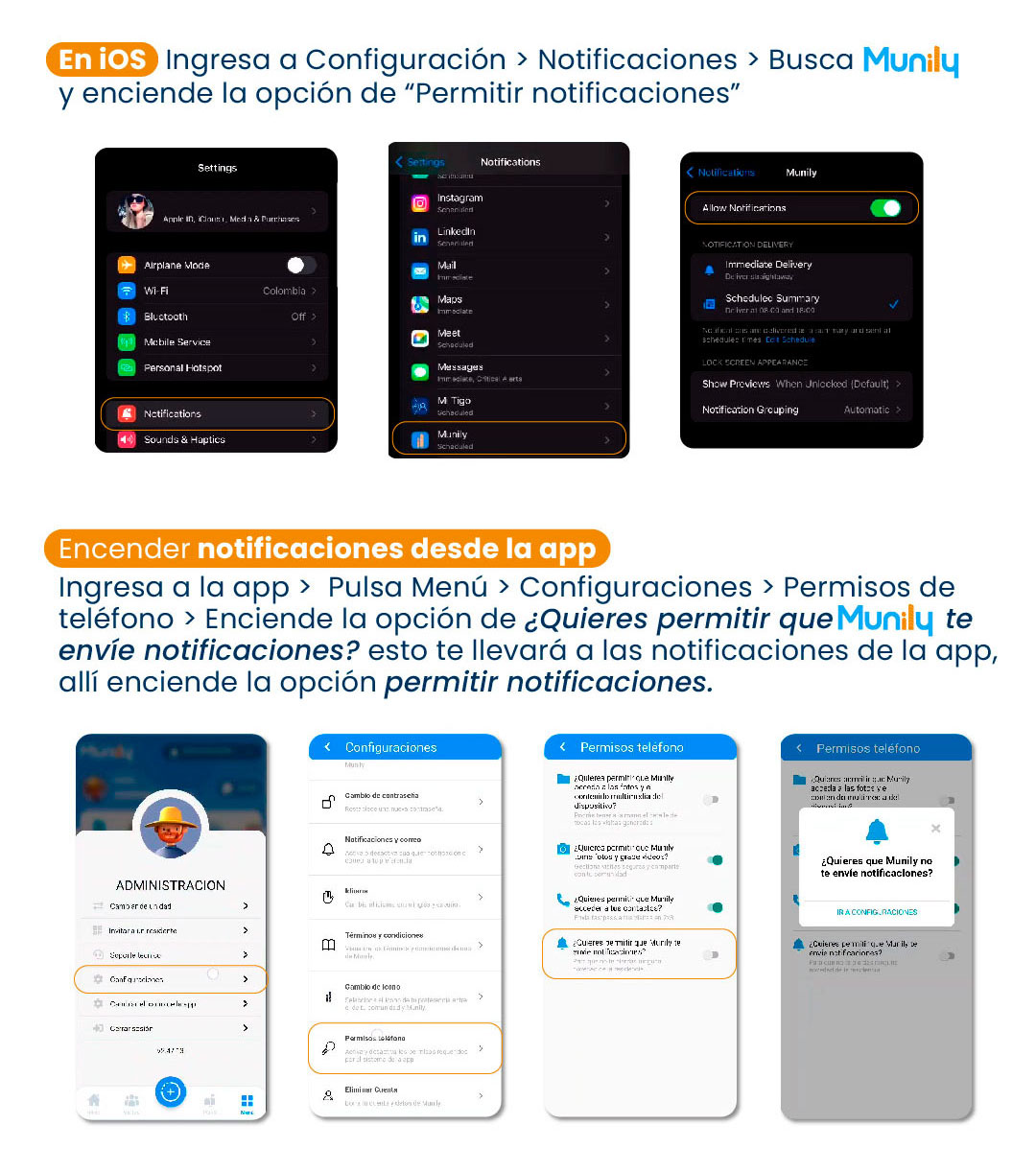
Option 1: From your iPhone's general settings
- Go to Settings: On your iPhone’s home screen, find and select the “Settings” icon (usually depicted as a gear).
- Go to Notifications: In Settings, scroll down until you find the "Notifications" option and tap it.
- Find Munily: In the list of apps, find and select "Munily".
- Allow Notifications: Make sure the toggle next to "Allow Notifications" is turned on (it will be green).
Option 2: From the Munily app
- Open the Munily app: Open the Munily app on your phone.
- Tap Menú (Menu): Tap the "Menú" icon (usually represented by three horizontal lines or a similar icon).
- Go to Configuraciones (Settings): From the menu, select "Configuraciones".
- Phone Permissions: Find and tap the "Phone Permissions" option.
- Enable the option: You’ll be asked, "Do you want to allow Munily to send you notifications?". Toggle the corresponding switch to enable it. Once you do this, you’ll be directed to the app’s notification settings, where you’ll need to “Allow Notifications”.
By following these steps, you can ensure you receive all important notifications from Munily on your iOS device.
Video tutorial: https://www.youtube.com/watch?v=VyAhhkWl7Pg
Guide images
Guide video
Still need help? Reach us on WhatsApp or at soporte@munily.com.
Con Amor 💙 Munily