

How to Change the App's Language
Machine translation, pending review. This article was translated automatically and a human has not reviewed it yet, so some wording may be off. The original article in Spanish is the authoritative version. Note that the Munily app itself is in Spanish: interface labels are kept in Spanish on purpose, with an English gloss in parentheses.
You can use the app in the language you understand best, without having to rely on your phone's settings or the language chosen by the property management. The change applies to the entire interface as well as notifications, so everyone in the same building can read in Spanish or English.
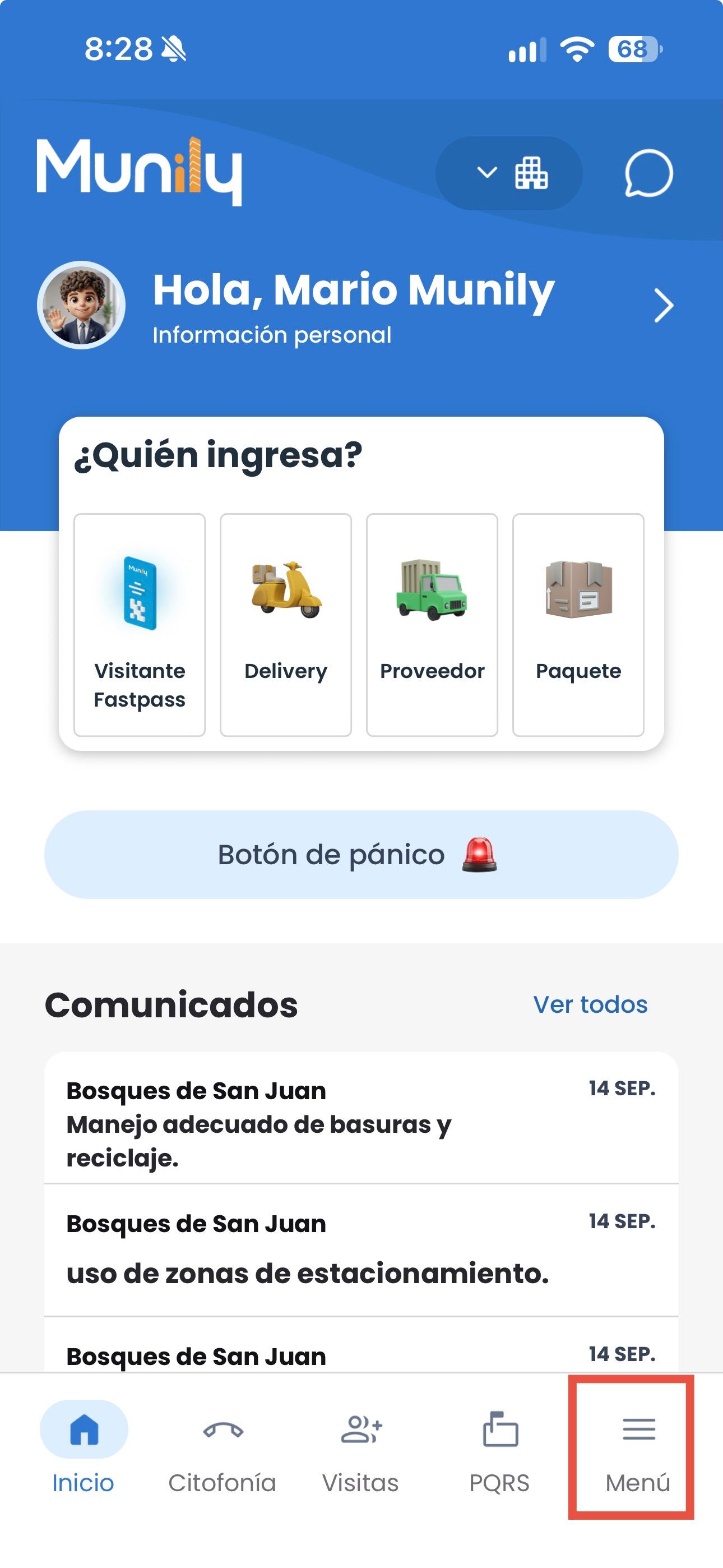
- Open the app and tap the “Menú (Menu)” button in the lower-right corner.
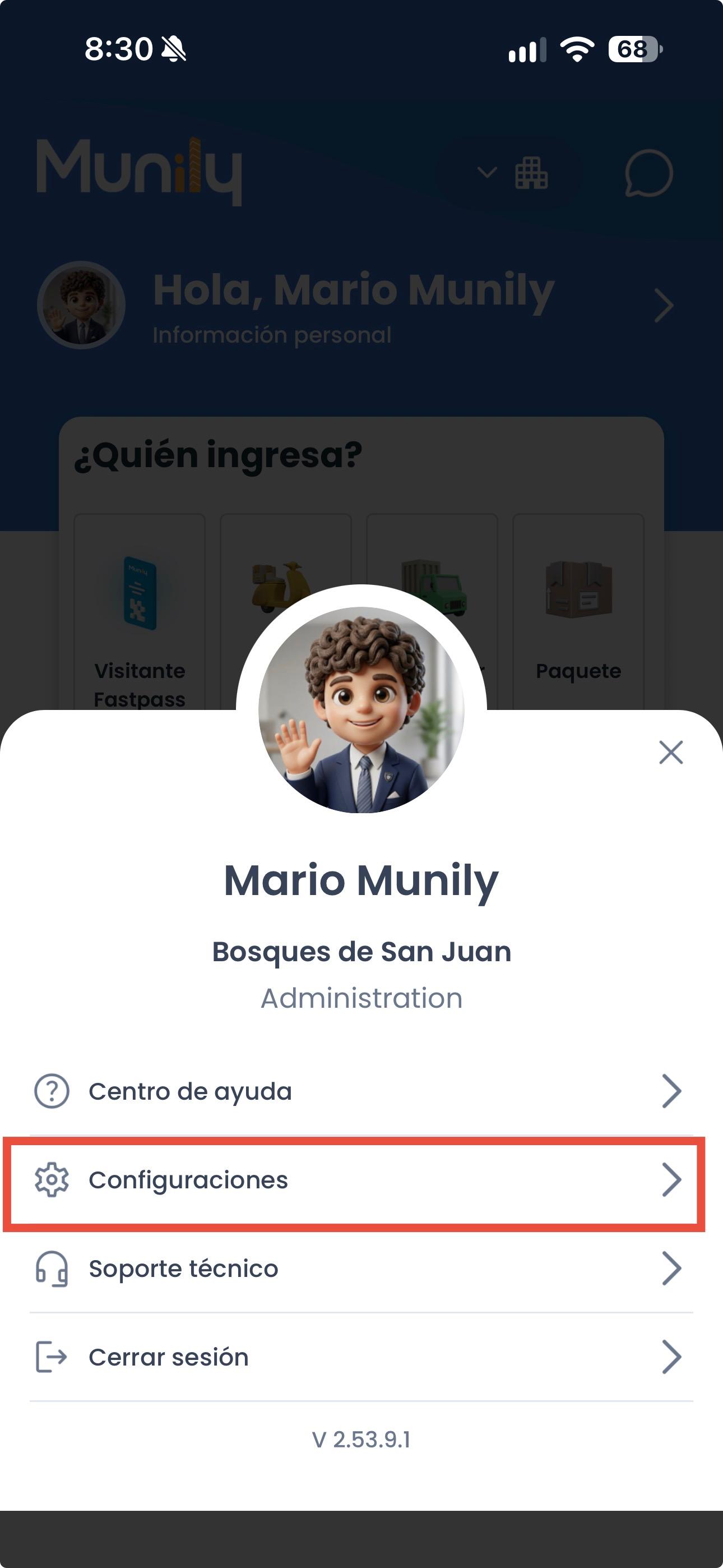
- Tap the second button, “Configuraciones (Settings).”
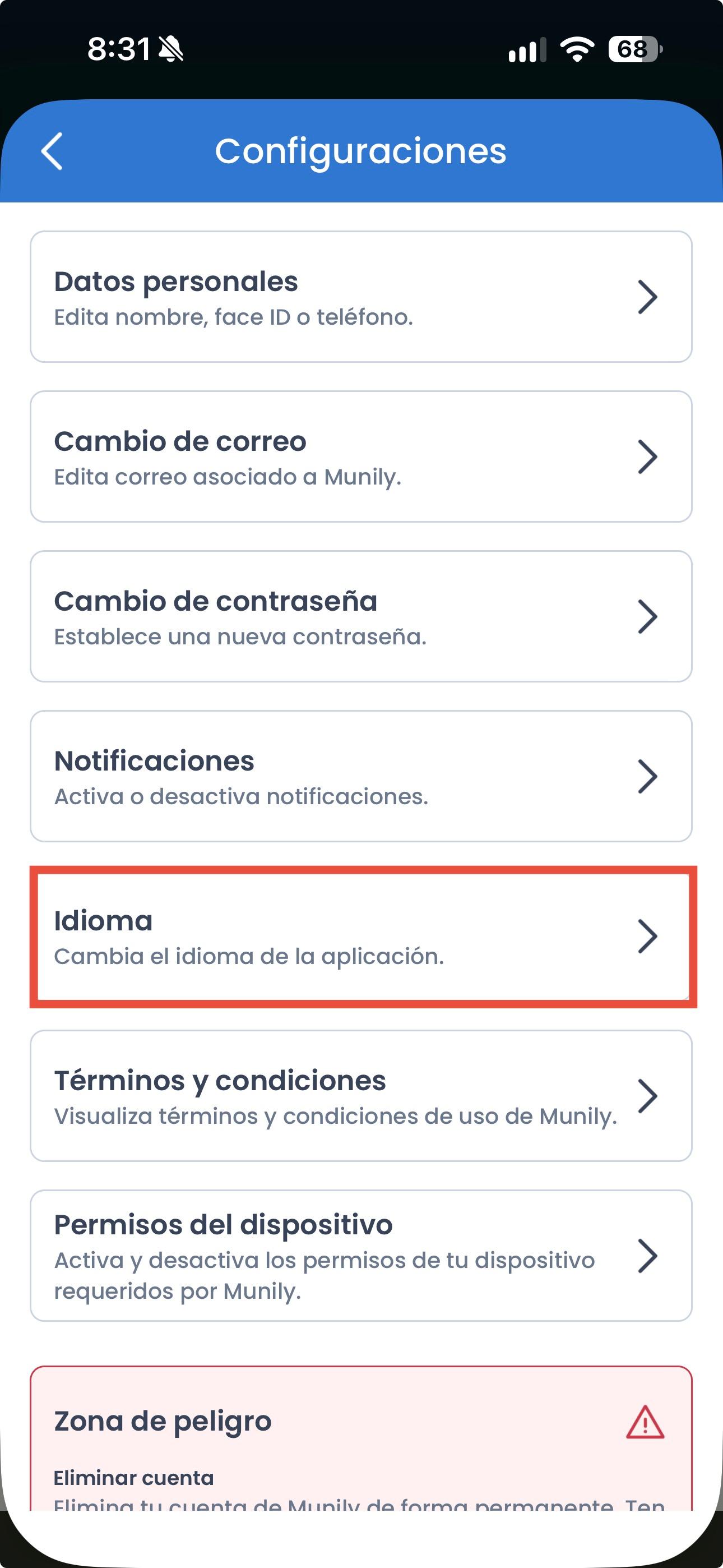
- Select the fifth option, “Language.”
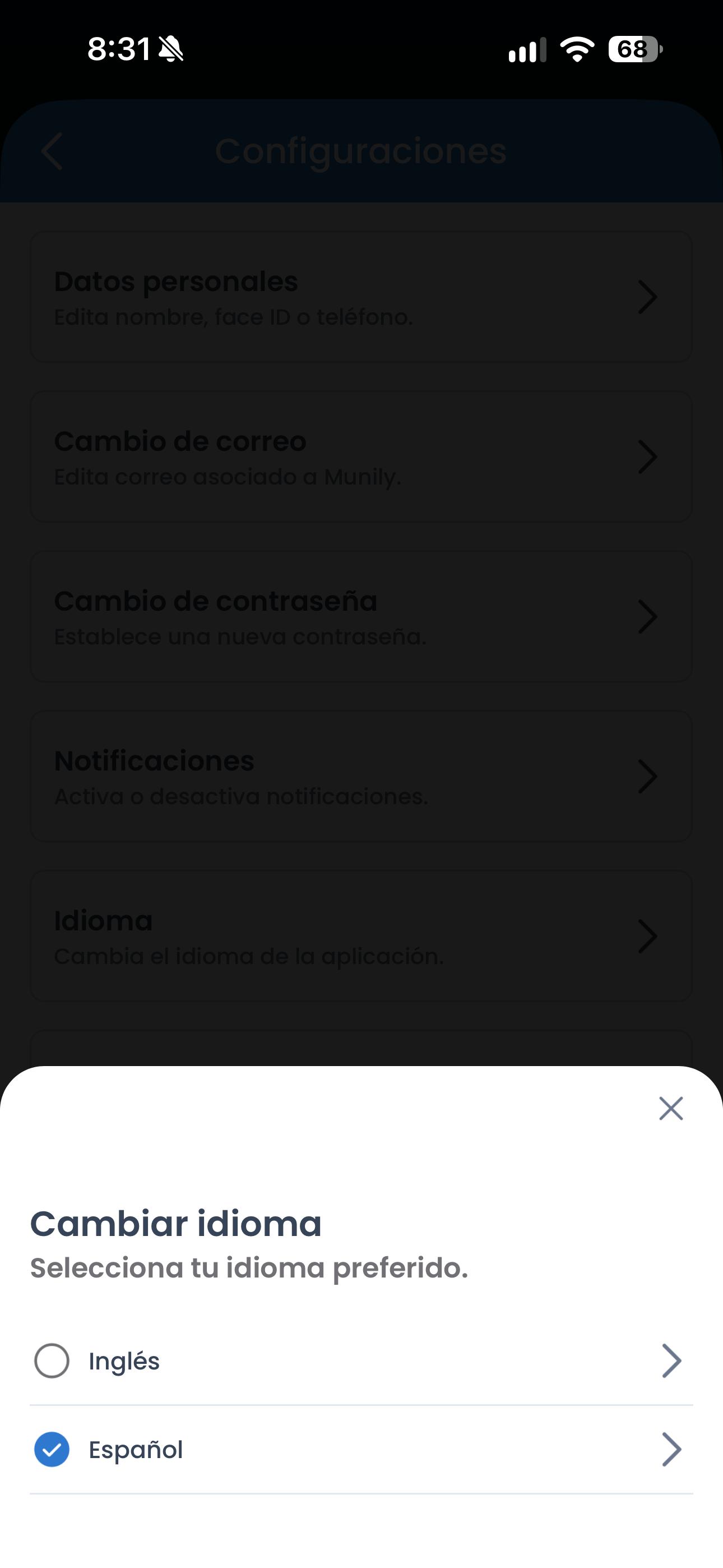
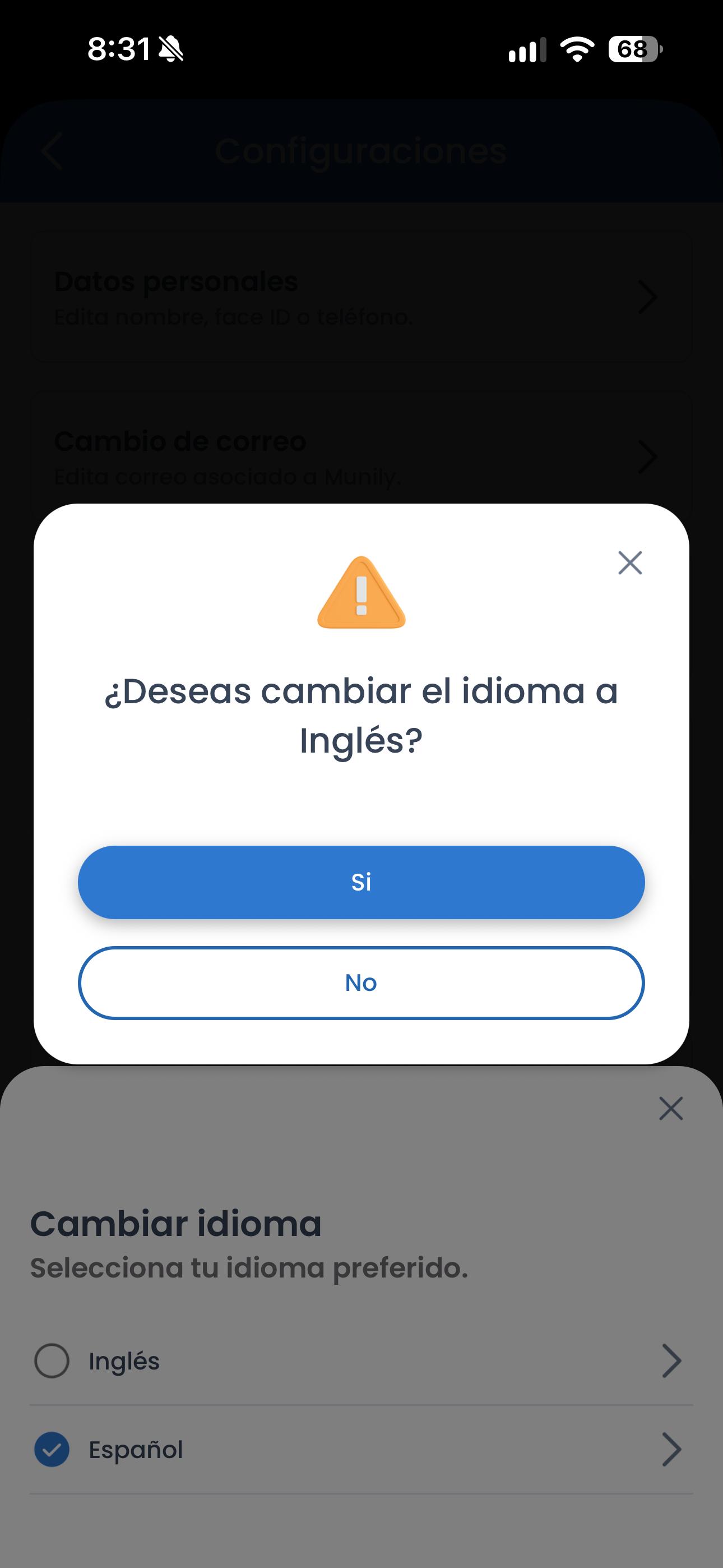
- Choose between “Spanish (Latin America)” and “English (United States).”
- In the pop-up window, confirm the language change.
Please note that messages written by the front desk or security guard are displayed in the language in which they were written and are not automatically translated: if the security guard writes in Spanish, you’ll receive it in Spanish even if you have the app set to English.
If you don’t see the “Language” option or the change doesn’t take effect in your account, contact your PH (HOA) administrator or Munily support.
Guide images
Still need help? Reach us on WhatsApp or at soporte@munily.com.
Con Amor 💙 Munily