

Qpass dashboard: How do I create a frequent access pass? 👫🏻
Here's how to create frequent access passes on Qpass:
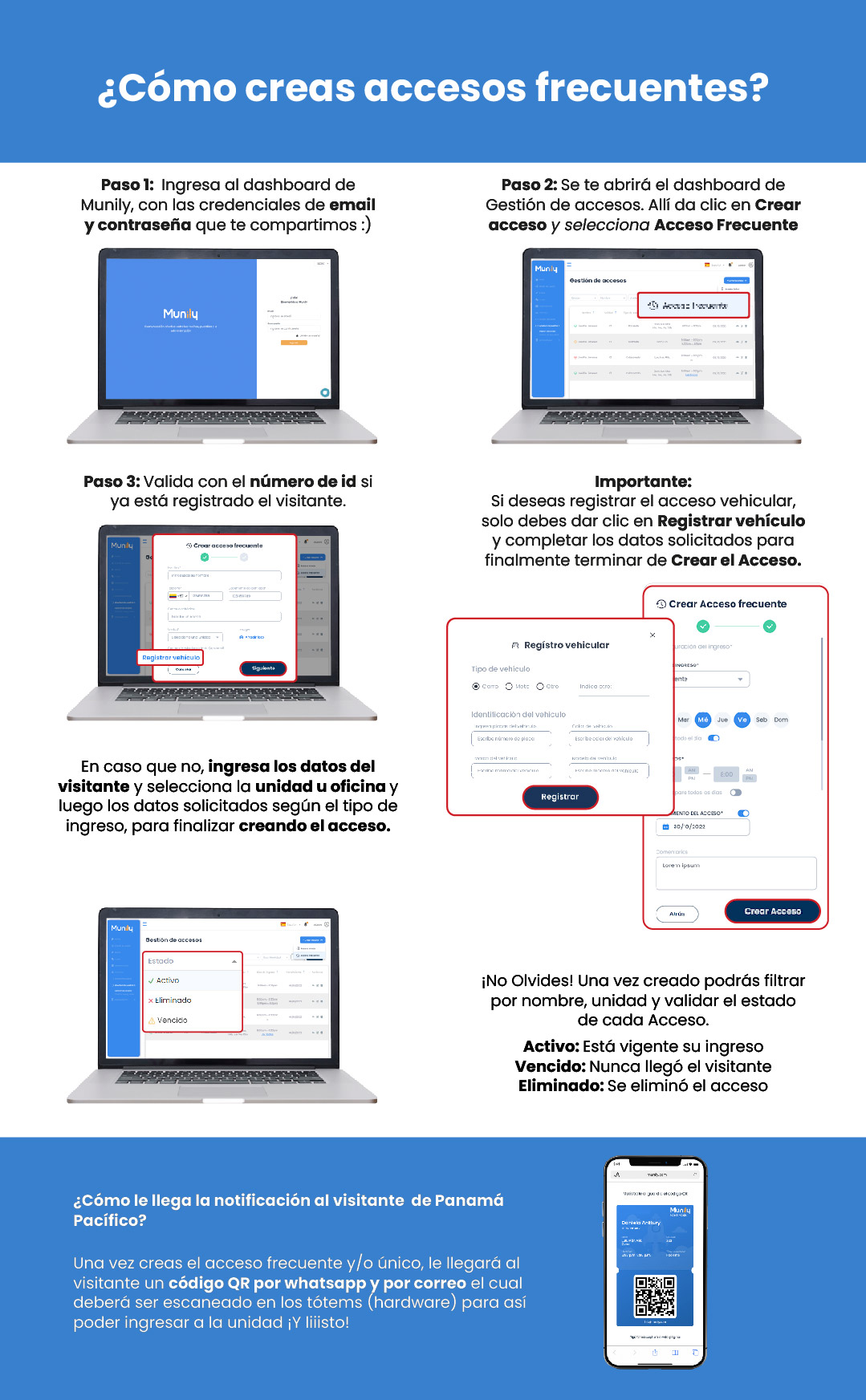
How do you create frequent access passes?
Step 1: Log in to the Munily dashboard
Use the email and password we provided to log in.
Step 2: Go to Gestión de accesos (Access Management)
Once logged in, the Gestión de accesos dashboard will open. Click Create Access and then select Acceso Frecuente (Frequent Access).
Step 3: Verify with the ID number
Check whether the visitor is already registered in the system using their ID number.
Important:
If you want to register a vehicle’s access, simply click Register Vehicle and fill in the requested information to complete the Create Access process.
If the visitor is not registered, enter their information and select the unit or office. Then, fill in the required information based on the type of entry to complete the access creation.
Vehicle Registration
- Vehicle Type: Select from Car, Motorcycle, Other, or Specify Other.
- Vehicle ID: Enter the vehicle’s license plate number.
- Vehicle Color: Enter the vehicle’s color.
Create a Acceso Frecuente
- Entry Details:
- Visitor: Select the visitor.
- Unit: Select the unit.
- Start Date: Select the start date.
- Days of the Week: Select the days of the week when access will be active (Tue, Wed, Thu, Fri, Sat, Sun).
- Hours: Set the access hours (e.g., 8:00 AM to 6:00 PM).
- Repeat for all days: Enable this option if the hours apply to all selected days.
- Access Validity: Set the validity period for access.
- Comments: Add any additional comments if necessary.
Once you’ve entered the information, click Register (for vehicle registration) and then Create Access.
Don’t Forget!
Once access has been created, you can filter by name or unit and check the status of each access.
- Active: The access is valid.
- Expired: The visitor never arrived.
- Deleted: The access has been deleted.
How does the visitor receive the notification at Panama Pacífico?
Once you create a frequent access pass and/or a one-time access pass, the visitor will receive a QR code via WhatsApp and email. This code must be scanned at the kiosks (hardware) to gain access to the unit. And that’s it!
Guide images
Still need help? Reach us on WhatsApp or at soporte@munily.com.
Con Amor 💙 Munily