

Qpass Dashboard: How does the visitor receive the notification? 👫🏻
Here’s how notifications work for your visitors:
How does the visitor receive the notification?
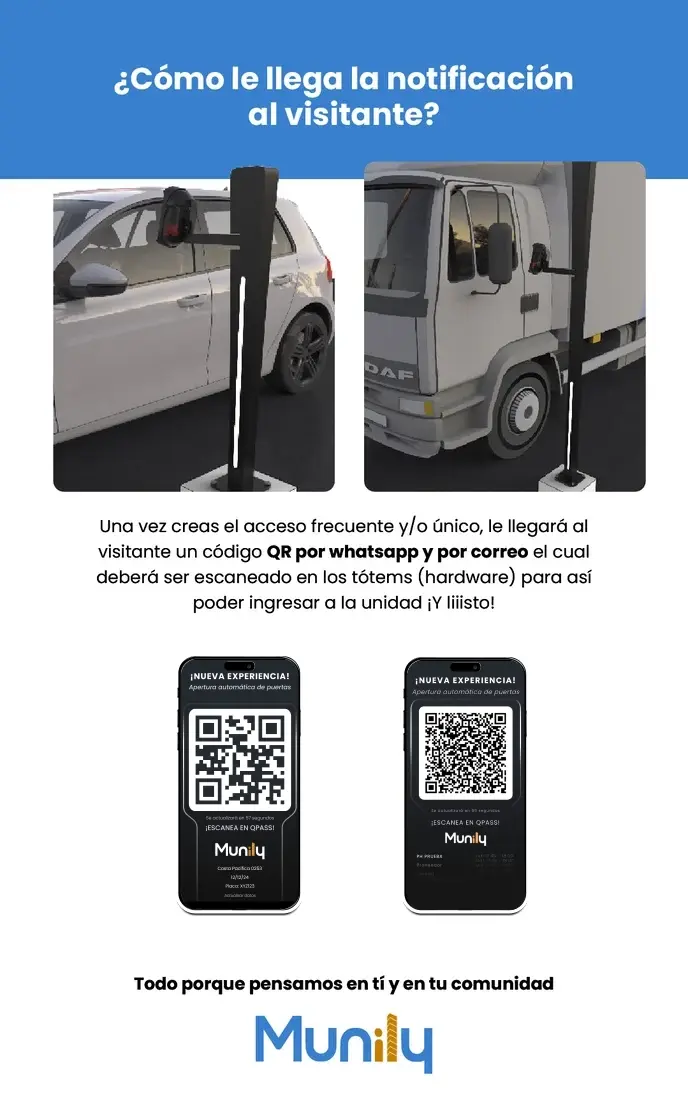
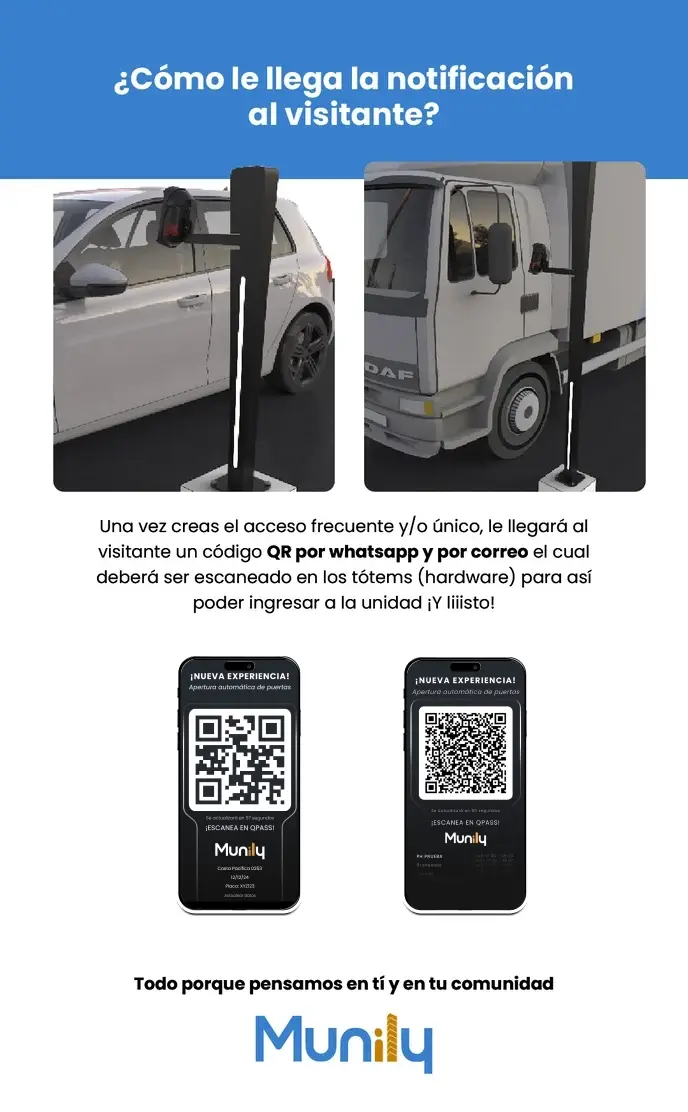
Once you create a frequent access pass and/or a one-time access pass for a visitor, a QR code will be automatically sent to them. This QR code will be sent via WhatsApp or email.
To enter the unit, the visitor must scan this QR code at the kiosks (hardware) located at the entrance.
Here’s what the notification will look like on the visitor’s phone:
Notification on the visitor’s phone:
- Header: You’ll see a message that says: NEW EXPERIENCE! and below that, Automatic Door Opening.
- QR code: A large QR code will be displayed in the center of the screen.
- Scanning instructions: Below the QR code, you’ll see the text: SCAN WITH QPASS!
- Munily logo: At the bottom, the Munily logo is displayed.
- Additional Information: Depending on the settings, you may see details such as:
- Name of the residential complex or building.
- Access expiration date.
- Vehicle license plate (if applicable).
- Visitor information.
Steps for the visitor:
- Receive the notification: The visitor will receive the QR code via WhatsApp or email.
- Approach the kiosk: The visitor should go to the access kiosk at the entrance.
- Scan the QR code: The visitor must hold their phone screen, with the QR code visible, up to the kiosk’s scanner.
- Access granted: Once successfully scanned, the door will open automatically.
All because we care about you and your community.
Munily
Guide images
Still need help? Reach us on WhatsApp or at soporte@munily.com.
Con Amor 💙 Munily