

Schedule a package pickup! 📦
Here’s how to approve a package received at your building or residential community using the Munily app. Follow these simple steps:
Packages: How to Approve a Package?
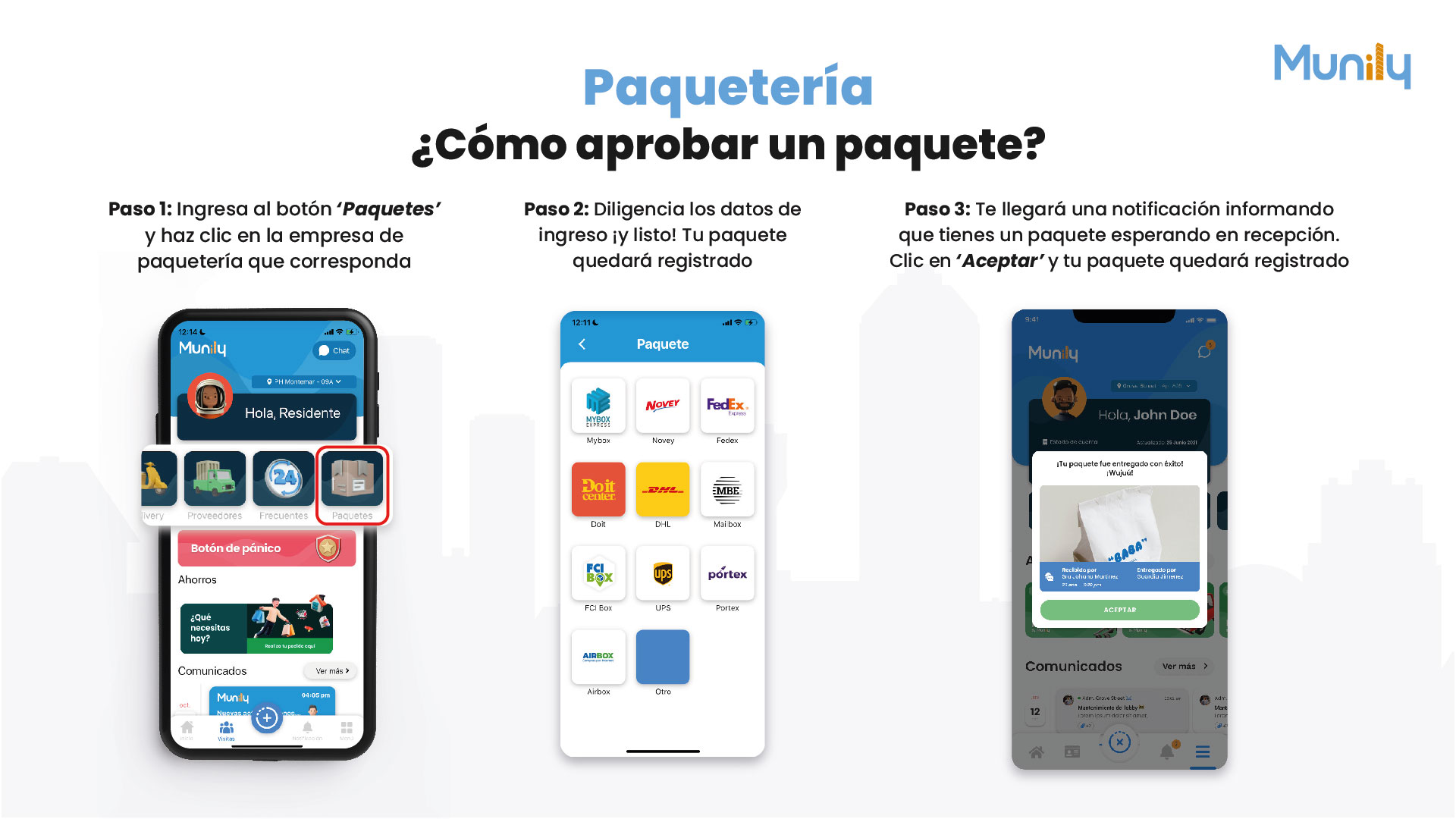
Step 1: Tap the “Paquetes (Packages)” button and select the appropriate package delivery company.
- On the main screen of the Munily app, find and select the Paquetes icon. This icon is located in the bottom menu bar and is usually represented by a box or a group of boxes. In the image, this button is highlighted with a red border for easy identification.
Step 2: Fill in the required information, and you’re done! Your package will be registered.
- Once you’ve clicked the “Paquetes” button, a new screen will appear with a list of companies that handle packages.
- Select the logo of the company that delivered your package. You’ll see options such as Mybox, Novey, FedEx, Doit, DHL, Mailbox, FCI Box, UPS, Portex, and Airbox.
- If your package was delivered by a company not listed here, you can select the Other option.
- After selecting the company, you’ll need to fill in the requested information to register the package’s arrival.
Step 3: You’ll receive a notification informing you that you have a package waiting at the front desk. Click 'Accept,' and your package will be registered.
- Once the package details have been entered correctly, you’ll receive a notice within the “Munily” app.
- This notice will let you know that your package is ready to be picked up at the front desk.
- Within the notice, you’ll find a green button that says ACCEPT. Click this button to confirm receipt of your package.
- Once you accept, your package will be successfully registered.
By following these steps, you can quickly and efficiently manage the receipt of your packages through the Munily app.
Guide images
Still need help? Reach us on WhatsApp or at soporte@munily.com.
Con Amor 💙 Munily