

We've updated FastPass! 📱🚀
We’ve updated FastPass to improve your safety and that of your community!
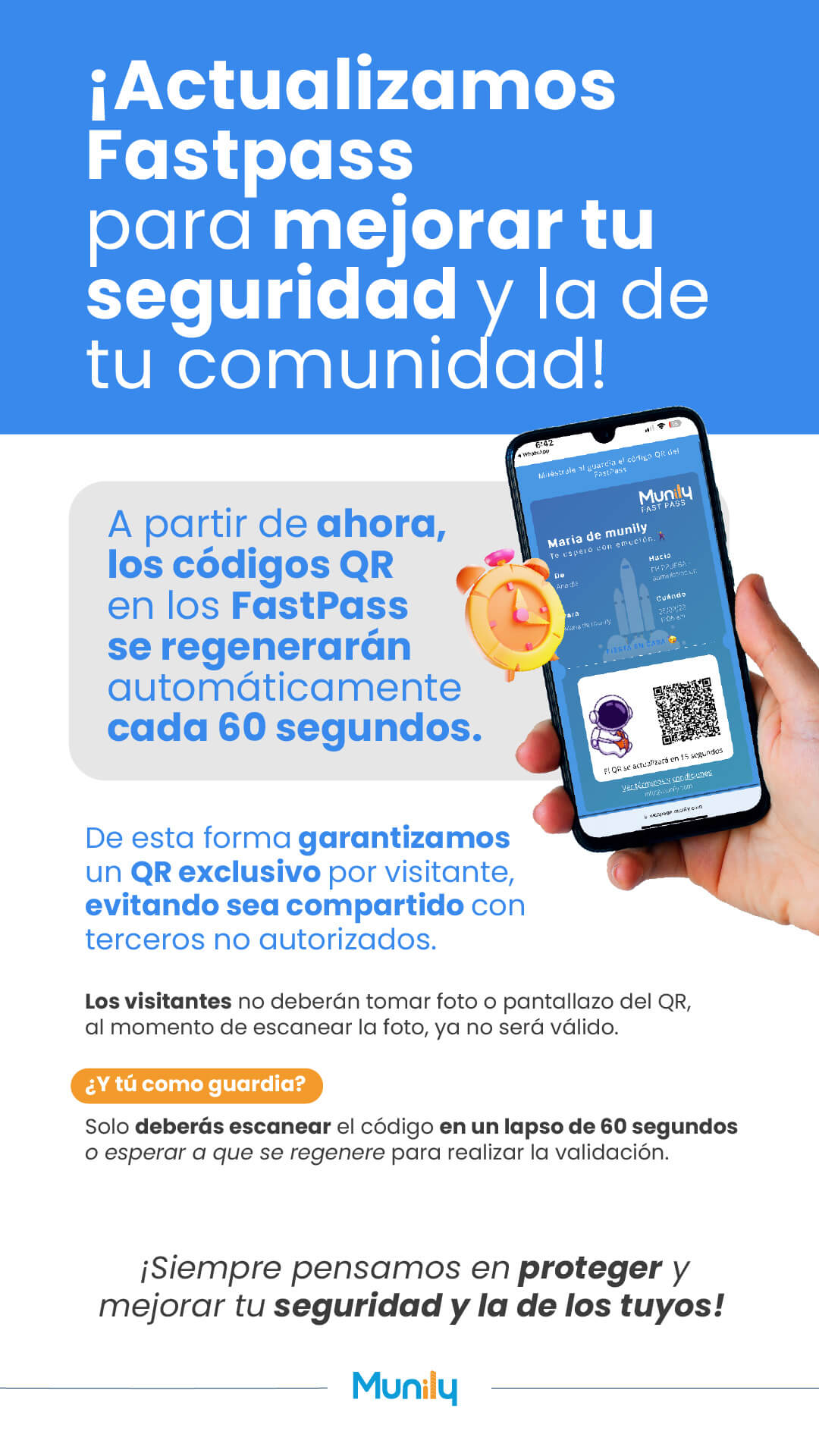
From now on, QR codes on FastPass will automatically regenerate every 60 seconds.
This ensures that each visitor has a unique QR code, preventing it from being shared with unauthorized third parties.
Visitors should not take a photo or screenshot of the QR code; once the photo is scanned, it will no longer be valid.
What about you, as a security guard?
You simply need to scan the code within 60 seconds or wait for it to regenerate to complete the validation.
We’re always working to protect and improve your safety and that of your loved ones!
Phone Screen Details:
The phone screen displays the interface of the Munily app.
- Header: The time “6:42” and the Wi-Fi icon are shown.
- Message: “Show the security guard the QR code from FastPass”
- Logo: The Munily logo and the text “FAST PASS.”
- Visitor information:
- “Maria from Munily”
- "I’m really looking forward to seeing you."
- Access details:
- "To"
- "Maria"
- "From"
- "Ana de"
- "Maria de munily"
- "When"
- "03/28/22"
- "11:05 a.m."
- Image of an astronaut: An illustration of an astronaut.
- QR code: A visible QR code.
- Message below the QR code: “The QR code will update in 15 seconds”
- Button: “View terms and conditions”
- Bottom text: “www.munily.com”
Guide images
Still need help? Reach us on WhatsApp or at soporte@munily.com.
Con Amor 💙 Munily