

Why isn't my app making any sound? 💙 #iPhone
My app isn't making any sound?
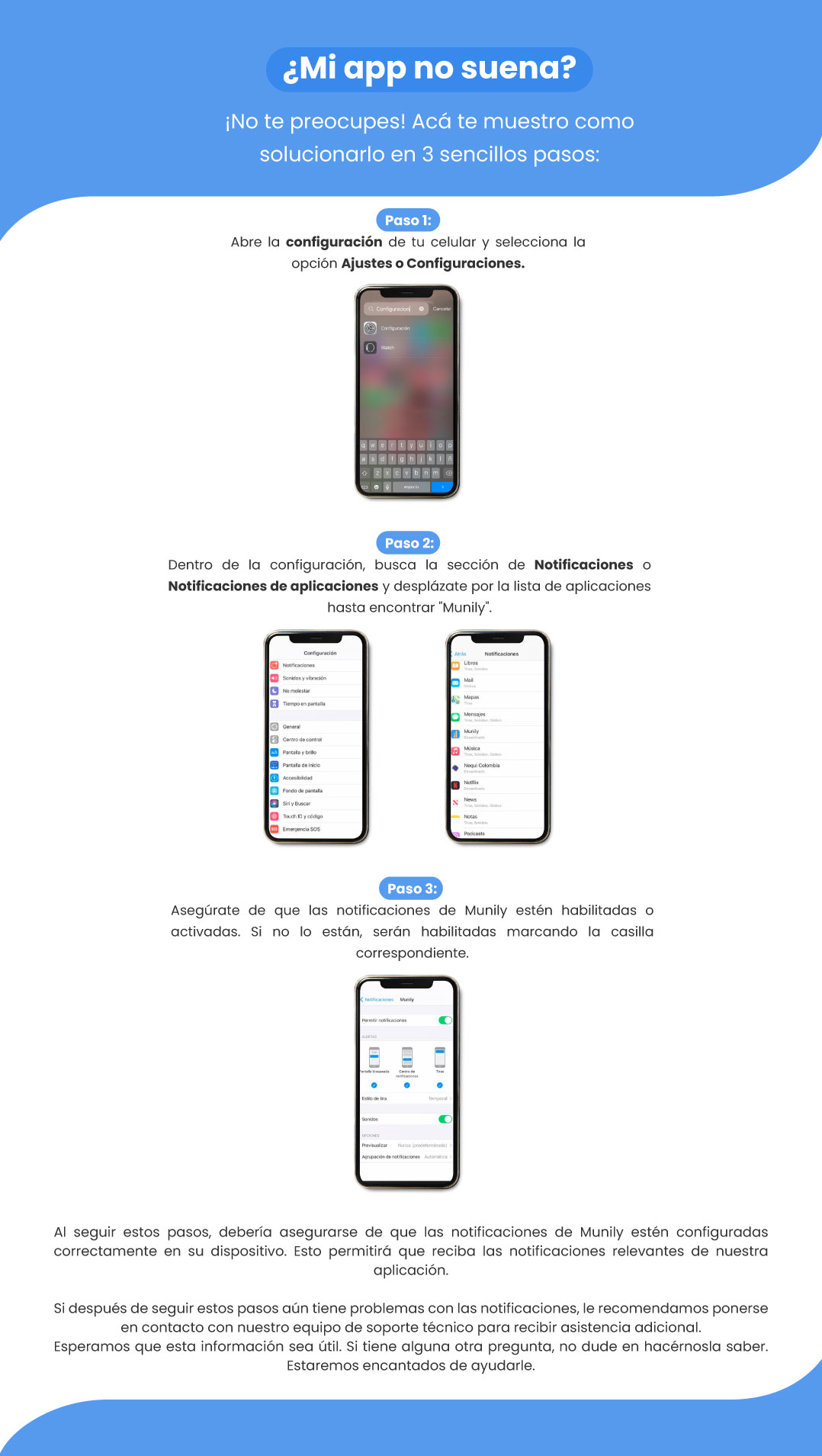
Don't worry! Here's how to fix it in 3 easy steps:
Step 1:
Open your phone's settings and select the Settings or Configuraciones (Settings) option.
(An image is shown of a phone with the "Settings" search screen open and the keyboard visible.)
Step 2:
In Settings, look for the Notifications or App Notifications section and scroll through the list of apps until you find “Munily.”
(Two images of a phone’s settings screen are shown. The first shows the main Settings menu with the “Notifications” option highlighted. The second shows the list of apps within the Notifications section, with “Munily” highlighted.)
Step 3:
Make sure notifications for Munily are enabled. If they aren’t, you can enable them by checking the corresponding box.
(An image of the notification settings screen for the Munily app is shown. A toggle for “Allow Notifications” is shown as enabled (green). Below that, options such as “Notification Style,” “Sounds,” and “Actions” are displayed, with checkboxes and selections.)
By following these steps, you should ensure that notifications for Munily are properly configured on your device. This will allow you to receive relevant notifications from our app.
If you’re still having issues with notifications after following these steps, we recommend contacting our technical support team for further assistance. We hope this information is helpful. If you have any other questions, please don’t hesitate to let us know. We’d be happy to help.
Guide images
Still need help? Reach us on WhatsApp or at soporte@munily.com.
Con Amor 💙 Munily