

Attach an image or document via chat 📎
Here's how to attach an image or document via chat on Munily:
1. Access the chat option:
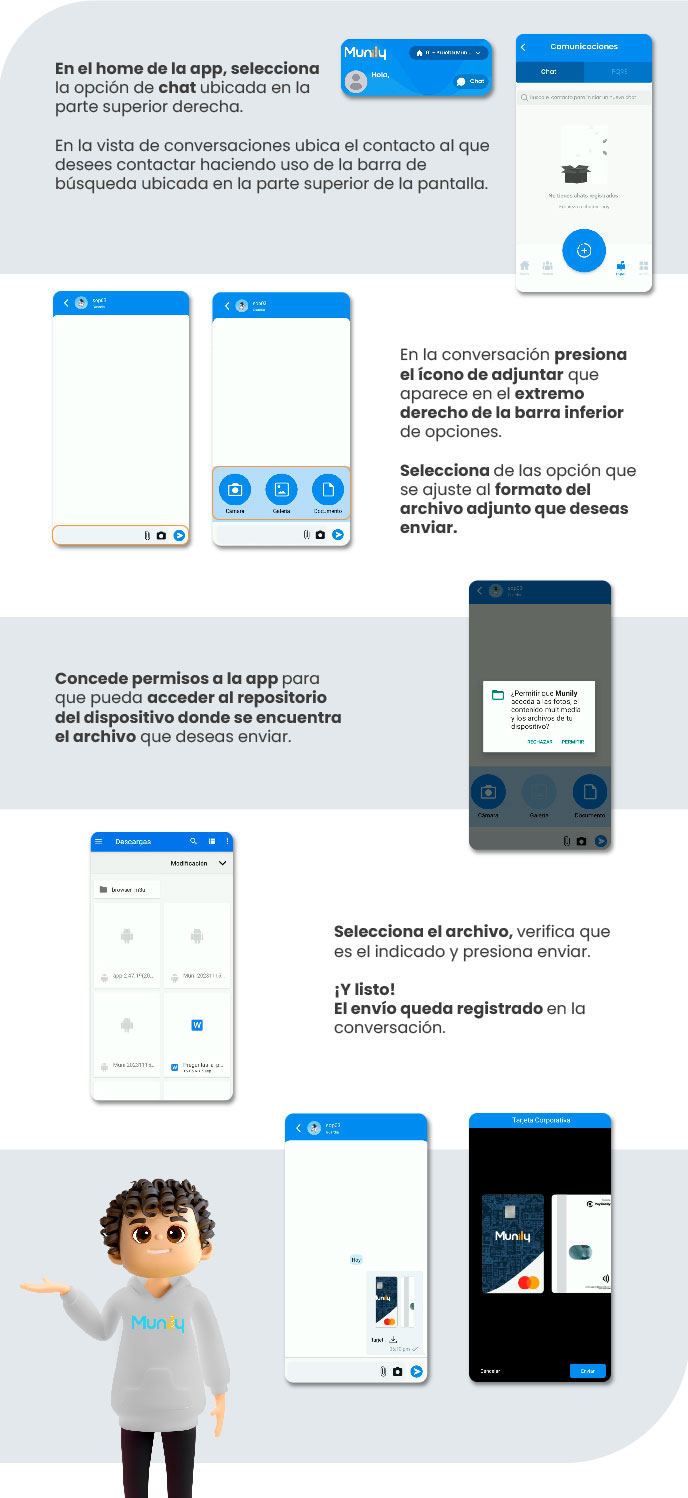
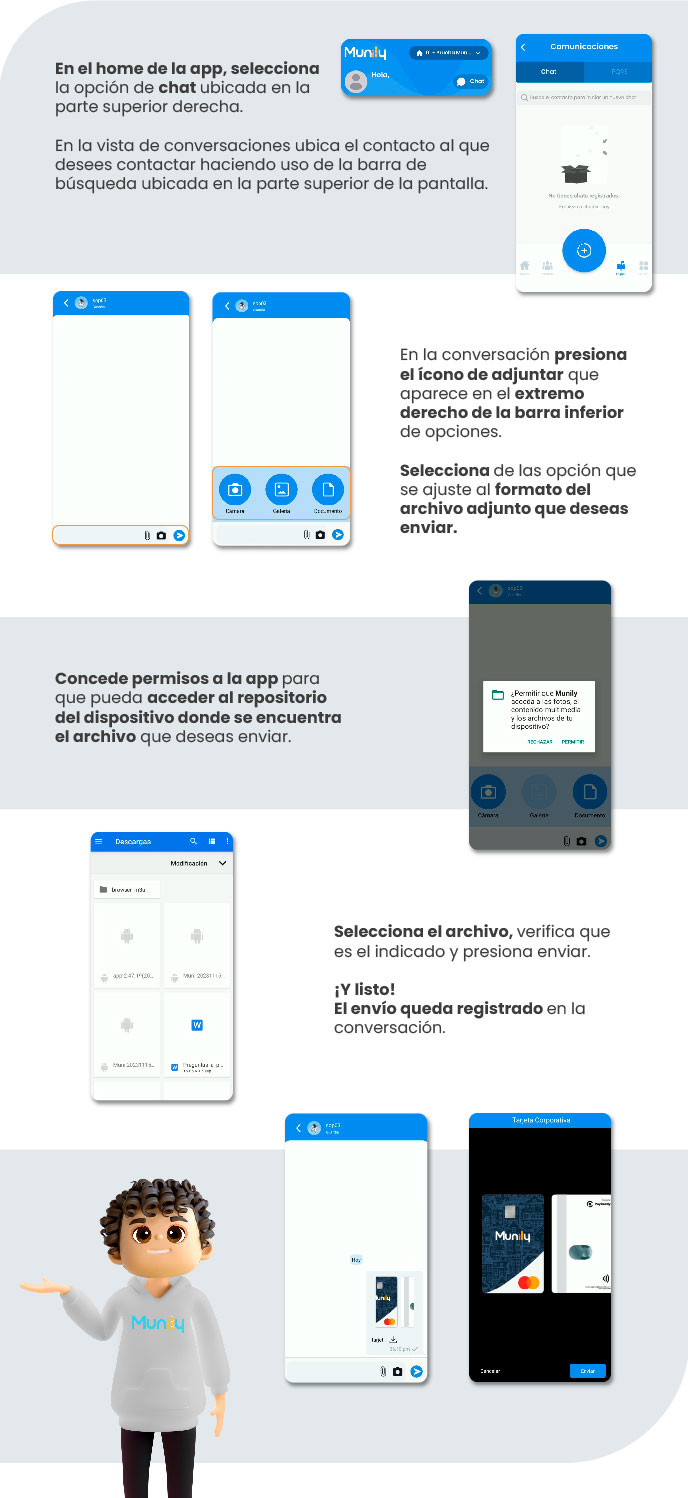
- On the app's main screen, select the "Chat (Chat)" option located in the upper-right corner.
- If you’re already in the conversations view, find the contact you want to send the file to. You can use the search bar at the top of the screen to find them faster.
2. Start the process of attaching a file:
- Once inside the conversation, tap the attach icon located at the far right of the bottom options bar.
- A menu with various options will appear. Select the one that matches the format of the file you want to send (for example, “Camera,” “Gallery,” or “Documents”).
3. Grant permissions to the app:
- The app may ask for permission to access your device’s file storage. Grant these permissions to continue. You’ll see a message like: “Allow Munily to access your photos, media, and files on your device?” Select “Allow”.
4. Select and send the file:
- Browse your device until you find the file you want to send.
- Select the file. Make sure it’s the correct one, then tap the “Send” button.
That’s it! The file you selected will be added to the conversation.
Guide images
Still need help? Reach us on WhatsApp or at soporte@munily.com.
Con Amor 💙 Munily