

Check your community's announcements! 📬
Here’s how to view announcements in the Munily app:
How do I view an announcement?
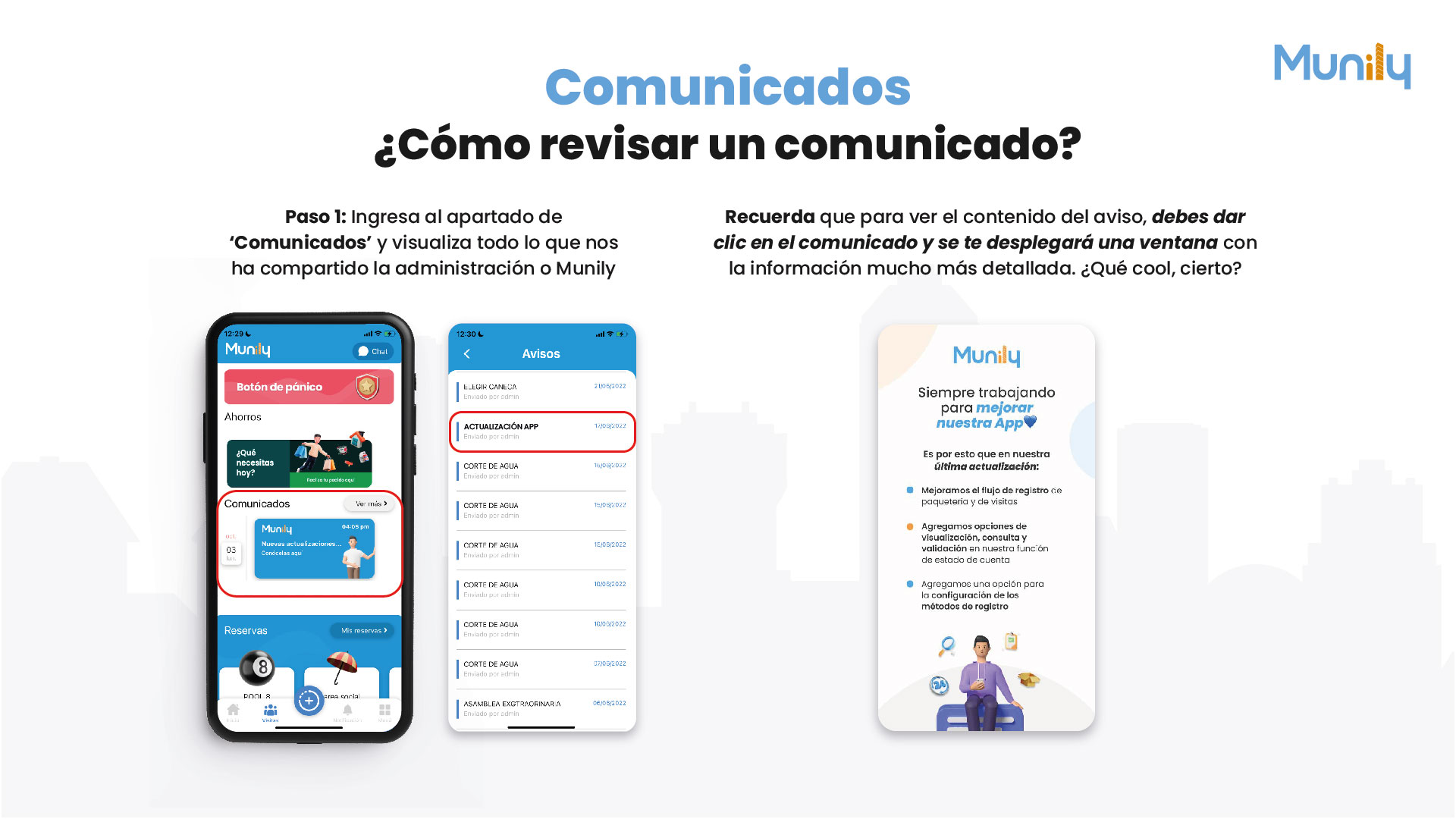
Step 1: Go to the “Comunicados (Announcements)” section and view everything the property management or Munily has shared with us.
On the app’s main screen, look for the “Comunicados” section. You’ll see a summary of the most recent announcements.
On the app’s home screen:
- Locate the section titled “Comunicados”.
- You’ll see a summary of the announcements, including the date and a brief title.
- To view all announcements, click “See More” located to the right of the “Comunicados” title.
When you click “See More”:
- You’ll be taken to a new screen titled “Avisos (Notices)”.
- On this screen, you’ll see a list of all the announcements that have been sent. Each announcement shows the title, who sent it (usually “Sent by admin”), and the date it was sent.
- Examples of announcements you might see include: “COURT ELECTIONS,” “APP UPDATE,” “WATER OUTAGE,” “SPECIAL HOA MEETING,” and others.
Remember that to view the content of the notice, you must click on it, and a window with much more detailed information will pop up. Pretty cool, right?
- Once you’re on the “Avisos” list, simply click on the specific announcement you want to read.
- When you click, a new window or section will open where you can view the full content of the announcement.
It’s that easy to stay up to date on all the latest news and important notices from your community!
Guide images
Still need help? Reach us on WhatsApp or at soporte@munily.com.
Con Amor 💙 Munily