

Do you need to download your call history?
What you need has arrived!
Track calls made by security guards in the community in detail and easily access call recordings.
Follow these steps to track calls:
- Log in to the dashboard.
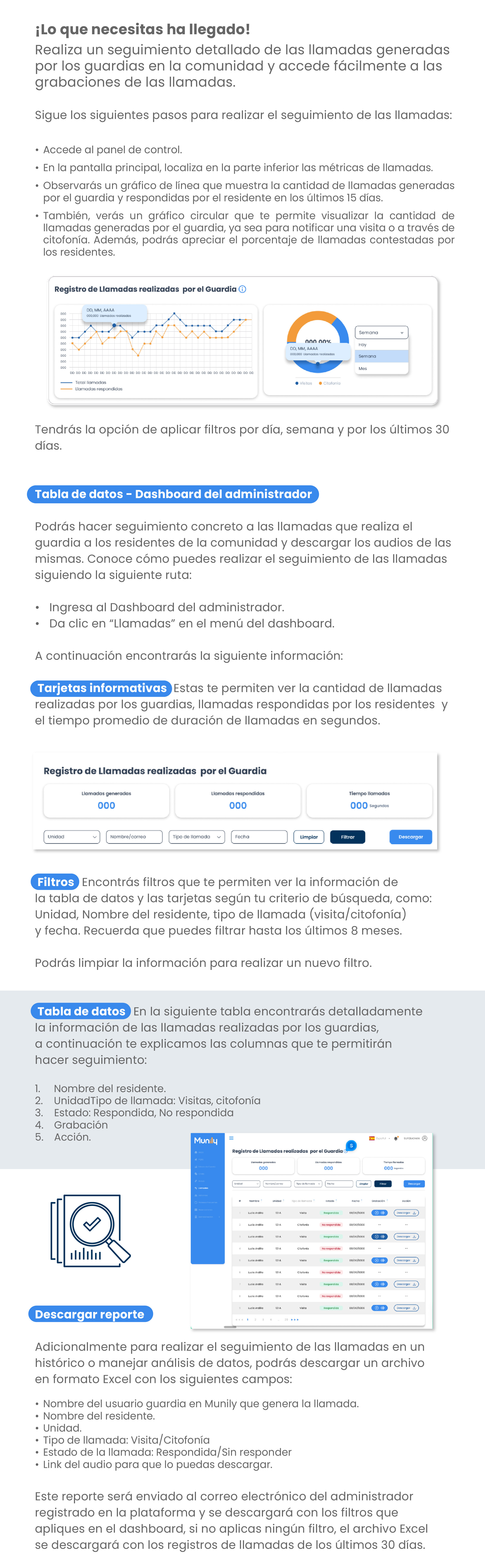
- On the main screen, locate the call metrics at the bottom.
- You’ll see a line graph showing the number of calls initiated by the security guard and answered by the resident over the last 30 days.
- You’ll also see a pie chart that shows the number of calls initiated by the security guard, whether to notify of a visitor or via the virtual intercom. Additionally, you’ll see the percentage of calls answered by residents.
You’ll have the option to filter by day, week, and the last 30 days.
Data Tabla (Table)—Administrator Dashboard
You can track specific residents in the community and download the audio recordings of their calls. Learn how to track calls by following these steps:
- Go to the Administrator Dashboard.
- Click "Calls" in the dashboard menu.
You’ll then see the following information:
Information Cards These allow you to view the number of calls made by security guards, calls answered by residents, and the average call duration in seconds.
Filters You’ll find filters that let you view the information in the data table and the information cards based on your search criteria, such as: Unit, Resident Name, Call Type (visit/virtual intercom), and date. Remember that you can filter data for up to the last 8 months.
You can clear the information to apply a new filter.
Data Tabla In the table below, you’ll find detailed information about calls made by security guards. Below, we explain the columns that will allow you to track this data:
- Resident Name.
- Unit/Call Type:Visitas (Visits), virtual intercom
- Status: Answered, Unanswered
- Recording
- Action.
Download Report
Additionally, to track calls in a historical log or perform data analysis, you can download an Excel file containing the following fields:
- Name of the security guard user on Munily who initiated the call.
- Resident’s name.
- Unit.
- Call type: Visit/Citofonía (Virtual Intercom)
- Call status: Answered/Unanswered
- Audio link so you can download it.
This report will be sent to the administrator’s email address registered on the platform and will be downloaded with the filters you apply on the dashboard. If you do not apply any filters, the Excel file will be downloaded with call records from the last 30 days.
Guide images
Still need help? Reach us on WhatsApp or at soporte@munily.com.
Con Amor 💙 Munily