

How can you view pre-registrations and visitor logs for your community? 🏠👥
Hello! If you need to view pre-registrations and visitor logs for your residential community, we make it very easy for you at Munily. Follow these steps:
Step 1: Go to “Visitantes (Visitors)” and select the type of log you want to view
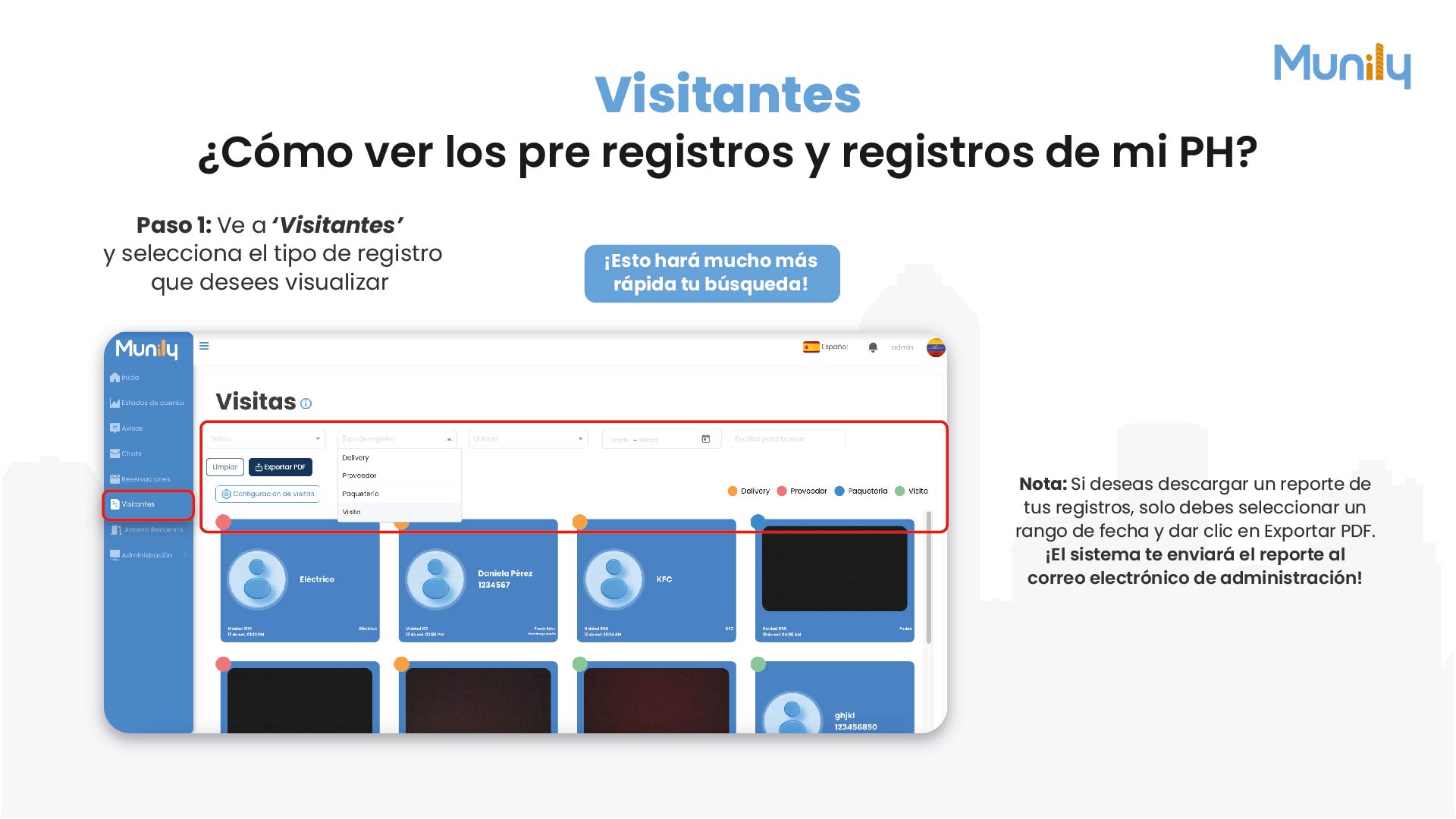
In the left-hand side menu, find and click the "Visitantes" option. You’ll see that this option is highlighted with a red box in the image.
When you click “Visitantes,” a section with filtering and viewing options will appear.
At the top of the visits section, you’ll find several fields to filter your search. The “Record Type” field lets you select which type of visitors you want to see.
Click the drop-down menu for “Record Type”.
The following options will be displayed:
- Delivery (Delivery)
- Proveedor (Service Provider)
- Packages
- Visit
Select the option that corresponds to the record type you want to view.
This will make your search much faster!
Other filtering and action options:
- Clear: If you want to clear all applied filters and return to the overview, click the "Clear" button.
- Export PDF: If you want to download a report of your records, simply select a date range and click "Export PDF". The system will send the report to your property management email address!
- Visit Settings: To manage or adjust settings related to visits, click "Visit Settings".
- Search by Date: You can also filter by a specific date range using the "From - To" fields.
- Type to Search: If you know the visitor’s name or any other information, you can enter it in the "Type to Search" field to find them quickly.
- Unit: If you want to view visitors associated with a specific unit, you can select it from the "Unit" drop-down menu.
Once you’ve applied the desired filters, the list of visitors will update to show only the records that match your search. You’ll be able to see details such as the visitor’s name, ID number (if applicable), the unit they’re visiting, and the time of entry.
Hello! At Munily, we help you maintain full control over visits to your community. Below, we’ll explain how you can view the details of each visit.
Visitantes: How do I view visit details?
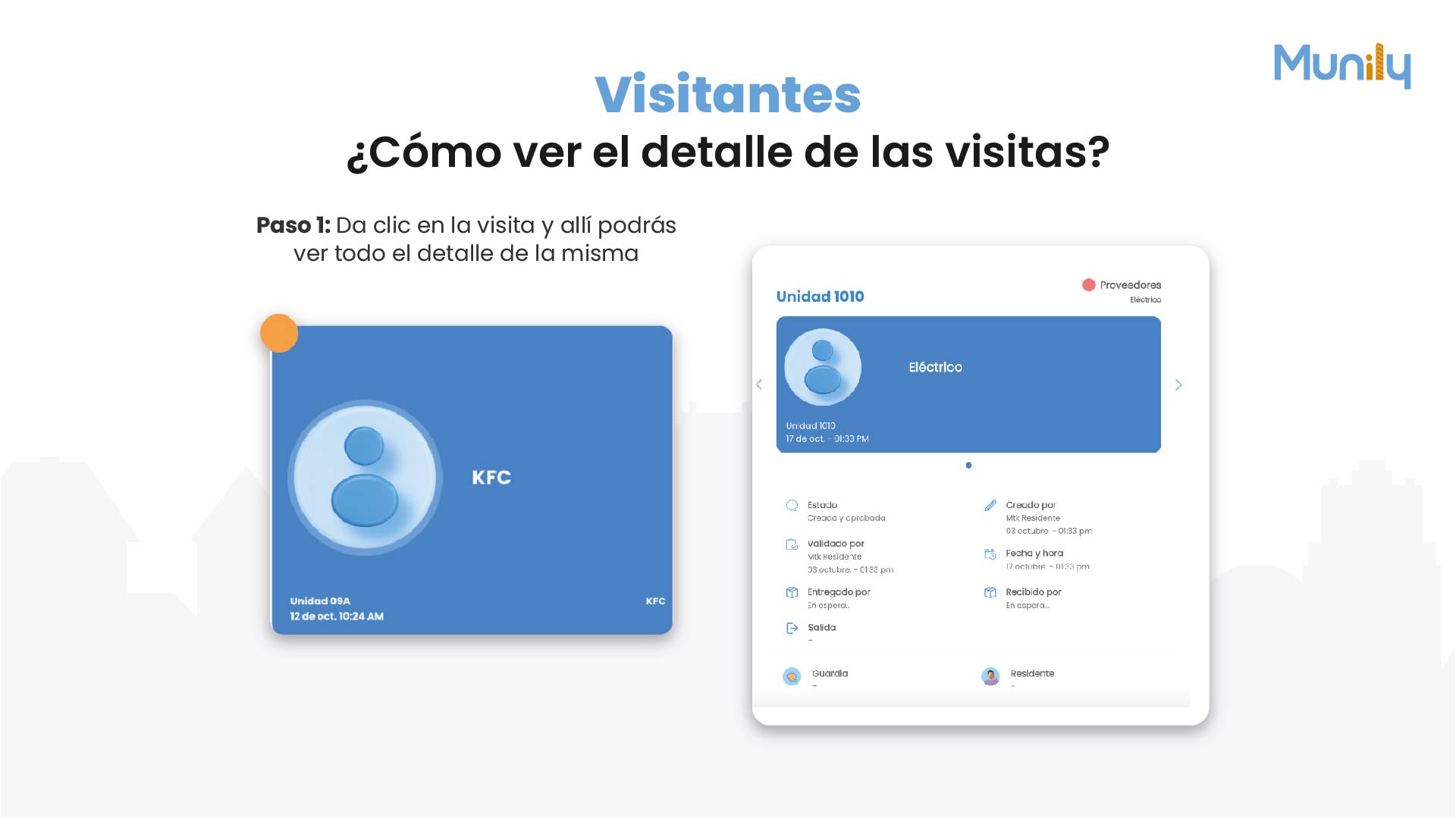
Step 1: Click on the visit to view all its details.
When you go to the “Visitors” section, you’ll see a list of recorded visits. Each visit is presented in summary form, showing key information such as the unit they’re visiting and the date and time it was recorded.
Take a look at the following example:
On the main screen, a visitor card is displayed with the following information:
- KFC
- Unit 09A
- Oct. 12, 10:24 AM
Clicking on this card will display a detailed view of the visit.
Visit Details:
Once you’ve selected a visit, a screen will open with all the relevant information. In the example, we see the details of a visit to Unit 1010, classified as Electrical and belonging to Service Providers.
Here you’ll find the following information organized as follows:
- Unit: Unit 1010
- Date and Time of Entry: Oct. 17 – 1:33 PM
You’ll also be able to view the history and status of the visit:
- Status: Created and approved
- Validated by: Resident Mtk
- Date and time: Oct. 3 – 1:55 PM
- Delivered by: Pending...
- Departure: (No information visible at this time)
- Security Guard: (No information visible at this time)
- Resident: (No information visible at this time)
With this detailed view, you’ll have a complete record of who has visited your unit, when they did so, who approved their visit, and other important information for the security and property management of your building or residential community.
If you need to navigate between different visitors or service providers, you can use the navigation arrows located on either side of the main visitor view.
Guide images
Still need help? Reach us on WhatsApp or at soporte@munily.com.
Con Amor 💙 Munily