

How do I edit overdue "PQRS"? 💙
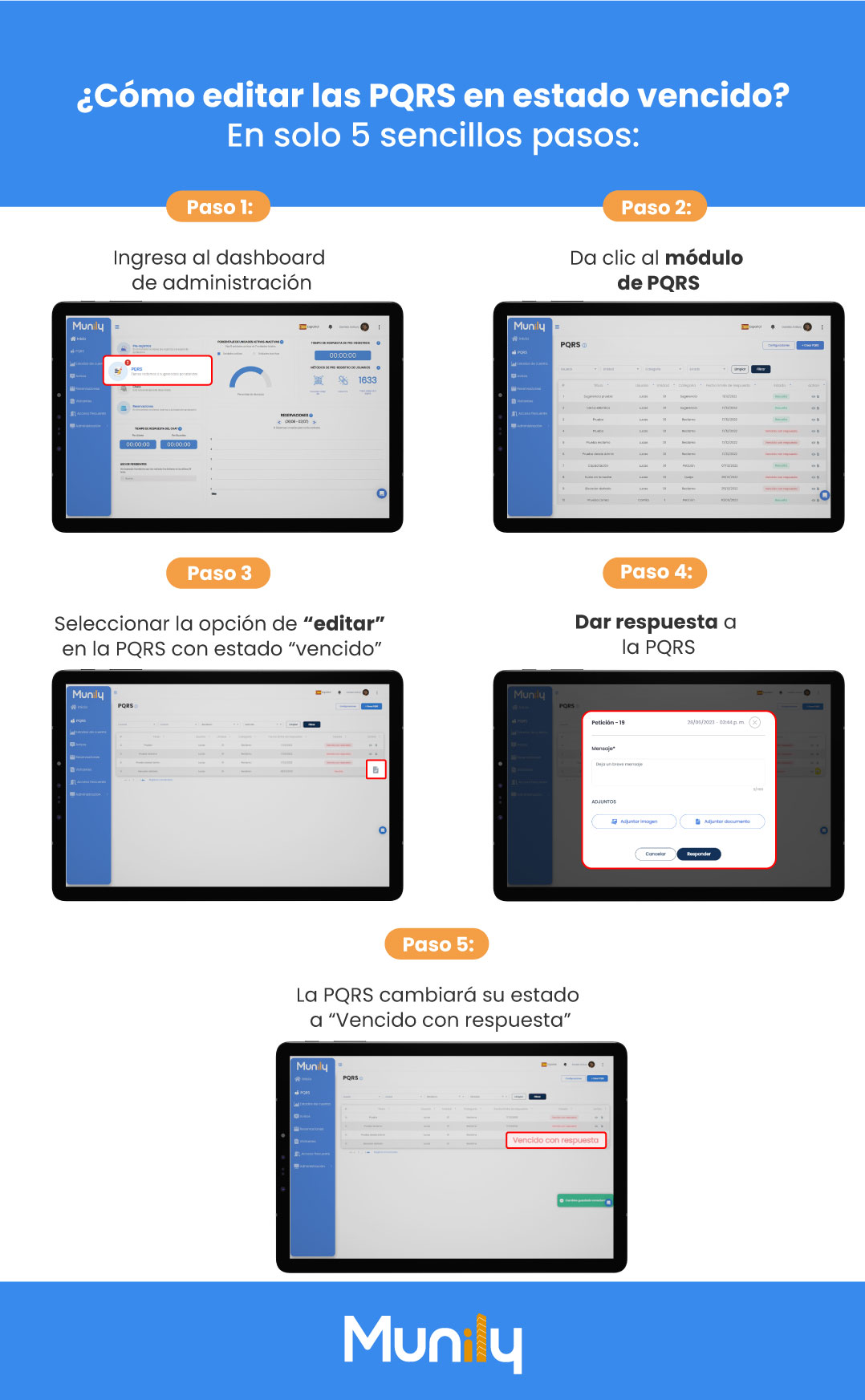
How do I edit overdue "PQRS (Requests & Complaints)"? In just 5 simple steps:
Step 1: Log in to the administrator dashboard.
You’ll see the main screen of your Munily administrator account.
Step 2: Click on the “PQRS” module.
In the left-hand sidebar, select the “PQRS” option. This will take you to the list of all Requests, Complaints, Claims, and Suggestions.
Step 3: Select the “edit” option for the “PQRS” with the status “expired.”
In the “PQRS” table, locate the entry with the status “Expired.” To the right of each “PQRS,” you’ll find a pencil icon to edit. Click on it.
Step 4: Respond to the PQRS.
A pop-up window will open so you can respond to the PQRS.
- In the “Message” field, type your response.
- You can attach images or documents if necessary by clicking the "Attach Image" or "Attach Document" buttons.
- Once you’ve completed your response, click the "Reply" button.
Step 5: The PQRS will change its status to "Overdue with Response."
After you respond, the PQRS that was in "Overdue" status will now appear in the list with the status "Overdue with Response."
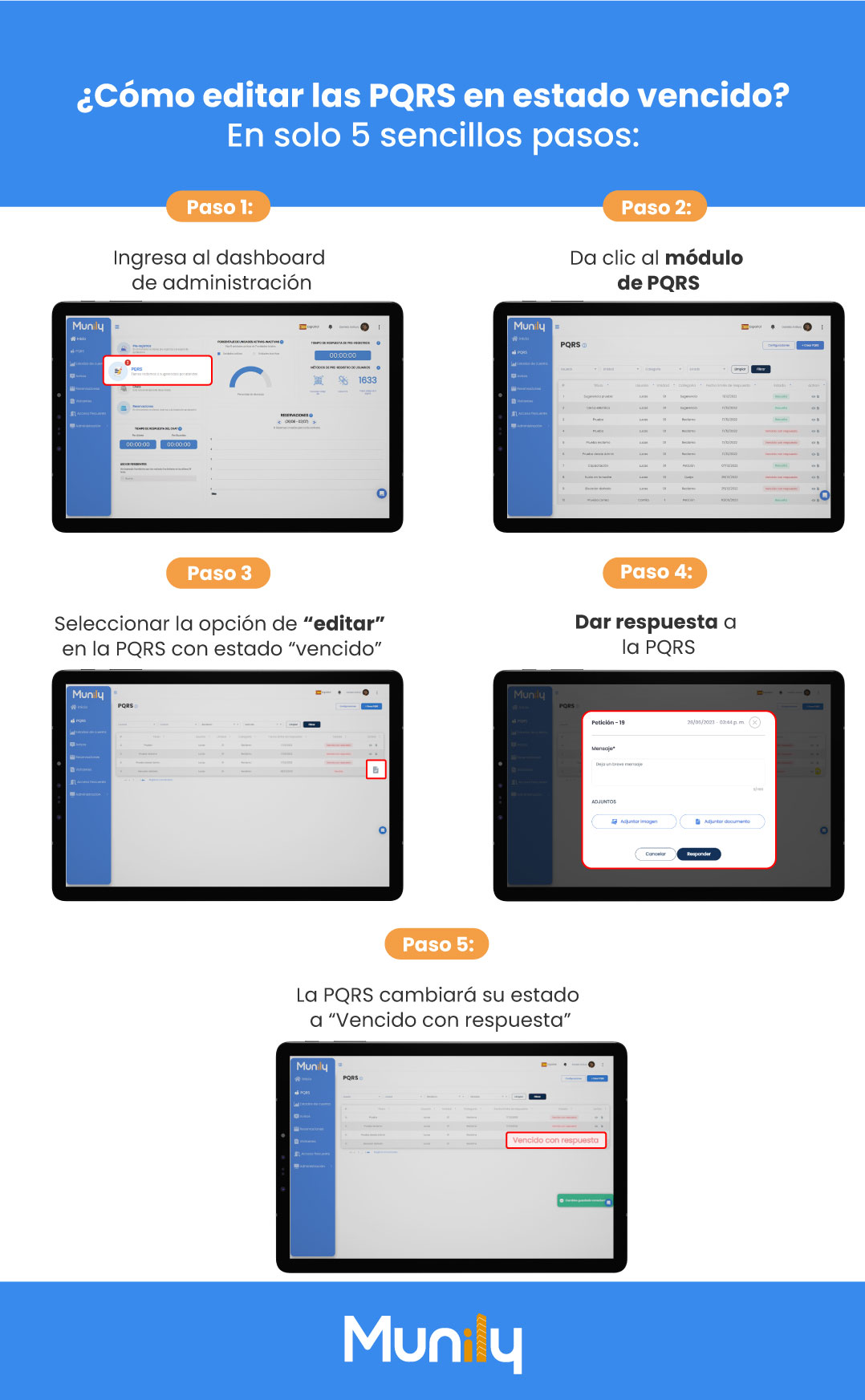
Guide images
Still need help? Reach us on WhatsApp or at soporte@munily.com.
Con Amor 💙 Munily