

How do I interpret the metrics for the "Inicio" feature? 👩🏻💻👨🏻💻
Welcome to the Munily Help Center! In this article, we’ll guide you through the “Inicio (Home)” section of your admin panel so you can understand and effectively use the available metrics.
1. Navigating to the “Inicio” Section
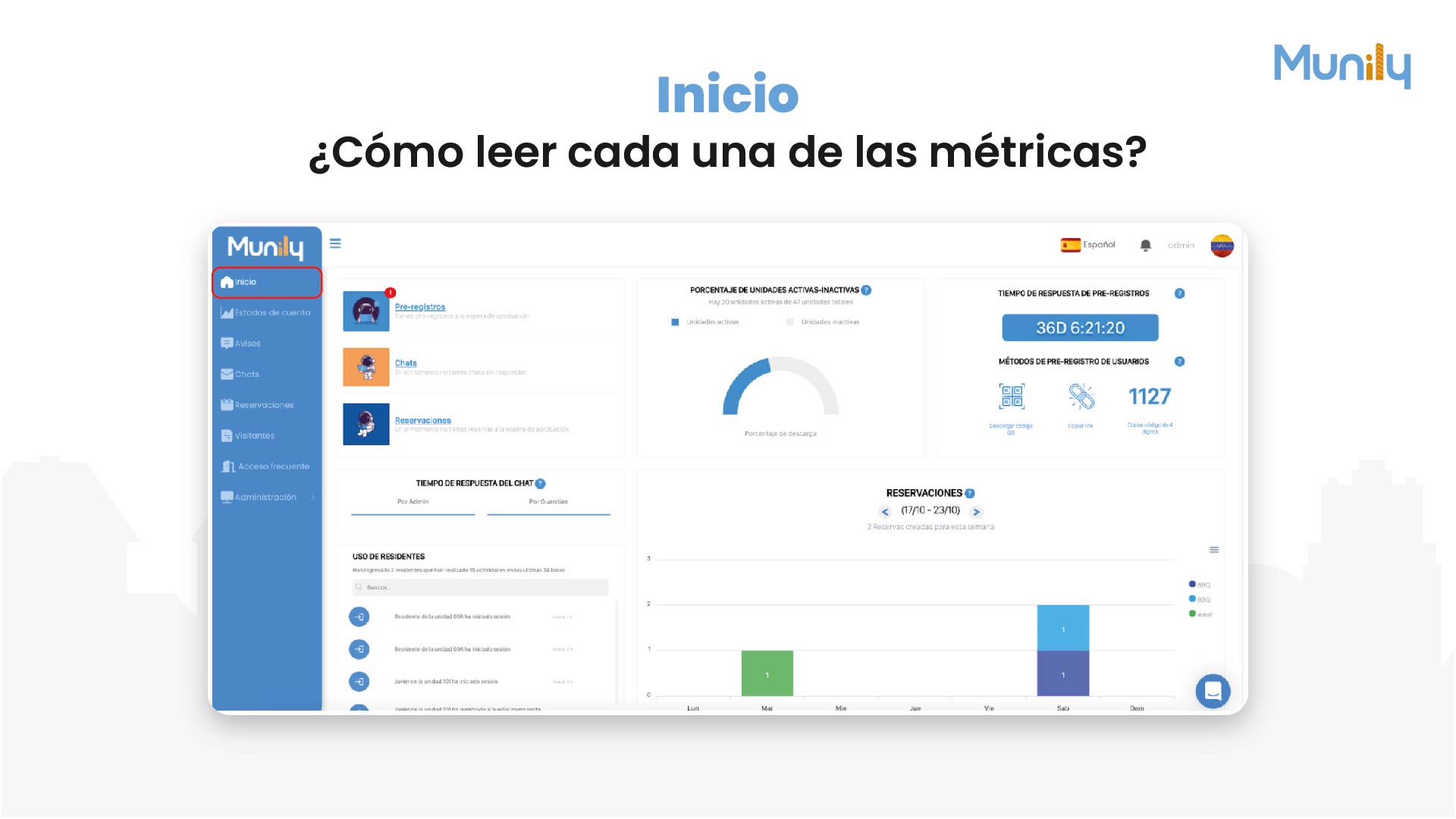
When you log in to Munily, you’ll see a side menu on the left side of your screen.
- Step 1: Click the “Inicio” icon at the top of the side menu. This icon is shaped like a house and is highlighted in red in the image for easy identification.
Once you’ve selected “Inicio,” the main screen will refresh to show you a summary of the key metrics for your building or residential community.
2. Understanding the Key Metrics
The “Inicio” section is organized into different cards or modules, each focused on a specific metric. Below, we explain each one:
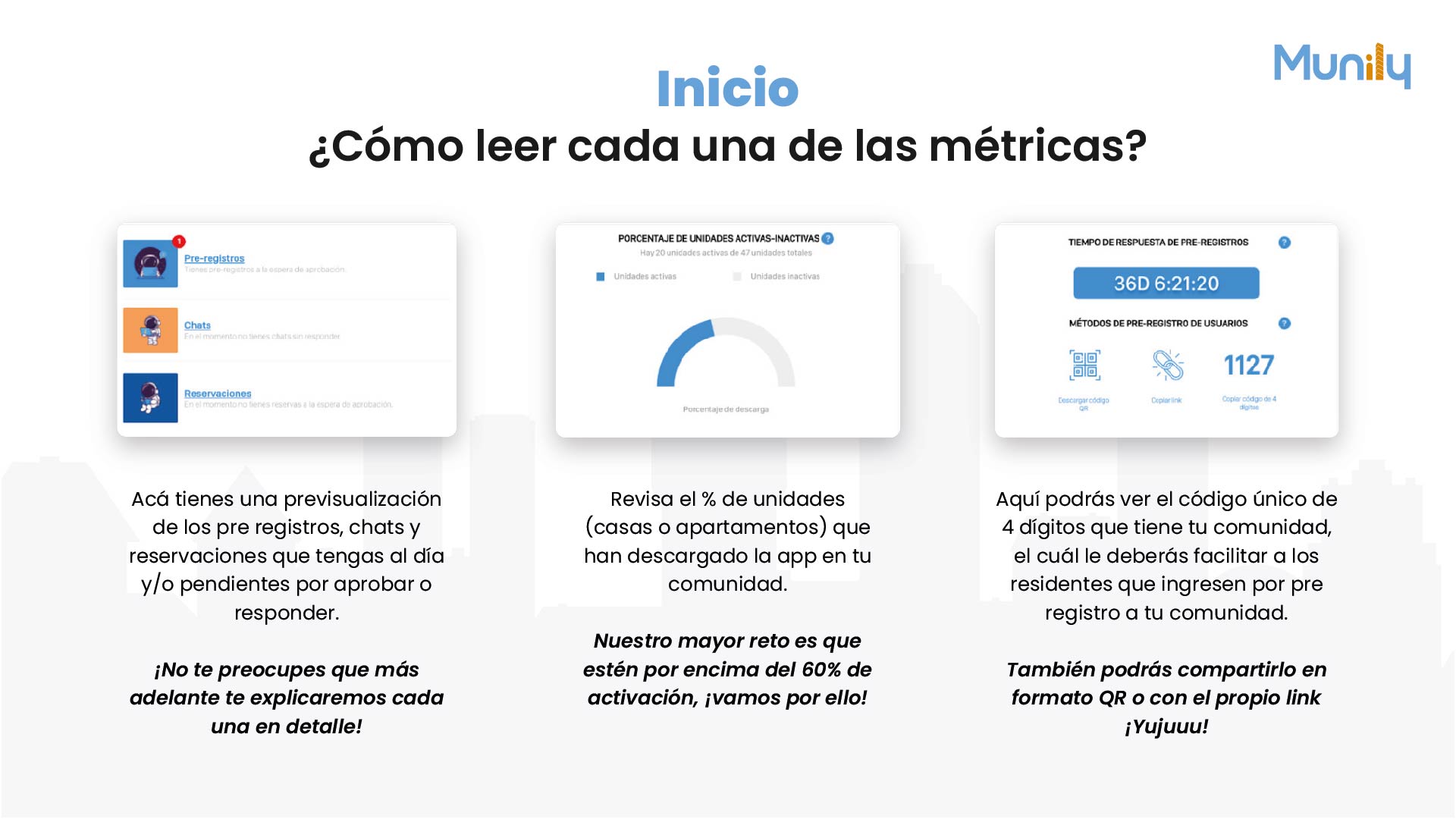
Pre-registros (Pre-registrations):
- This card shows you the number of pre-registrations pending approval.
- You’ll see an icon of people wearing helmets and the text “Pre-registros.”
- Below that, the number of units awaiting your approval is displayed.
Chats (Chats):
- Here you can see how many chats are active and unanswered.
- You’ll see an icon of chat bubbles and the text “Chats.”
- This information shows the number of chats requiring your immediate attention.
Reservaciones (Reservations):
- This section provides information about reservations awaiting approval.
- You’ll see a calendar icon and the text “Reservaciones.”
- The number of reservations pending your confirmation will be displayed.
Percentage of Active vs. In Unidades (Units):
- This pie chart gives you an overview of the status of the units at your property.
- The title is “PERCENTAGE OF ACTIVE VS. INACTIVE UNITS.”
- Below, it specifies how many units are active and what the total number of units is.
- The chart shows two segments: “Active Unidades” (shown in blue) and “Inactive Unidades” (shown in gray).
- The "Download Percentage" legend indicates the proportion of active units.
Pre-registros Response Time:
- This metric tells you the average time it takes to respond to pre-registrations.
- The title is “PRE-REGISTRATION RESPONSE TIME.”
- You’ll see a value highlighted in a blue button, such as “36D 6:21:20,” which represents days, hours, minutes, and seconds.
Usuarios (Users) Pre-Registration Methods:
- This card shows you the different ways users can pre-register and how many times each method has been used.
- The title is "USER PRE-REGISTRATION METHODS."
- You’ll find three options:
- Download QR code: With a QR code icon.
- Get Link: With a link icon.
- Copy 4-digit code: With a numbers icon.
- Below each method, the number of times it has been used is shown; for example, “1127” for the 4-digit code.
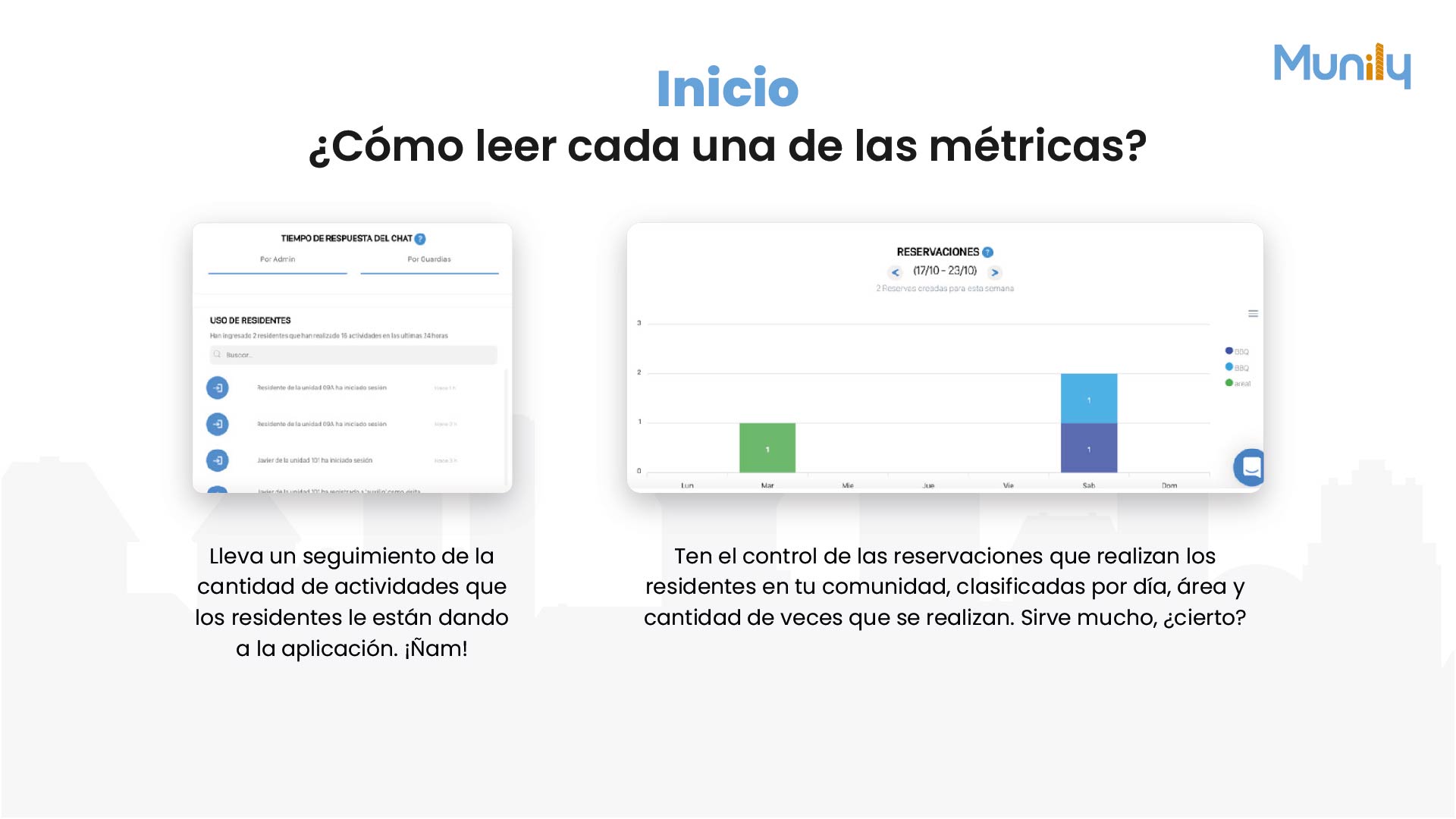
Chat (Chat) Response Time:
- This section allows you to monitor how long it takes you to respond to chats.
- The title is "CHAT RESPONSE TIME."
- You’ll be able to view the response time “By Admin” and “By Security Guards.”
Weekly Reservaciones:
- This bar chart shows you the number of reservations created per day during the current week.
- The title is "RESERVATIONS."
- You’ll see a date range, for example, "(10/17 - 10/23)," and an arrow to navigate between weeks.
- Below that, it shows how many reservations have been created for that week.
- The horizontal axis shows the days of the week (Mon, Tue, Wed, Thu, Fri, Sat, Sun).
- The vertical axis shows the number of reservations.
- The colored bars represent different types of reservations, with a legend on the right that identifies them (for example, RRQ, BBQ, beach area).
Resident Usage:
- This section allows you to view recent resident activity.
- The title is "RESIDENT USAGE."
- It shows how many residents have been active in the last 24 hours.
- There is a search field to filter residents.
- Below, each resident is listed with the date and time of their last session, for example:
- "Resident of unit 03A has logged in"
- "Resident of unit 09A has logged in"
Guide images
Still need help? Reach us on WhatsApp or at soporte@munily.com.
Con Amor 💙 Munily