

How do I make a reservation for a spot through the app?
Here’s a step-by-step guide to making a reservation for a space through the Munily app:
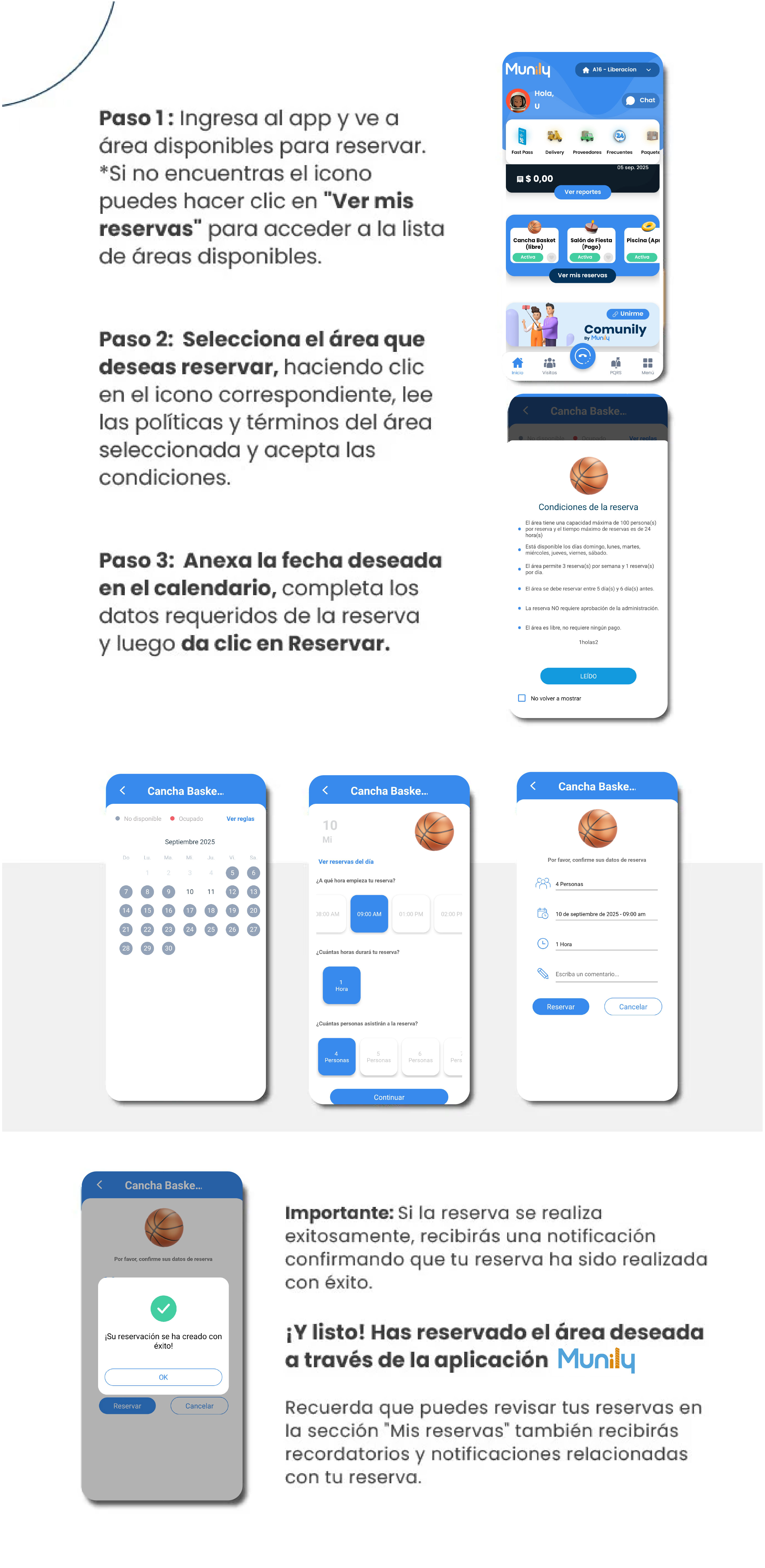
Step 1: Open the app and view the spaces available for reservation.
- When you open the app, you’ll see the main screen.
- If you can’t find the icon to make a reservation for areas, you can click the "View My Reservations" button to access the list of available areas.
Step 2: Select the area you want to reserve.
- Click on the icon corresponding to the area you’d like to make a reservation for (for example, “Basketball Court…”).
- The policies and terms for the selected area will be displayed. Read this information carefully.
- Once you’ve read them, accept the terms and conditions. You’ll see a button that says “READ”.
Step 3: Select your desired date and fill in the details.
- A calendar will appear. Select the date you’d like to make your reservation.
- Next, fill in the required information for your reservation. This may include:
- The start time of your reservation.
- The duration of your reservation (for example, “1 Hour”).
- The number of people attending.
- A field to enter a comment if you wish.
- Once you have filled in all the information, click the "Reservation" button.
Confirmation of Your Reservation:
- If the reservation is successful, you’ll receive a notification confirming that your reservation has been made successfully.
- You’ll see a message that says: “Your reservation has been successfully created!” Click “OK” to continue.
And that’s it! You’ve reserved the desired area through the Munily app.
Remember that you can view your reservations in the "My Reservations" section. There, you’ll also receive reminders and notifications related to your reservation.
Guide images
Still need help? Reach us on WhatsApp or at soporte@munily.com.
Con Amor 💙 Munily