

How do I make a reservation for an amenity from the Dashboard?
Here’s how to make a reservation for an amenity in your community through Munily.
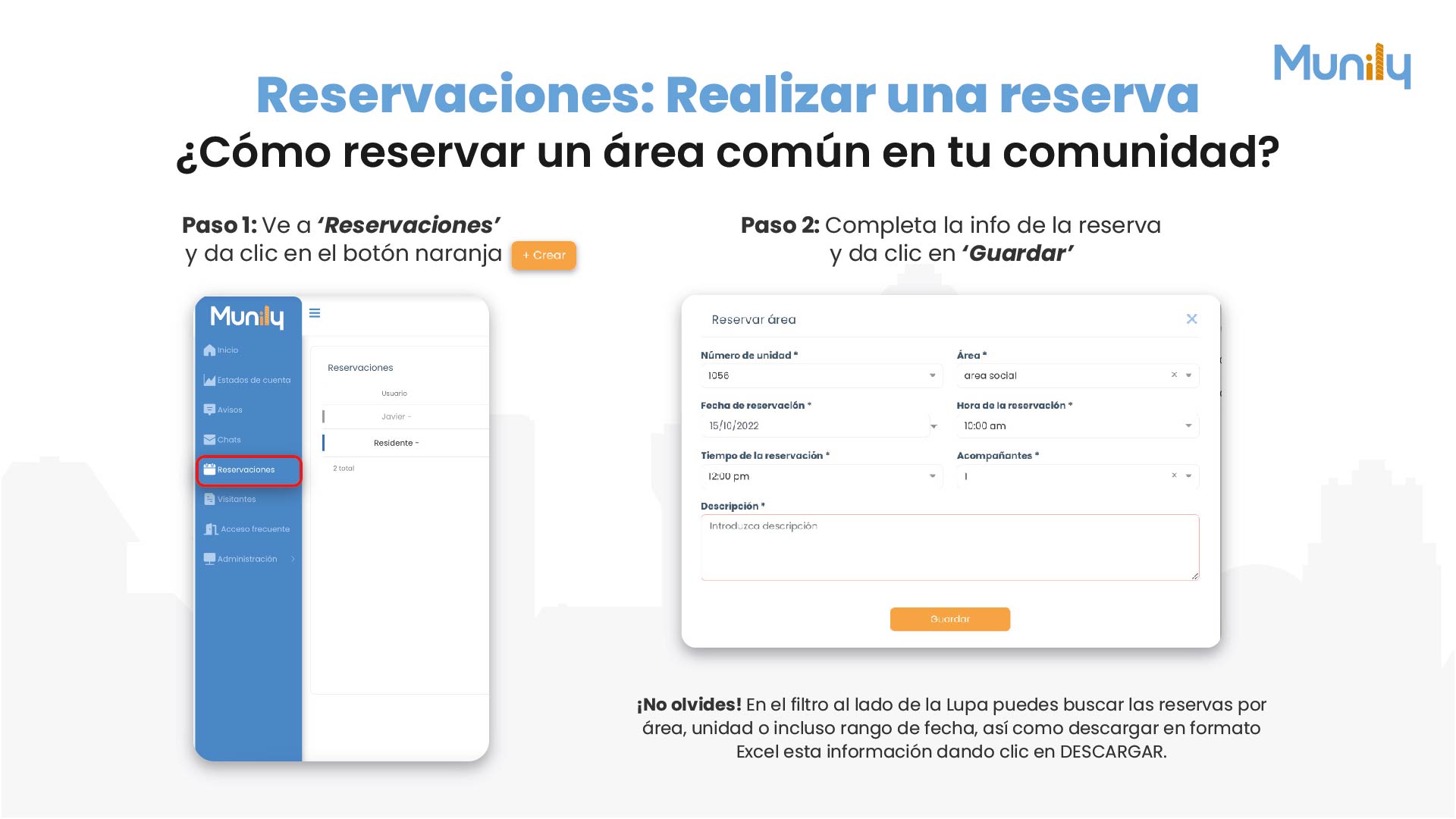
Step 1: Go to “Reservaciones (Reservations)” and click the orange “+ Create” button
- In the left-hand side menu of the app, find and select the “Reservaciones” option. You’ll see it highlighted in red in the image.
- Once inside the “Reservaciones” section, locate the orange button with the “+” symbol and the word Create. Click it to start the reservation process.
Step 2: Fill out the reservation information and click 'Save'
When you click '+ Create,' a form will appear for you to enter your reservation details.
- Reservation of Area: This is the form title.
- Unit Number *:Enter your residential unit number. In the example, the number1056is shown. 3.Area *:Select the amenity you wish to reserve. The image showssocial area. 4.Reservation Date *:Choose the date you wish to make the reservation. The example shows10/15/2022. 5.Reservation Time *:Enter the start time of your reservation. The example shows10:00 a.m.. 6.Reservation Duration *:Select the duration of your reservation. The example shows12:00 pm. 7.Accompaniments *:If applicable, enter the number of accompanying guests. In the example,1is shown. 8.Description *:In this field, you can add any additional details or comments about your reservation. The image suggestsEnter description. 9. Once you’ve filled in all the required information, click the orangeSave button to confirm your reservation.
Don’t forget!
Using the filter next to the magnifying glass, you can search for reservations by area, unit, or even a date range. You can also download this information in Excel format by clicking DOWNLOAD.
Guide images
Still need help? Reach us on WhatsApp or at soporte@munily.com.
Con Amor 💙 Munily