

How do I manage app access permissions?
Here's how to manage app permissions on your device so that Munily works properly.
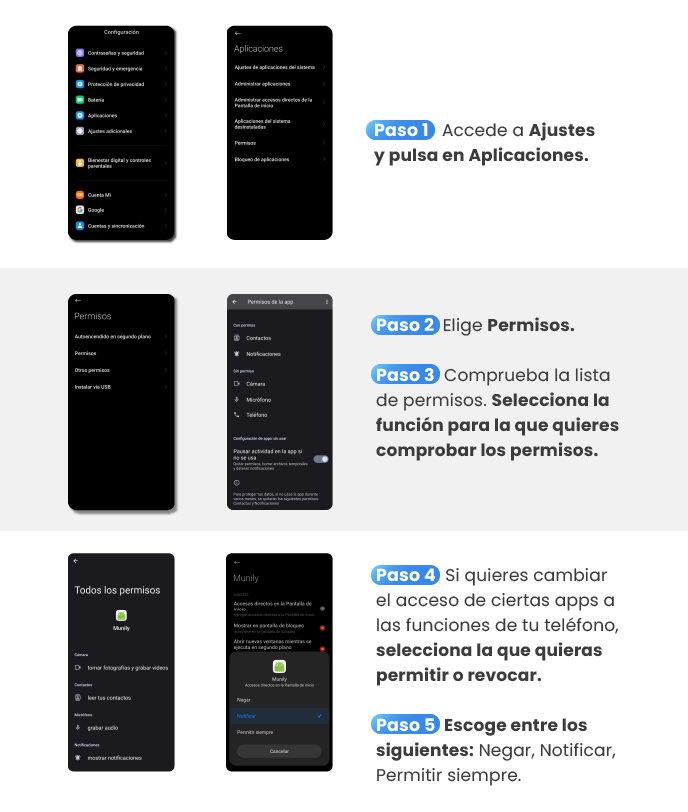
Step 1: Go to Settings and tap Apps.
- On your device’s home screen, find and select the "Settings" option.
- In Settings, scroll down until you find the "Apps" section and tap it.
Step 2: Select Permissions.
- Once in "Apps," find and select the "Permissions" option.
Step 3: Review the list of permissions.
- You’ll see a list of different types of permissions (Contacts, Notifications, Camera, Microphone, Phone, etc.).
- Select the feature for which you want to check or modify app permissions.
Step 4: Select the feature to allow or revoke access.
- If you want to change certain apps’ access to your phone’s features, select the feature you’re interested in. For example, if you want to review the permissions for Munily to take photos and record videos, look for that option in the list.
Step 5: Choose from the available options.
- Once you’ve selected a feature, you’ll be presented with several options to manage the permission. You can choose from:
- Deny: The app will not have access to this feature.
- Notify: The app will notify you when it attempts to use this feature.
- Always Allow: The app will have continuous access to this feature.
By following these steps, you can control what information and features the apps installed on your device can access, ensuring clear and secure permission management.
Guide images
Still need help? Reach us on WhatsApp or at soporte@munily.com.
Con Amor 💙 Munily