

How to Record Visit Data
Who this is for
This article is for security guards who use the Munily Operativo app.
What you'll achieve
You'll register the visitor in just a few steps, using their ID or their personal information. The resident receives a notice instantly.
Before you start
Have the unit number you’re going to register and the visitor’s ID on hand.
Steps
- Open the Munily Operativo app on your phone.
- On the home screen, tap “Visitas (Visits).”
- Tap “Search for unit.”
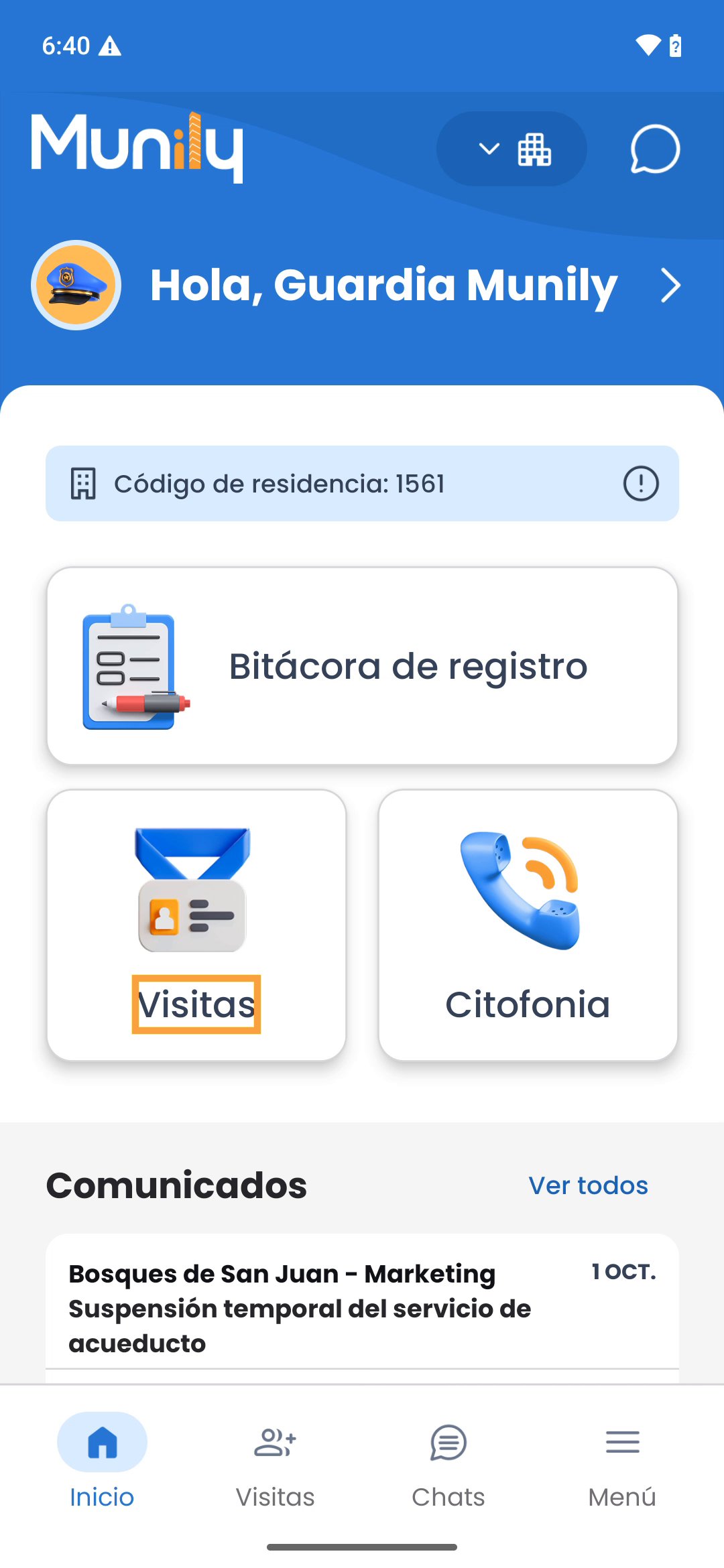 Munily Operativo app home screen, with the “Visitas” button and the unit search field highlightedClose ✕
- Enter the unit number.
- Select the unit from the list that appears.
- Tap “Create Visit” in the lower-right corner.
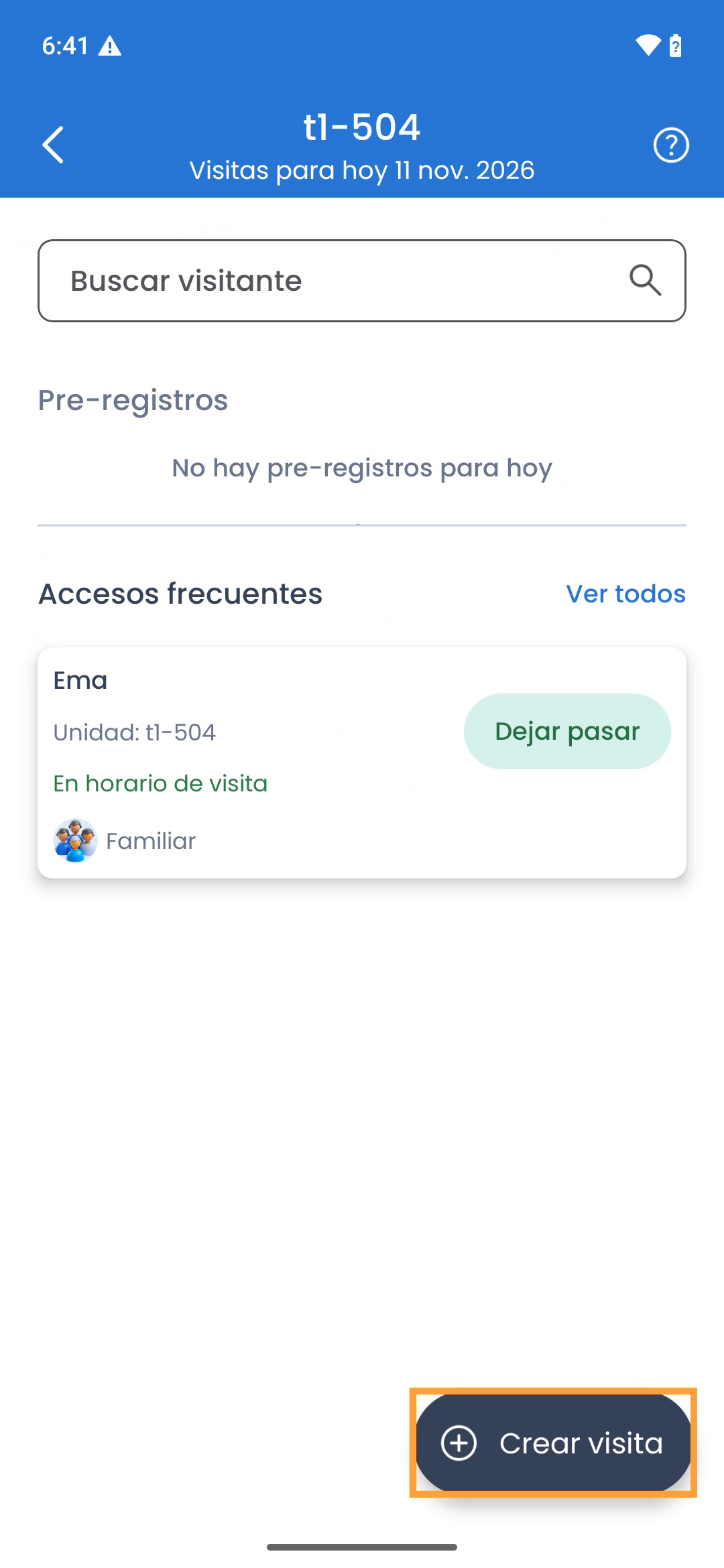 screen with the “Create Visit” button in the bottom right corner and the visit type optionsClose ✕
- Review the options that appear: “Scan QR,” “Proveedor (Service Provider),” “Package,” “Delivery,” and “Visita.”
- If the visitor has a QR code, tap “Scan QR.”
Point the camera at the code. - If they don’t have a QR code, tap “Visit.”
- Choose the “Registration method”: “Take a photo of ID” or “Enter information manually.”
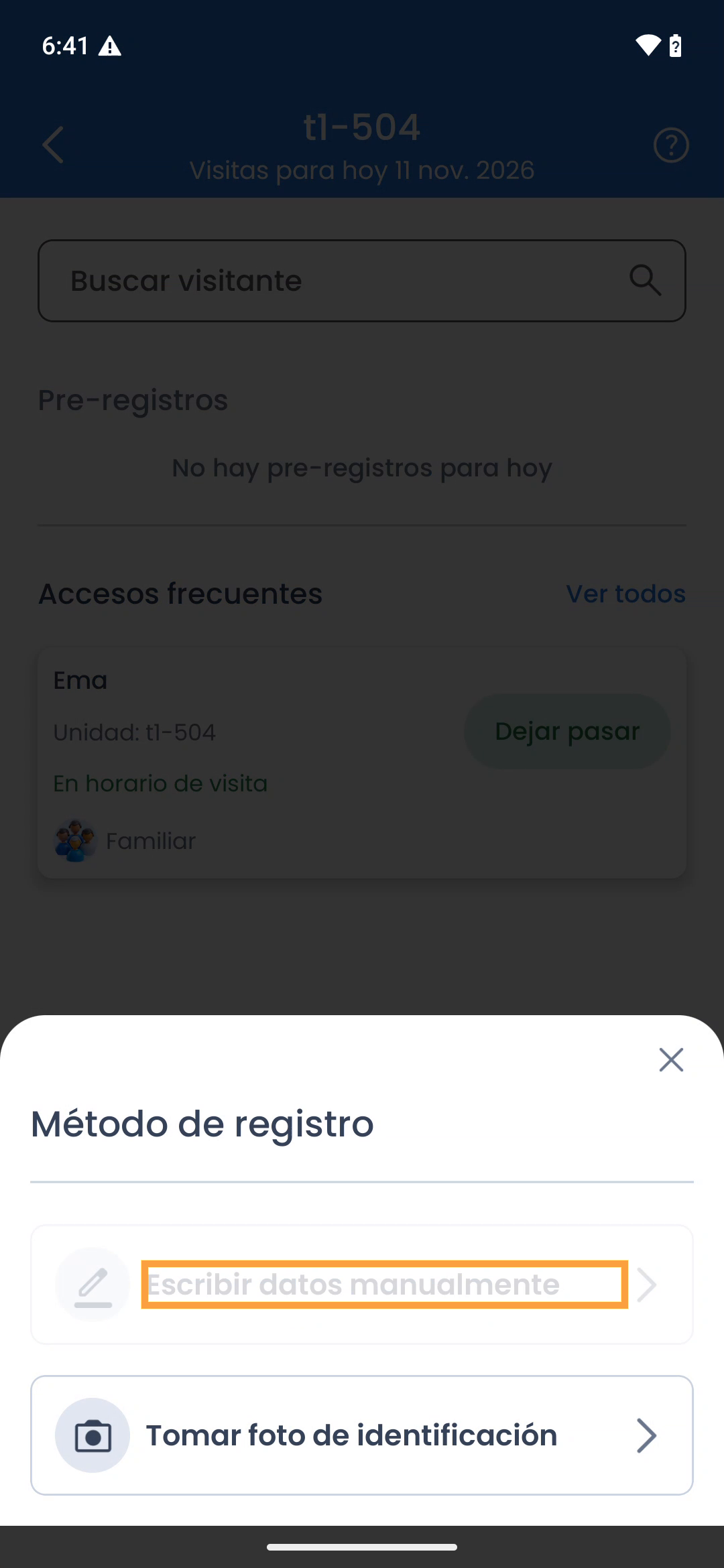 Screen showing the “Registration Method” with both options visibleClose ✕
- If you chose “Take a Photo of ID,” ask the visitor to sign the consent form on the screen.
- Tap "Accept and Continue."
- Take a photo of the visitor’s ID.
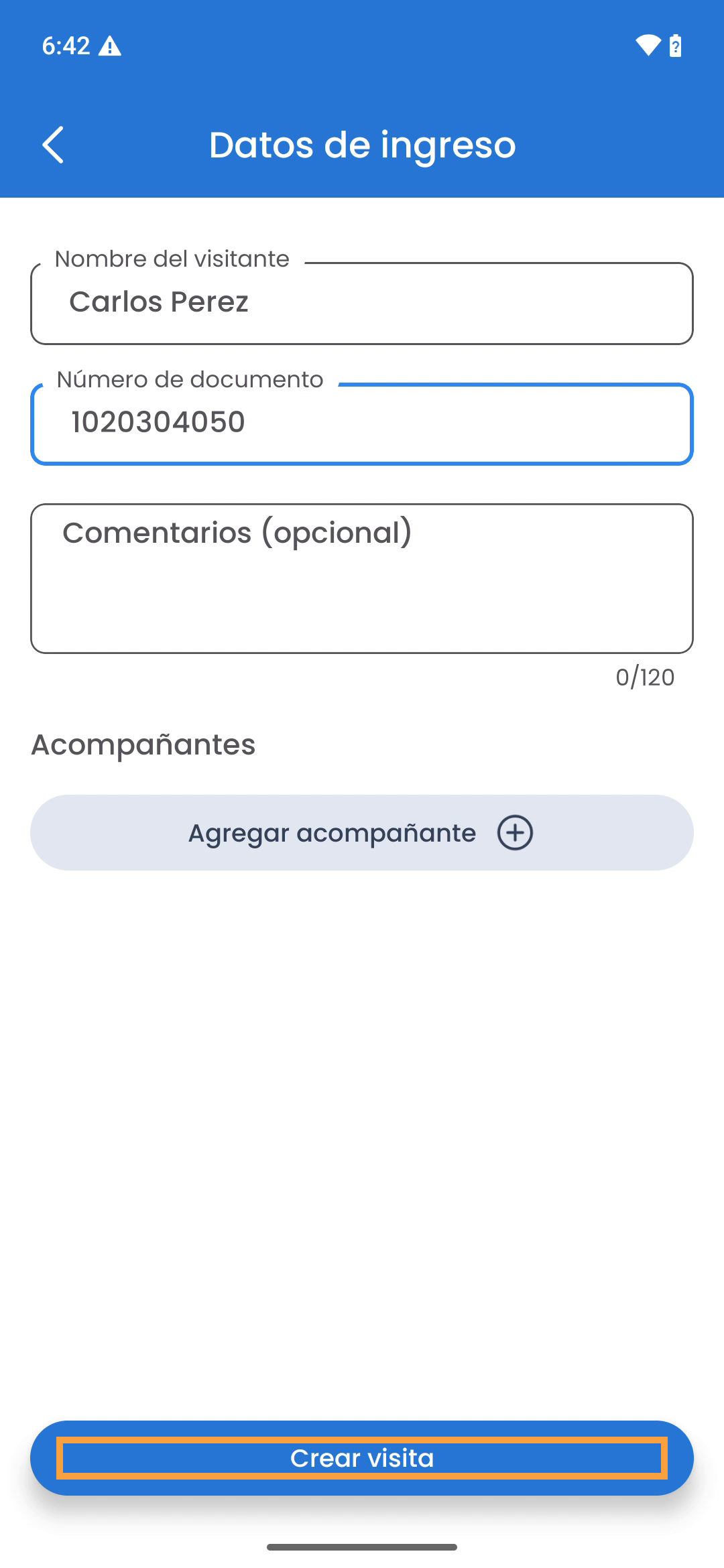
- If you selected "Enter Information Manually," enter the "Visitor’s Name."
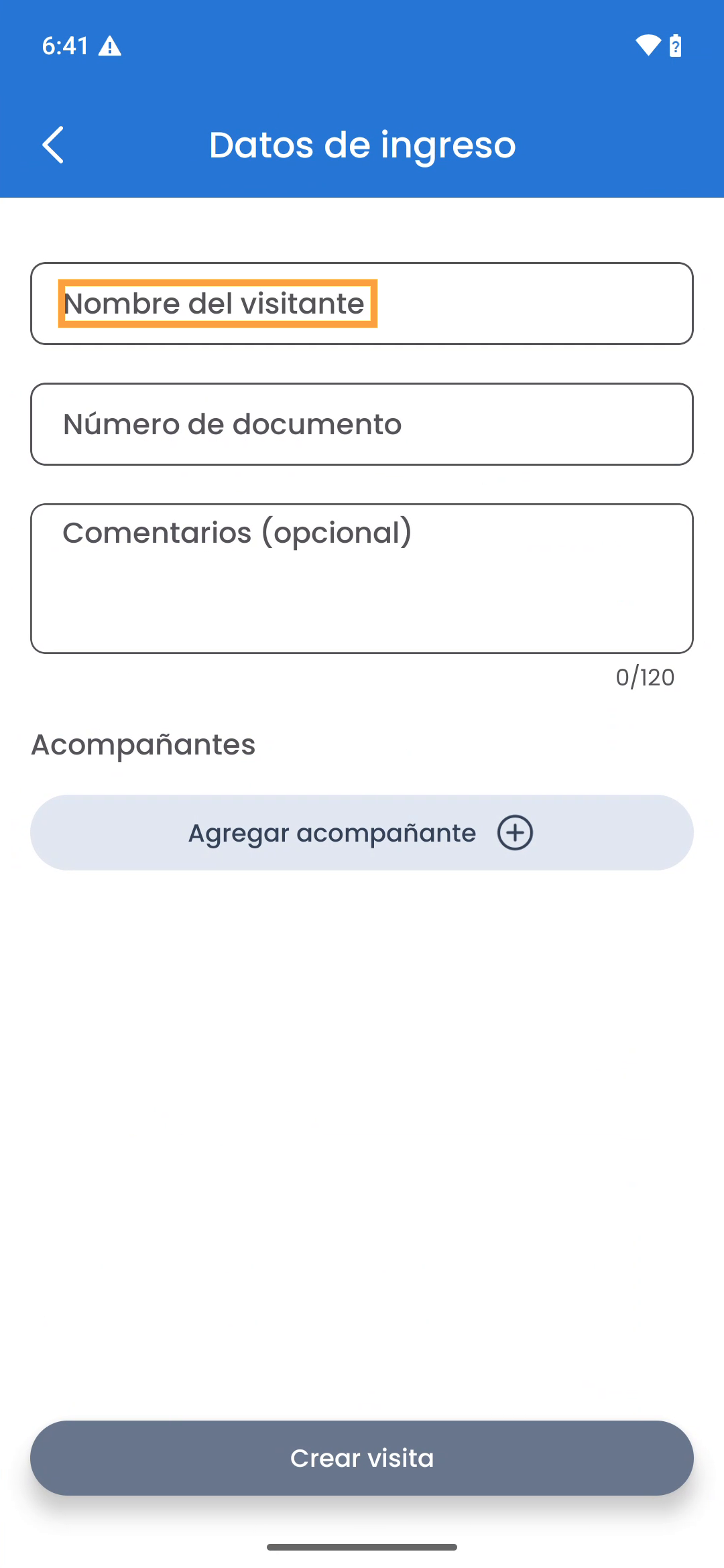 form with the fields “Visitor’s Name,” “ID Number,” “Accompanying Persons,” and “Comments (optional)”Close ✕
- Enter the “ID Number.”
- If you’d like, enter a note in “Comments (optional).”
- If the visitor is arriving with others, tap “Add companion.”
- Enter the companion’s information.
- Tap “Create visitor.”
 screen displaying the message “Registration successful!” and the notice “We’ve notified the userClose ✕
- Confirm that “Registration successful!” and “We’ve notified the user” appear. The app automatically notifies the resident.
Related articles
Guide video
Still need help? Reach us on WhatsApp or at soporte@munily.com.
Con Amor 💙 Munily