

How do I register a vehicle or bicycle? 🚘
Here’s how to set up a frequent access pass on Munily:
How do I set up a frequent access pass?
This process will allow you to register recurring visitors, such as family members, service personnel, or service providers, to make their entry faster and more secure.
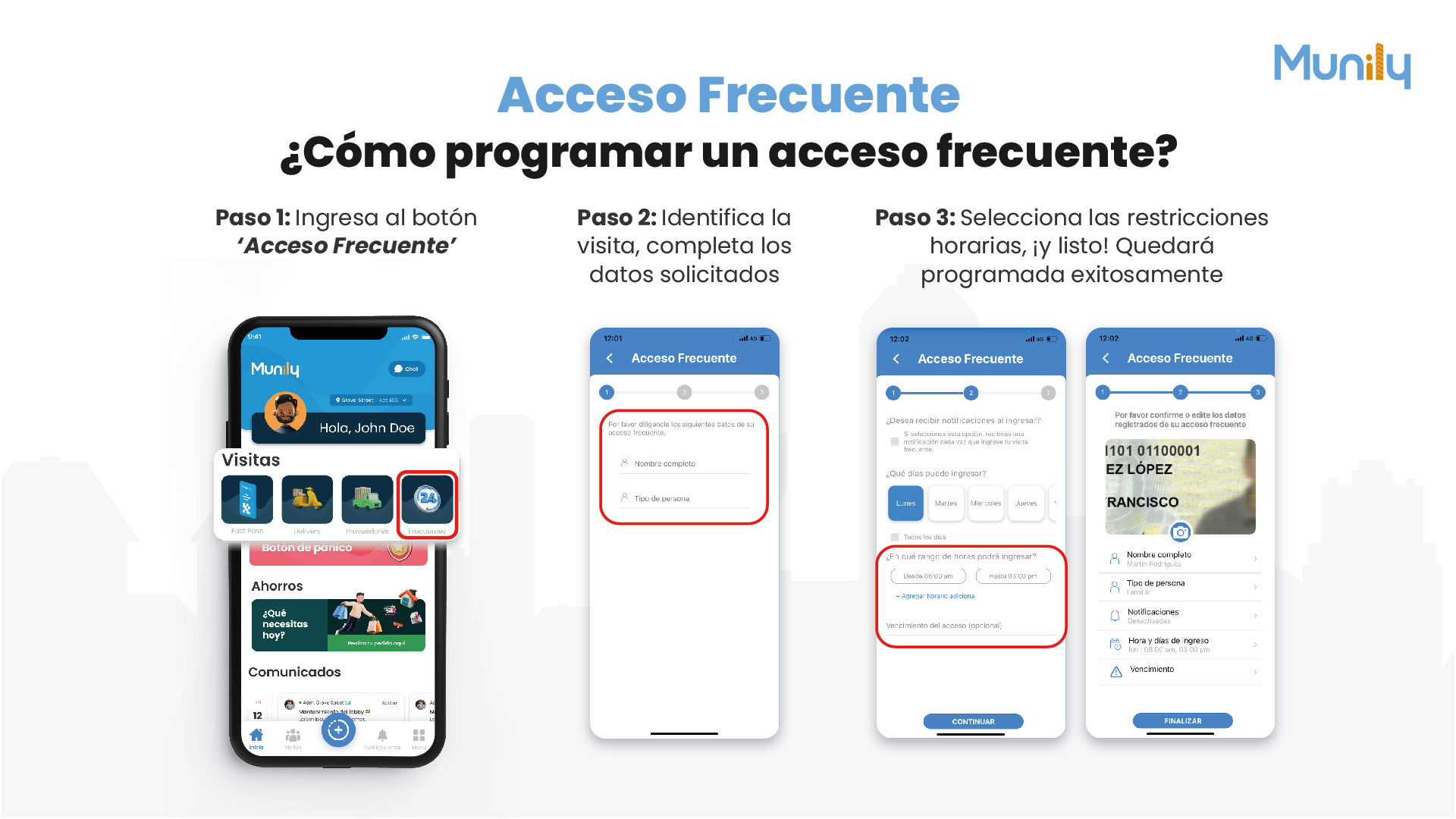
Step 1: Tap the “Acceso Frecuente (Frequent Access)” button
- On the main screen of the Munily app, look for the “Visitas (Visits)” section.
- Within this section, locate and select the button with the icon of a circle containing a “24.” This button is labeled "Frequent".
Step 2: Select the visitor and fill in the requested information
Once you’ve tapped the "Frequent" button, a new screen will open. Follow these steps:
- You’ll see a progress bar with the numbers 1, 2, and 3. You’re currently on step 1.
- In the "Full Name" field, enter the name of the person who will be making the recurring visit.
- In the "Person Type" field, select the category that best describes the visitor (for example: family member, service provider, etc.).
Step 3: Select the time restrictions, and you’re done! It will be successfully scheduled
In this step, you’ll configure the details of the recurring visit:
- You’ll see the progress indicator move to Step 2.
- You’ll be asked: “Would you like to receive notifications when they enter?”. If you select this option, you’ll receive a notification every time the visitor enters the complex.
- In the “On which days can I enter?” section, you can select the days of the week on which this person will be allowed access. You can choose specific days or the "Every day" option.
- Under "What time range will they be allowed to enter?", set the permitted hours for the visitor. You can set a start time (from) and an end time (to). If you need to add more time ranges, you can use the "- Add additional time range" option.
- The "Access Expiration (optional)" field allows you to set an expiration date for this frequent access pass. If you do not want it to expire, you can leave it blank.
- Click the "CONTINUE" button to proceed.
Confirmation and Completion:
When you click "CONTINUE," you’ll move on to step 3 of the progress bar. Here, you can:
- Please confirm or edit the details you’ve entered for your frequent access pass.
- You’ll see the information you’ve entered, including the name, person type, notifications, and schedules.
- If everything is correct, click the "FINISH" button.
Your frequent access pass has been successfully scheduled!
Guide images
Still need help? Reach us on WhatsApp or at soporte@munily.com.
Con Amor 💙 Munily