

How to Create a Ticket
Who this is for
This article is for residents who use the Munily app.
What you'll achieve
You will create a ticket using the Munily app. You can type or dictate the description, attach an image, and track the progress of your case in the history.
Before you start
- Have the Munily app installed on your phone.
- Have your Munily username and password handy.
- Have a photo of the problem, if you want to attach it.
Steps
- Open the Munily app on your phone.
- Log in with your username and password.
The home screen opens. - On the home screen’s navigation bar, tap “Tickets.”
The “Mis tickets (My tickets)” screen opens.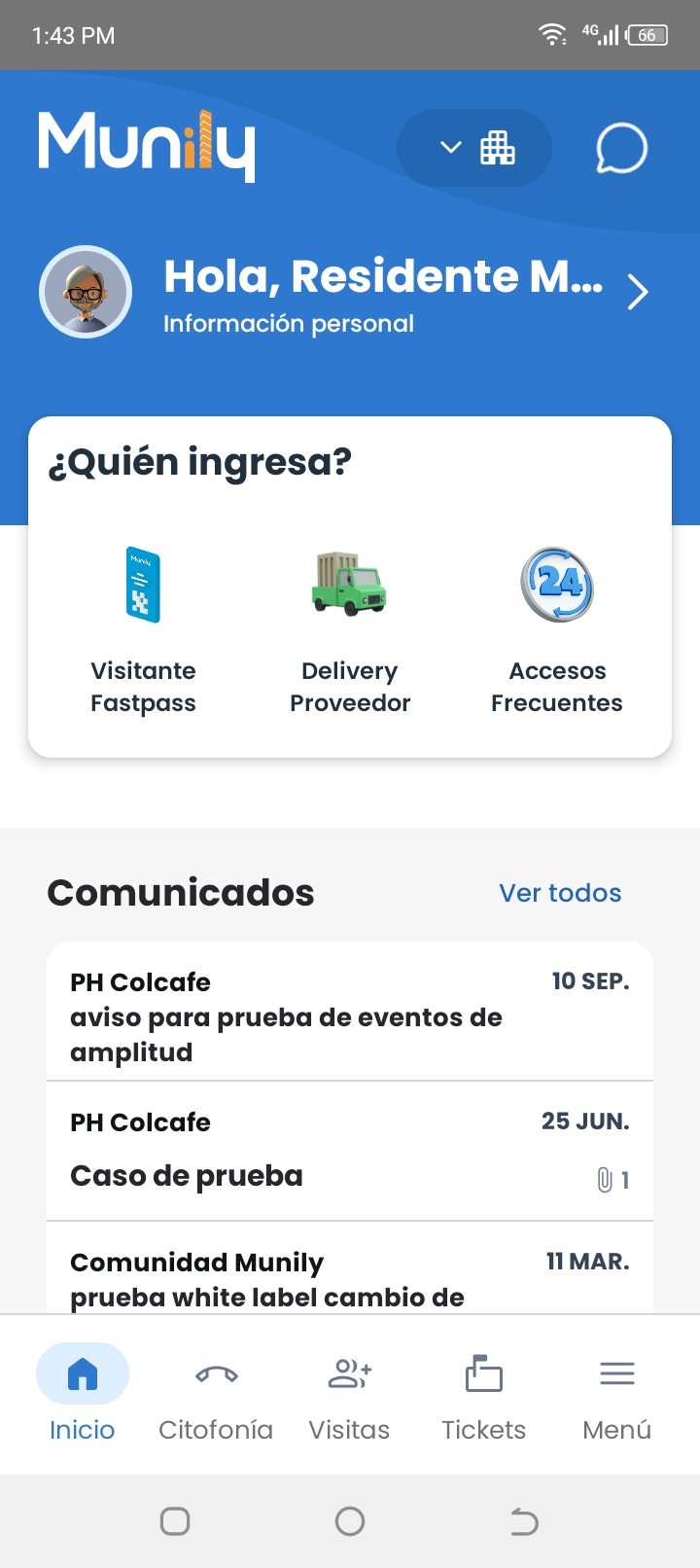 app home screen with the “Tickets” option on the navigation barClose ✕
 - Tap the “+” button.
The form for creating the ticket opens.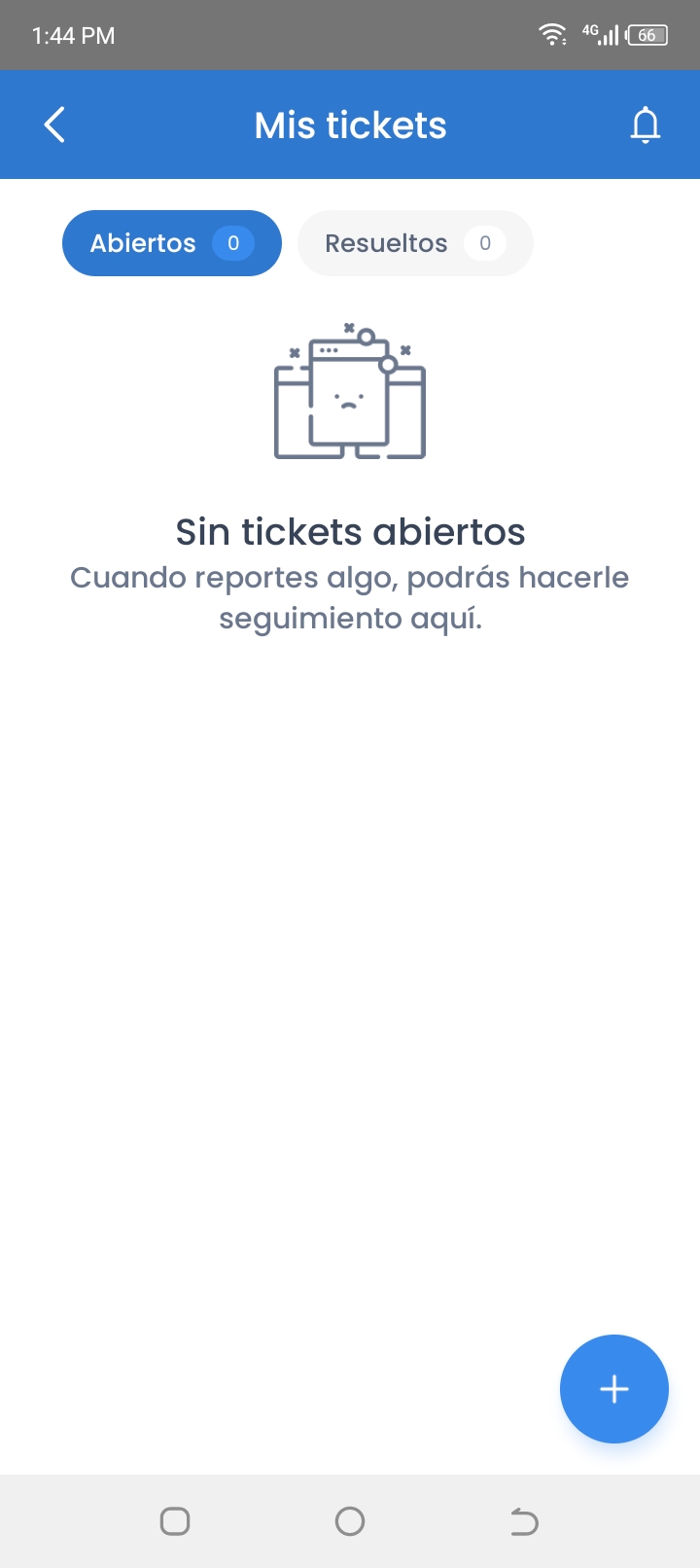 “Mis tickets” screen with the “+” button highlightedClose ✕
 - Select the method for entering the description: using the keyboard or the voice assistant.
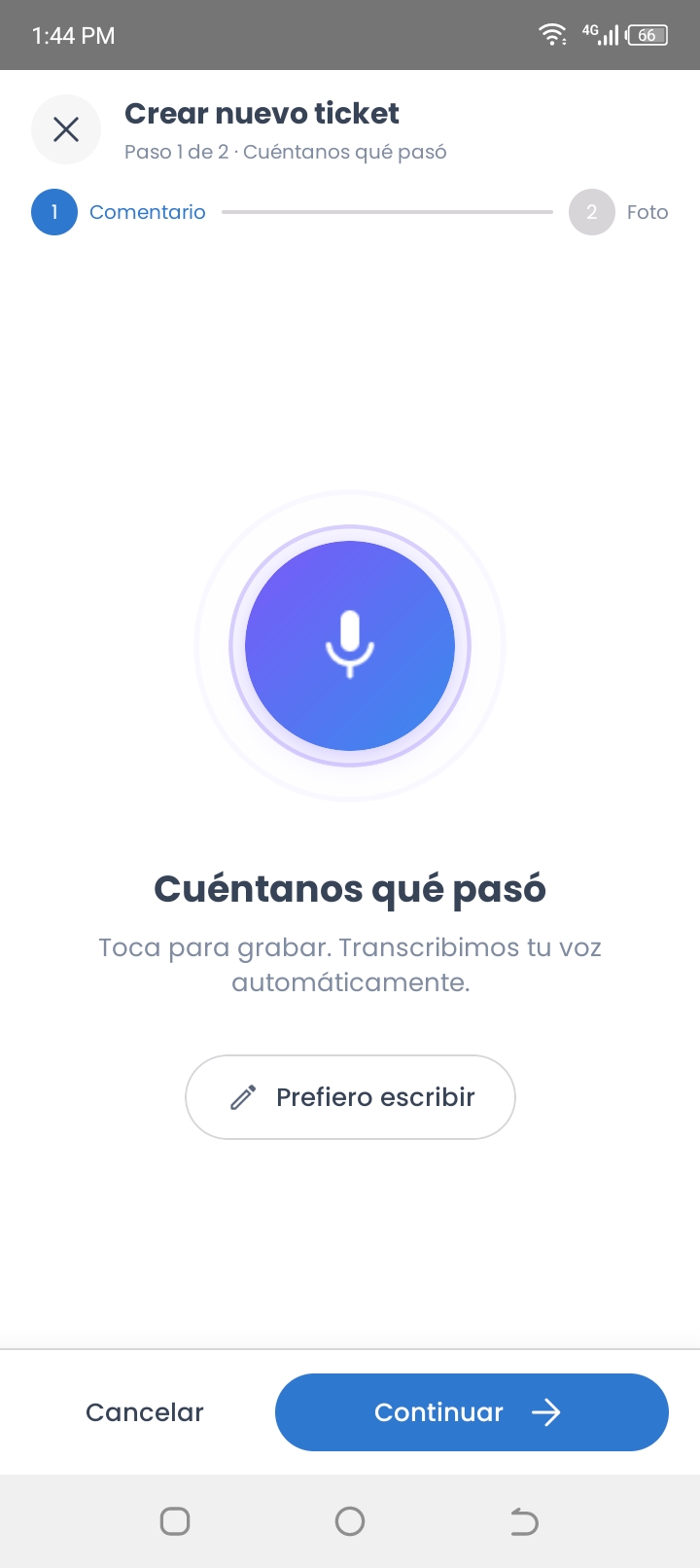 options for entering the description using the keyboard or the voice assistantClose ✕
 - Type or dictate the report description.
(For example: The light in the hallway on the 3rd floor has been off for two days.) - Tap “Continuar (Continue).”
- Attach an image or file from your phone’s camera or gallery.
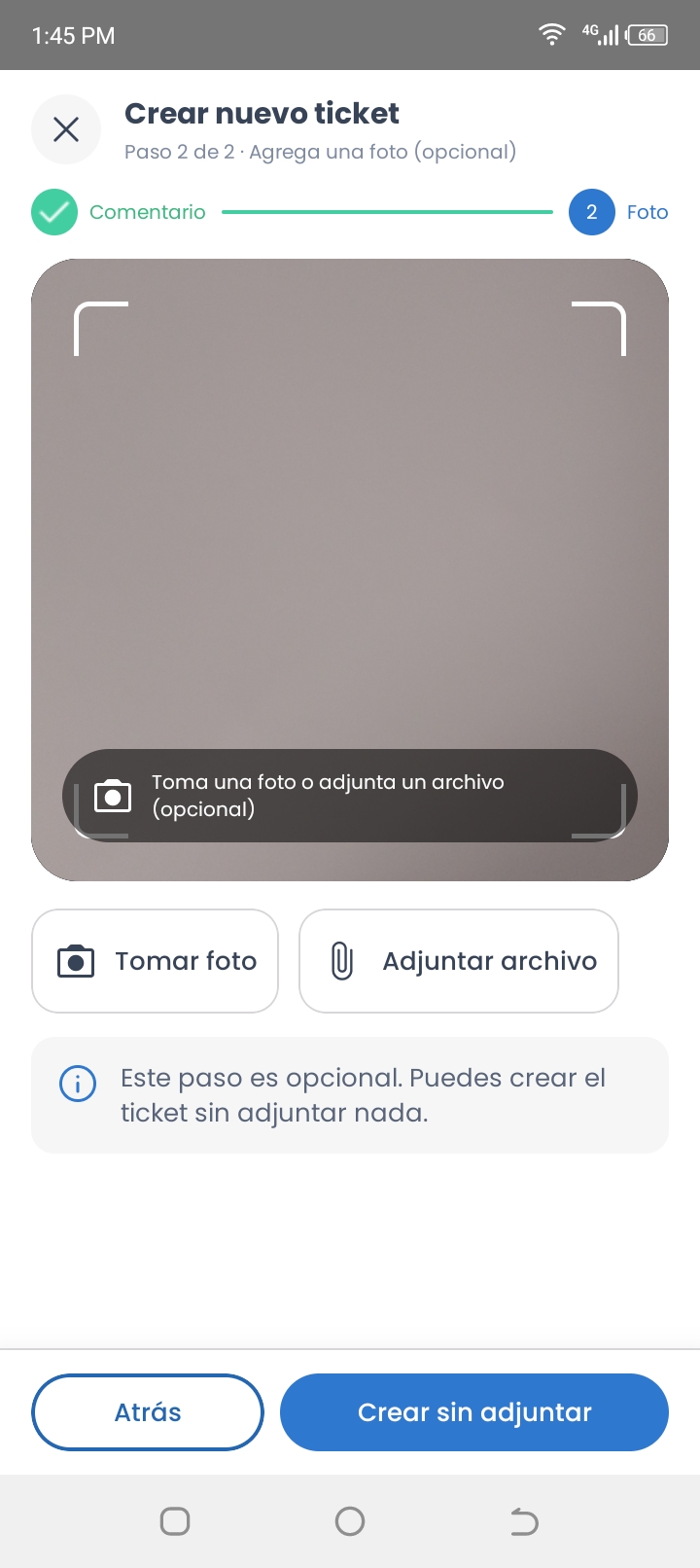 screen for attaching an image or file from the camera or galleryClose ✕
 - Tap “Crear sin adjuntar (Create without attaching)” if your report doesn’t require an image or file.
The system confirms the creation of the ticket.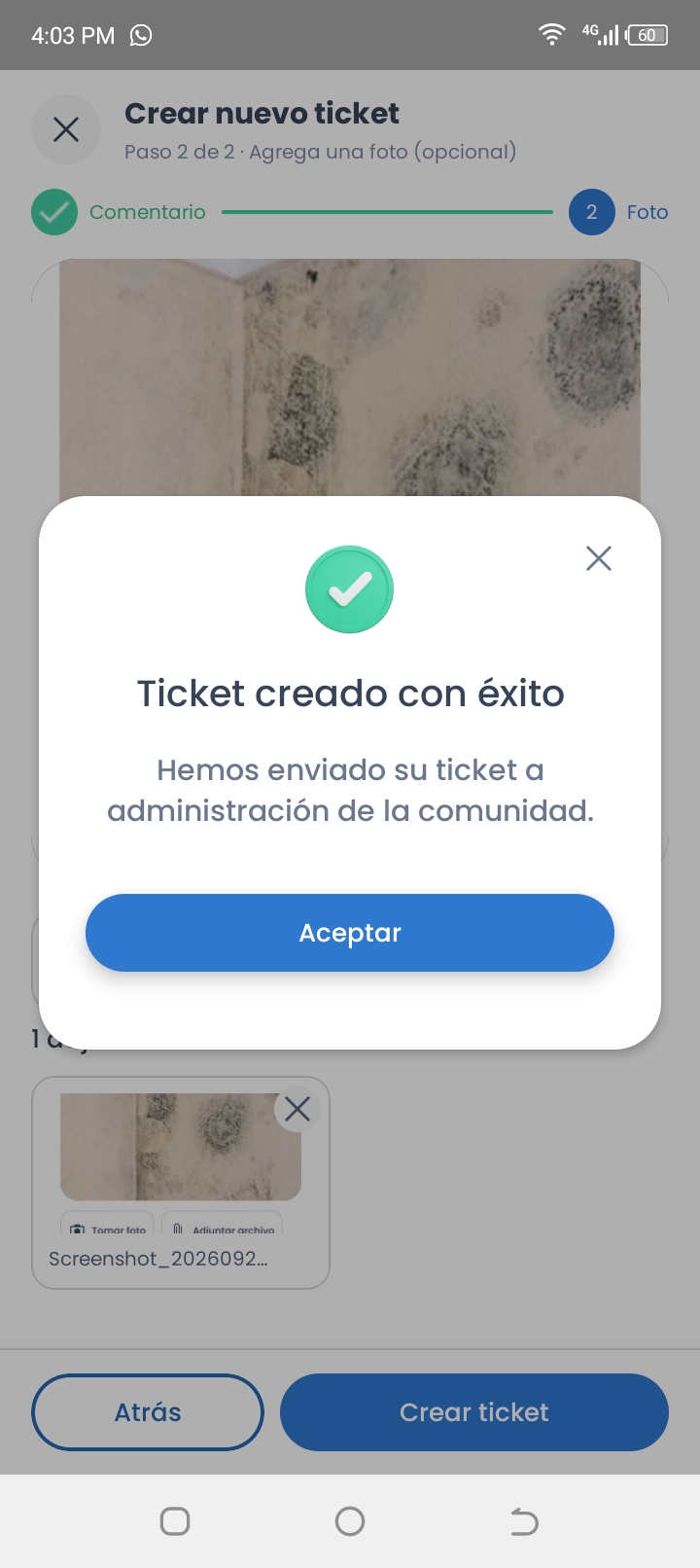 confirmation message that the ticket has been createdClose ✕
Still need help? Reach us on WhatsApp or at soporte@munily.com.
Con Amor 💙 Munily