

How do I update "Frecuentes"?
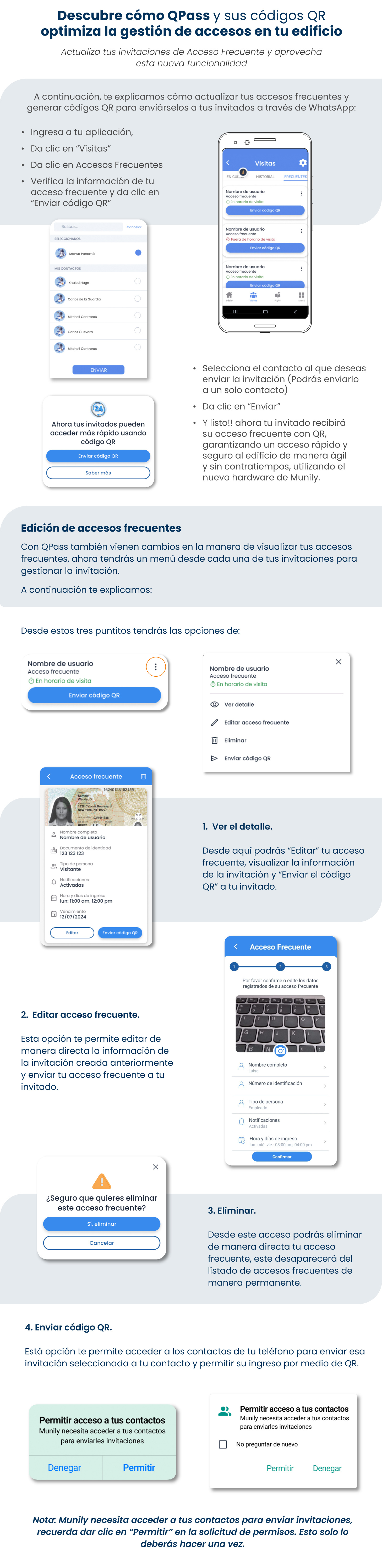
Here's how to update your frequent access passes and generate QR codes to send to your guests via WhatsApp:
Update your invitations at Acceso Frecuente (Frequent Access) and take advantage of this new feature.
Here’s how to generate QR codes to send to your guests via WhatsApp:
- Open the app.
- Click “Visitas (Visits).”
- Click “Frecuentes (Frequent) Shortcuts.”
- Verify your frequent access pass information and click "Send QR code."
A screen with your contacts will appear.
- Select the contact you want to send the invitation to (you can send it to only one contact).
- Click "Send."
- And that’s it! Your guest will now receive their QR-based frequent access pass, ensuring fast and secure entry to the building—quickly and without any issues—using the new hardware from Munily.
Editing Frequent Access Passes
QPass also introduces changes to how you view your frequent access passes; you’ll now have a menu on each of your invitations to manage the invitation.
Here’s how it works:
From these three dots, you’ll have the following options:
1. View details.
From here, you can “Edit” your frequent access pass, view the invitation details, and “Send the QR code” to your guest.
2. Edit frequent access pass.
This option lets you directly edit the details of the invitation you created earlier and send your frequent access pass to your guest.
3. Delete.
From here, you can directly delete your frequent access pass; it will be permanently removed from the list of frequent accesses.
4. Send QR code.
This option lets you access your phone’s contacts to send the selected invitation to your contact and allow them to check in using the QR code.
Allow access to your contacts
Munily needs access to your contacts to send them invitations.
- Deny
- Allow
Note: Munily needs access to your contacts to send invitations. Be sure to click “Allow” in the permission request. You only need to do this once.
Guide images
Still need help? Reach us on WhatsApp or at soporte@munily.com.
Con Amor 💙 Munily