

How do I use the "Historial" feature for visitors? 👩🏿🤝👩🏼
Here's how to use the Visitas (Visits) "Historial (History)" on Munily to find the information you need.
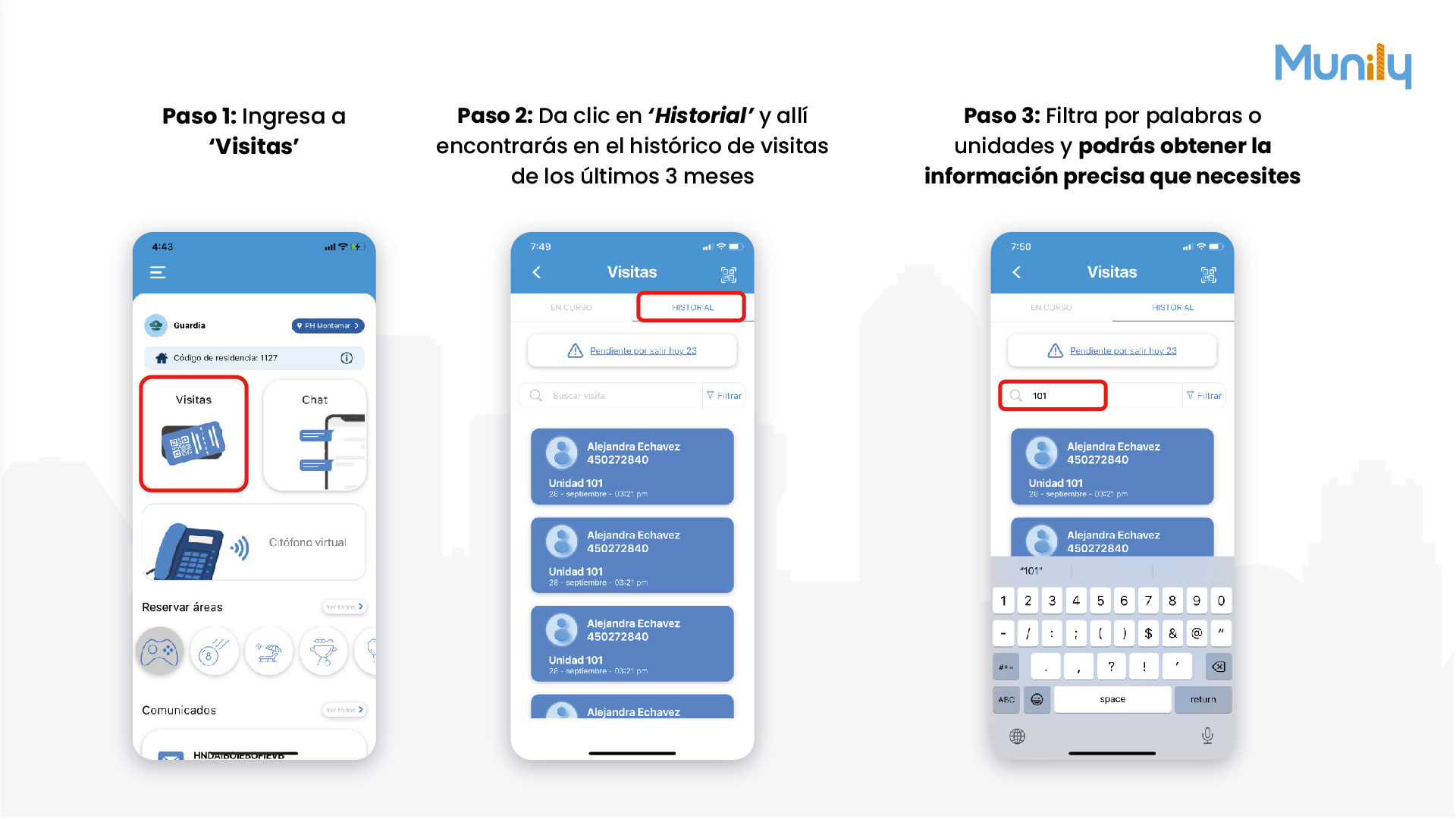
Step 1: Go to “Visitas”
- On the app’s main screen, find and select the “Visitas ” option. This option is represented by an icon featuring a QR code and some bars.
Step 2: Find the “Historial” section at Visitas
- Once you’re in the “Visitas” section, you’ll see two tabs at the top: “IN PROGRESS” and “HISTORY”.
- Click the “HISTORY” tab. Here you’ll find a record of all visitors from the last 3 months.
Step 3: Filter by keywords or units
- In the “HISTORY” section, you’ll see a search field labeled “Search for a visitor”.
- Type the keyword, person’s name, or unit number you want to search for into this field. For example, you can type '101' to filter visitors for unit 101.
- As you type, the results will update automatically, showing only the visitors that match your search.
- You also have the option to use the 'Filter' button to apply more specific search criteria if necessary.
By following these steps, you can easily access and filter the visitor history to get the specific information you need.
Video tutorial: https://www.youtube.com/watch?v=KyFnXwKRbsk
Guide images
Guide video
Still need help? Reach us on WhatsApp or at soporte@munily.com.
Con Amor 💙 Munily