

How do you activate your Munily Pay card? 🚀
Here we explain how to activate your Munily Pay card, how to pay for services, and how to view your transactions.
How to Activate Your Card? 🚀
Follow these steps to activate your Munily Pay card:
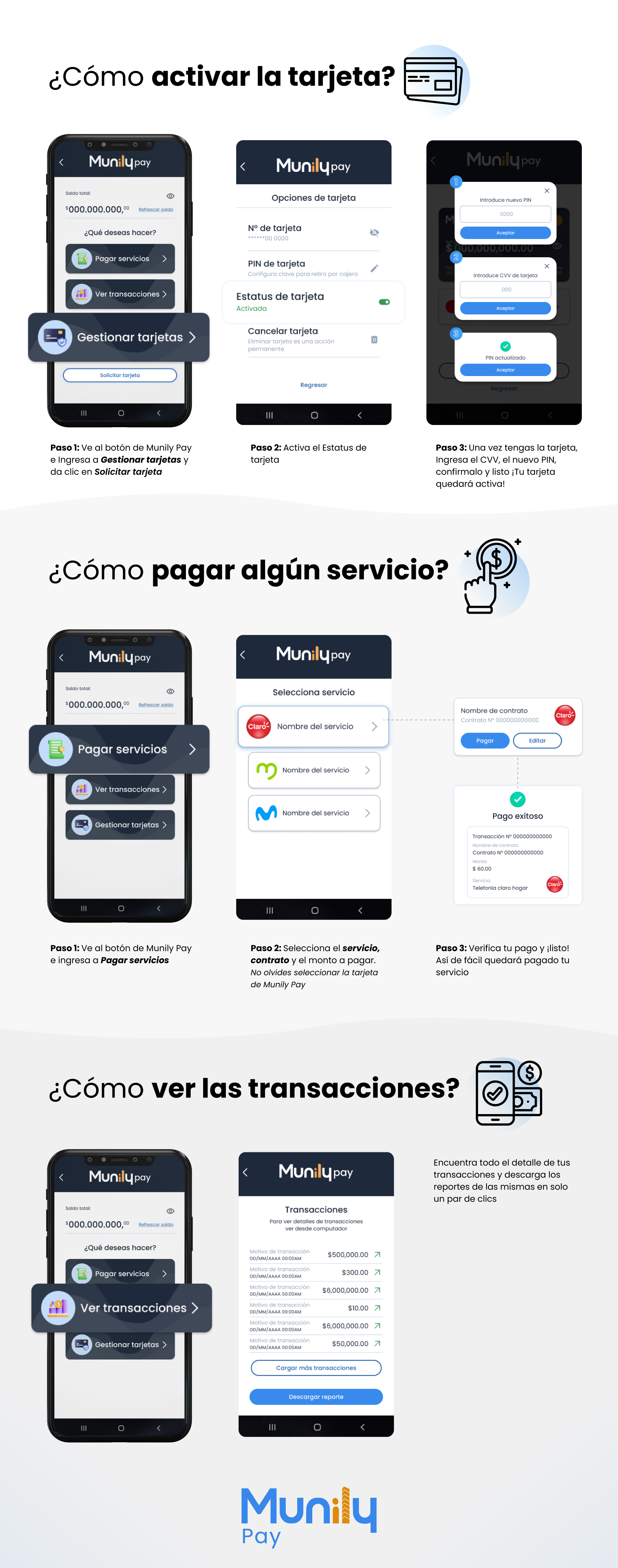
Step 1: Go to the Munily Pay button, select Manage Cards, and click Request Card.
- On the app’s main screen, find and select the Manage Cards option.
- In the card management section, you’ll find the Request Card option. Click on it.
Step 2: Activate your card.
- On the next screen, you’ll see the options to activate your card.
- Enter New PIN: You’ll be asked to enter a new PIN for your card. Type the desired PIN in the field provided.
- Accept: Once you’ve entered your PIN, click the Accept button.
Step 3: Once you have the card, enter the CVV, the new PIN, confirm it, and you’re all set. Your card will be activated!
- Enter Card CVV: On this screen, you’ll need to enter your card’s CVV code.
- OK: After entering the CVV, click the OK button.
- Updated PIN: You’ll see a message confirming that your PIN has been successfully updated.
- OK: Click OK to close this confirmation.
How do I pay for a bill?
Paying your bills is very easy with Munily Pay.
Step 1: Go to the Munily Pay button and select Pay Bills.
- On the app’s main screen, locate and select the Pay Bills option.
Step 2: Select the service, the amount to be paid, and the card.
- On the bill payment screen, you’ll see a list of service providers. Select the service you want to pay for (for example, Claro).
- Enter the corresponding Contract Name and Contract No..
- Enter the Amount to be paid.
- Select the card you want to use for payment.
- Click the Pay button.
- If you need to edit the information, you can use the Edit button.
Step 3: Verify your payment, and you’re done! That’s how easy it is to pay for your service.
- You’ll receive a Payment Successful confirmation.
- In this confirmation, you’ll see the transaction details, including the transaction number, contract name, amount, and the service paid for.
How do I view my transactions?
Find all the details of your transactions and download transaction reports in just a couple of clicks.
- On the app’s main screen, find and select the View Transactions option.
- You’ll see a summary of your recent transactions, including the reason and amount.
- To view more details about a specific transaction, click the arrow icon next to each amount.
- You also have the option to Load More Transactions if you need to view a more extensive history.
- To get a detailed report, click the Download Report button.
Guide images
Still need help? Reach us on WhatsApp or at soporte@munily.com.
Con Amor 💙 Munily