

How do you turn on notifications for Munily on your Android phone?
Here’s how to enable notifications for “Munily” on your Android phone so you don’t miss any important information about your building or residential community.
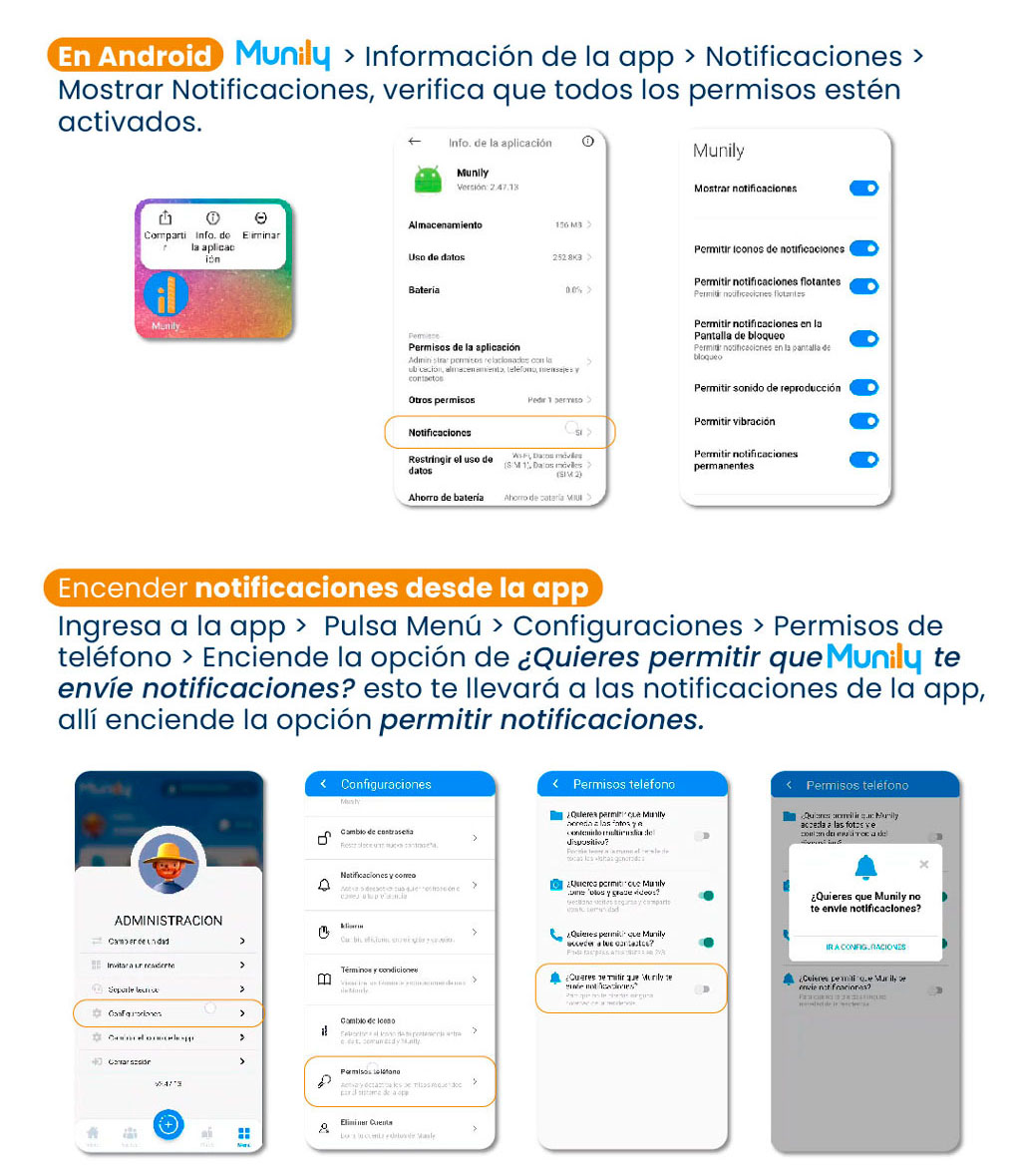
On Android: Munily > App Info > Notifications
Make sure all permissions are enabled.
Steps to enable notifications:
Access the "Munily" app info:
- On your Android device, find the "Munily" app.
- Press and hold the "Munily" app icon until a menu appears.
- Select the "App Info" option or a similar icon that takes you to the app details.
- Once in the app info screen, find and select the "Notifications" option.
Check notification permissions:
- On the "Notifications" screen, you’ll see a list of options to configure how you want to receive alerts.
- Make sure the following options are enabled (they’re usually indicated by a blue toggle or a slider set to the right):
- Show notifications: This is the main toggle to enable all notifications.
- Allow notification icons: Allows an icon to appear in the status bar.
- Allow floating notifications: Allows notifications to appear temporarily on the screen.
- Allow notifications on the lock screen: Allows you to view notifications even when your phone is locked.
- Allow notification sounds: Enables sound for notifications.
- Allow vibration: Enables vibration for notifications.
- Allow persistent notifications: Allows notifications to remain until you dismiss them.
Enable notifications from the app:
If the steps above aren’t enough or you want more detailed settings, you can configure them directly from the “Munily” app.
- Open the “Munily” app.
- Tap the Menú (Menu): Find and select the “Menú” option (usually represented by three horizontal lines or a similar icon).
- Select “Configuraciones (Settings).”
- Go to “Phone Permissions.”
- Turn on the option “Do you want to allow Munily to send you notifications?”: When you enable this option, you’ll be taken to the app’s notifications settings.
- Allow notifications: There, make sure the “Allow notifications” option is turned on.
By following these steps, you can ensure that Munily notifications are properly configured on your Android device and stay up to date with information from your community.
Video tutorial: https://www.youtube.com/watch?v=TkL0cYNIMmg
Guide images
Guide video
Still need help? Reach us on WhatsApp or at soporte@munily.com.
Con Amor 💙 Munily