

How does the new "Citofonía" update work?
Here’s how the new update to Citofonía (Virtual Intercom) works at Munily.
Follow these steps:
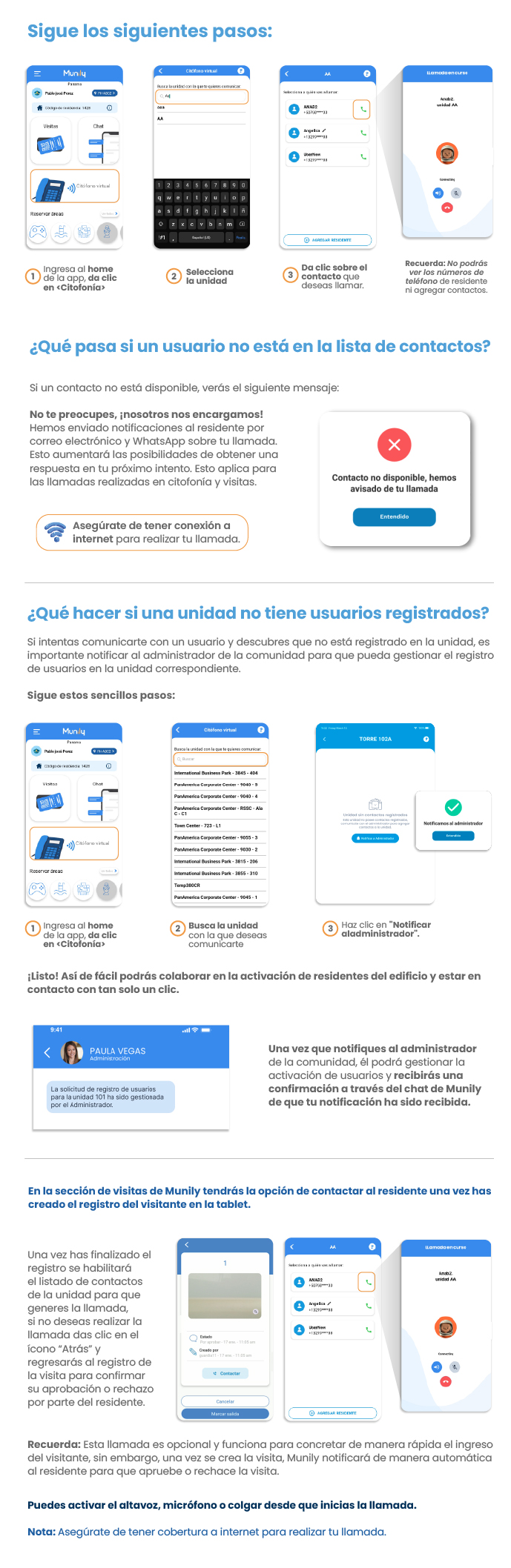
Go to the app’s home screen and click “Citofonía.”
- You’ll see the main screen of Munily. Find and select the “Citofonía” option.
Select the unit.
- A search bar will appear where you can type the name or number of the unit you wish to contact.
- Select the unit from the list that appears below the search bar.
Click on the contact you want to call.
- Once you’ve selected the unit, a list of contacts associated with it will appear.
- Click the phone icon next to the name of the contact you want to call.
What if a user isn’t on the contact list?
If a contact isn’t available, you’ll see the following message:
“Don’t worry, we’ve got it covered!”
We’ve sent notifications to the resident via email and WhatsApp about your call. This will increase the chances of getting a response on your next attempt. This applies to calls made through the virtual intercom and in-person visits.
"Make sure you have an internet connection to make your call."
What should you do if a unit has no registered users?
If you try to contact a user and discover that they aren’t registered for that unit, it’s important to notify the administrator of the community so they can handle user registration for the corresponding unit.
Follow these simple steps:
- Go to the app’s home screen and click “Citofonía.”
- Search for the unit you want to contact.
- Click “Notify the administrator.”
That’s it! It’s that easy to help activate residents in the building and stay in touch with just one click.
Once you notify the community administrator, they’ll be able to manage user activation, and you’ll receive a confirmation via the chat at Munily that your notification has been received.
In the “Visitors” section at Munily, you’ll have the option to contact the resident once you’ve created the visitor’s registration on the tablet.
Once you’ve completed the registration, the unit’s contact list will be enabled so you can make the call. If you don’t want to make the call, click the “Back” icon to return to the visitor registration screen and confirm whether the resident has approved or rejected the visit.
Remember: This call is optional and is intended to quickly facilitate the visitor’s entry; however, once the visit is created, Munily will automatically notify the resident so they can approve or reject the visit.
You can activate the speakerphone, microphone, or hang up as soon as you start the call.
Note: Make sure you have an internet connection to make your call.
Guide images
Still need help? Reach us on WhatsApp or at soporte@munily.com.
Con Amor 💙 Munily