

How does the panic button work?
Here's how the "Botón de Pánico (Panic Button)" works on Munily.
Botón de Pánico
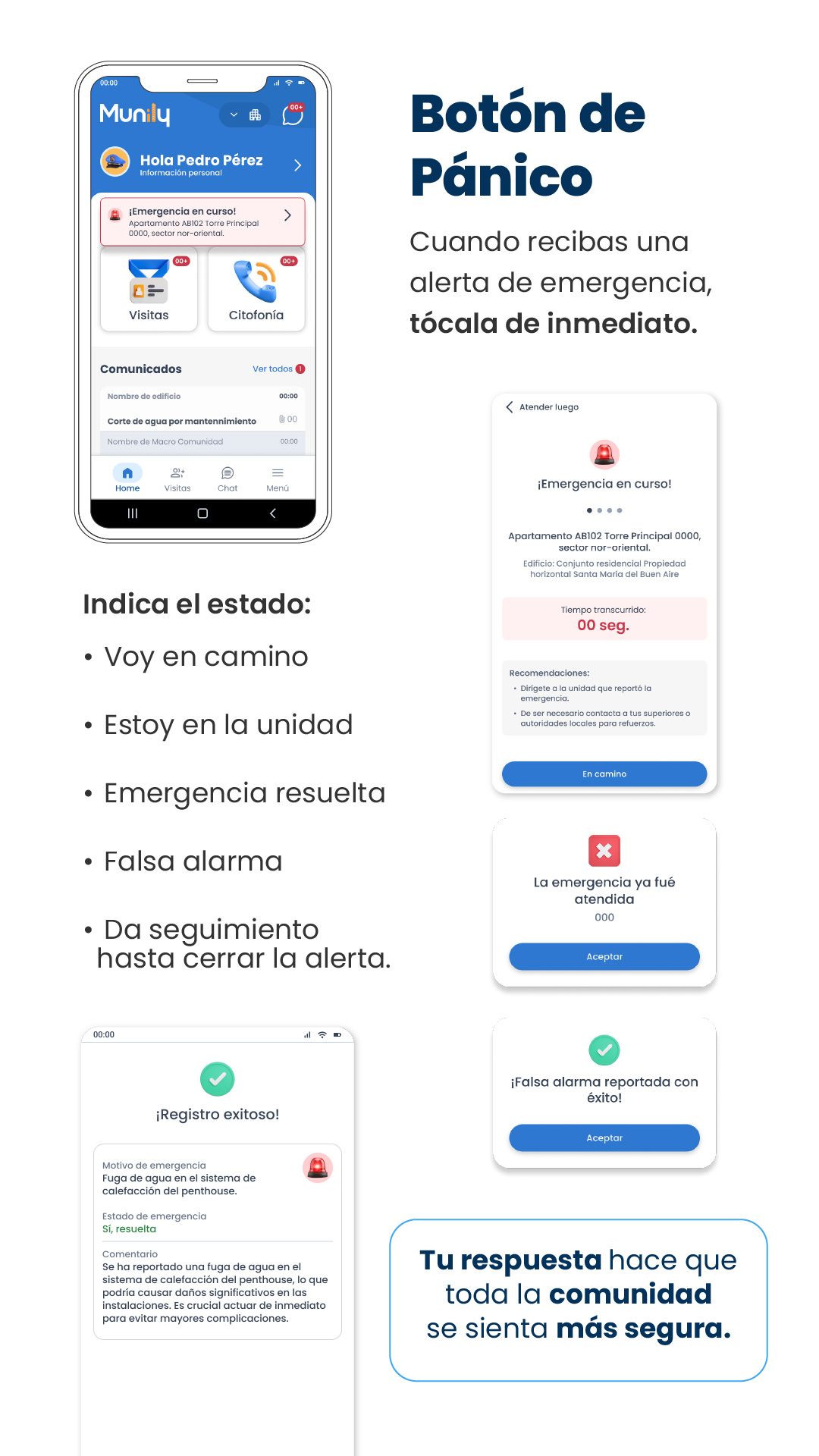
When you receive an emergency alert, tap it immediately.
Steps to Follow:
Emergency Alert: When you receive an alert, you’ll see a notification on your home screen. Tap the alert to view the details.
- On the Munily home screen, you’ll see a banner that says “Emergency in Progress!” Tap the “>” arrow to access the alert.
View Emergency Details: A screen with information about the emergency will open.
- You’ll see the title “Emergency in Progress!”
- The apartment and sector where the emergency originated will be displayed (Example: Apartment AB102, Main Tower 0000, northeastern sector).
- The building will be indicated (Example: Building: Santa María del Buen Aire residential community).
- You’ll see the time elapsed since the alert was triggered (Example: Time elapsed: 00 sec.).
- A “Recommendations” section will appear with specific instructions for the situation.
- Example recommendations:
- Go to the unit that reported the emergency.
- If necessary, contact your superiors or local authorities for backup.
- Example recommendations:
Indicate Your Status: Below the emergency details, you’ll find options to indicate your status and actions. Tap the option that best describes your situation:
- On my way: Select this option if you’re heading to the emergency location.
- I’m in the unit: Choose this option if you’re already in the unit where the emergency occurred.
- Emergency resolved: Use this option once the emergency has been brought under control.
- False alarm: If the alert was triggered by mistake, select this option.
- Follow up until the alert is closed: This option allows you to stay informed and participate in the resolution until the alert is closed.
Action Confirmation: After selecting an option, you may need to confirm your action.
- If you selected "I'm on my way," a blue button labeled "On my way" will appear. Tap this button to confirm.
- If the emergency has already been addressed, you'll see a message stating "The emergency has already been addressed" with an "Accept" button.
- If you reported a “False Alarm,” you’ll see a message saying “False alarm successfully reported!” with an “OK” button.
Successful Submission (Example of a Resolved Emergency): If the emergency has been resolved, you’ll see a confirmation screen.
- You’ll see a green checkmark icon and the message “Submission successful!”
- The “Reason for Emergency” will be detailed (Example: Water leak in the penthouse heating system).
- The “Emergency Status” will be indicated (Example: Yes, resolved).
- There will be a “Comment” field with a detailed description of the situation and the importance of acting quickly.
Your response helps the entire community feel safer.
Guide images
Still need help? Reach us on WhatsApp or at soporte@munily.com.
Con Amor 💙 Munily