

How to Pay for a Reservation with MunilyPay
Machine translation, pending review. This article was translated automatically and a human has not reviewed it yet, so some wording may be off. The original article in Spanish is the authoritative version. Note that the Munily app itself is in Spanish: interface labels are kept in Spanish on purpose, with an English gloss in parentheses.
Who this is for
This article is for residents who use the Munily app.
What you'll achieve
You'll pay for a parking space reservation with a credit or debit card through the Munily app. You can also pay by bank transfer and upload the receipt.
Before you start
Have your credit or debit card handy. You must be logged in to the Munily app and have completed the steps for the space reservation.
Steps
- Open the Munily app on your phone.
- Tap “Reserva de áreas (Amenity Reservations).”
- Fill in your reservation details.
- Confirm the reservation.
- Check the amount in the “Amount Due” field.
The "Payment Method" screen opens.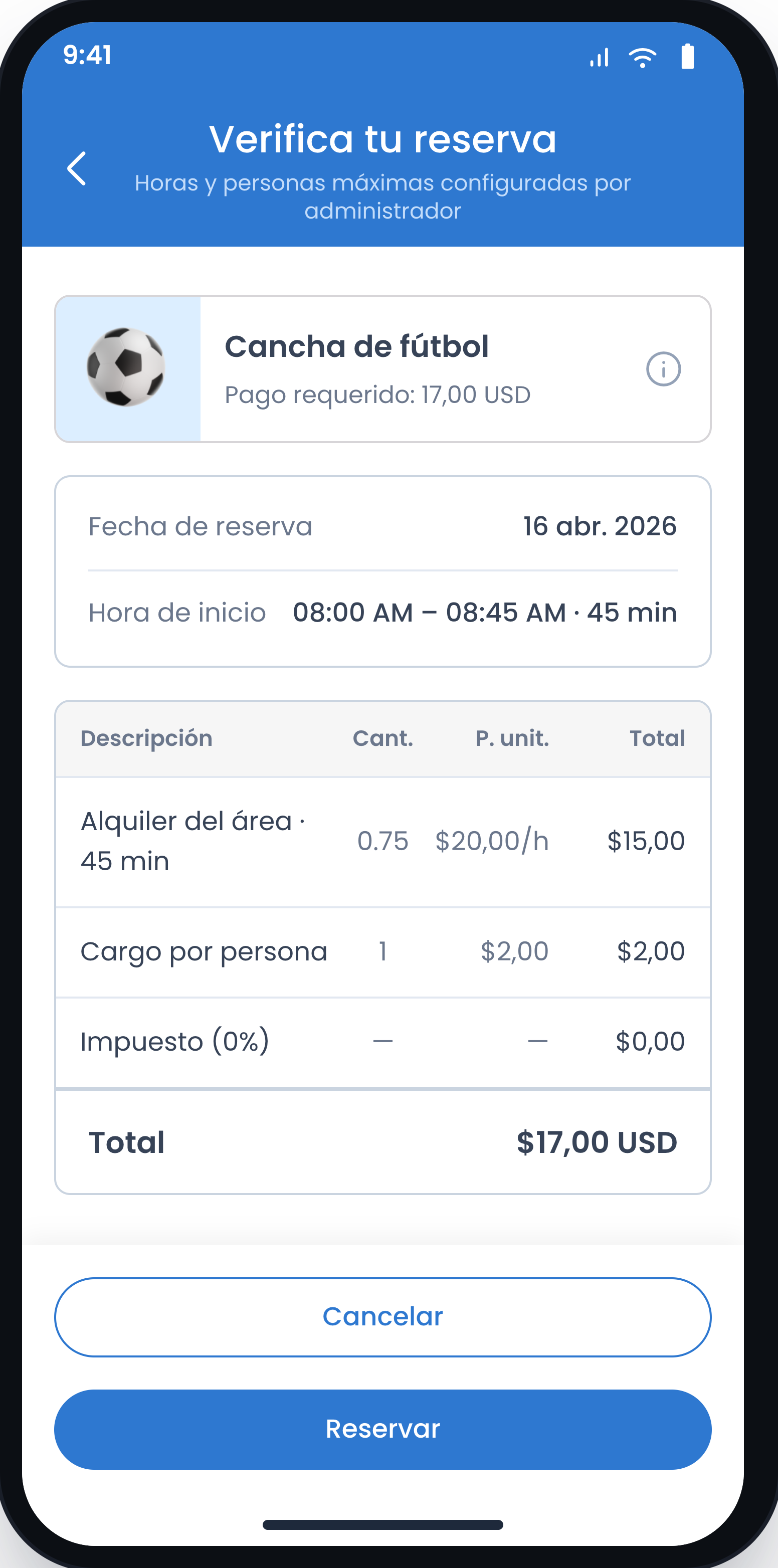 “Payment Method” screen with the “Amount Due” field visibleClose ✕
- Choose how you want to pay: by card or bank transfer.
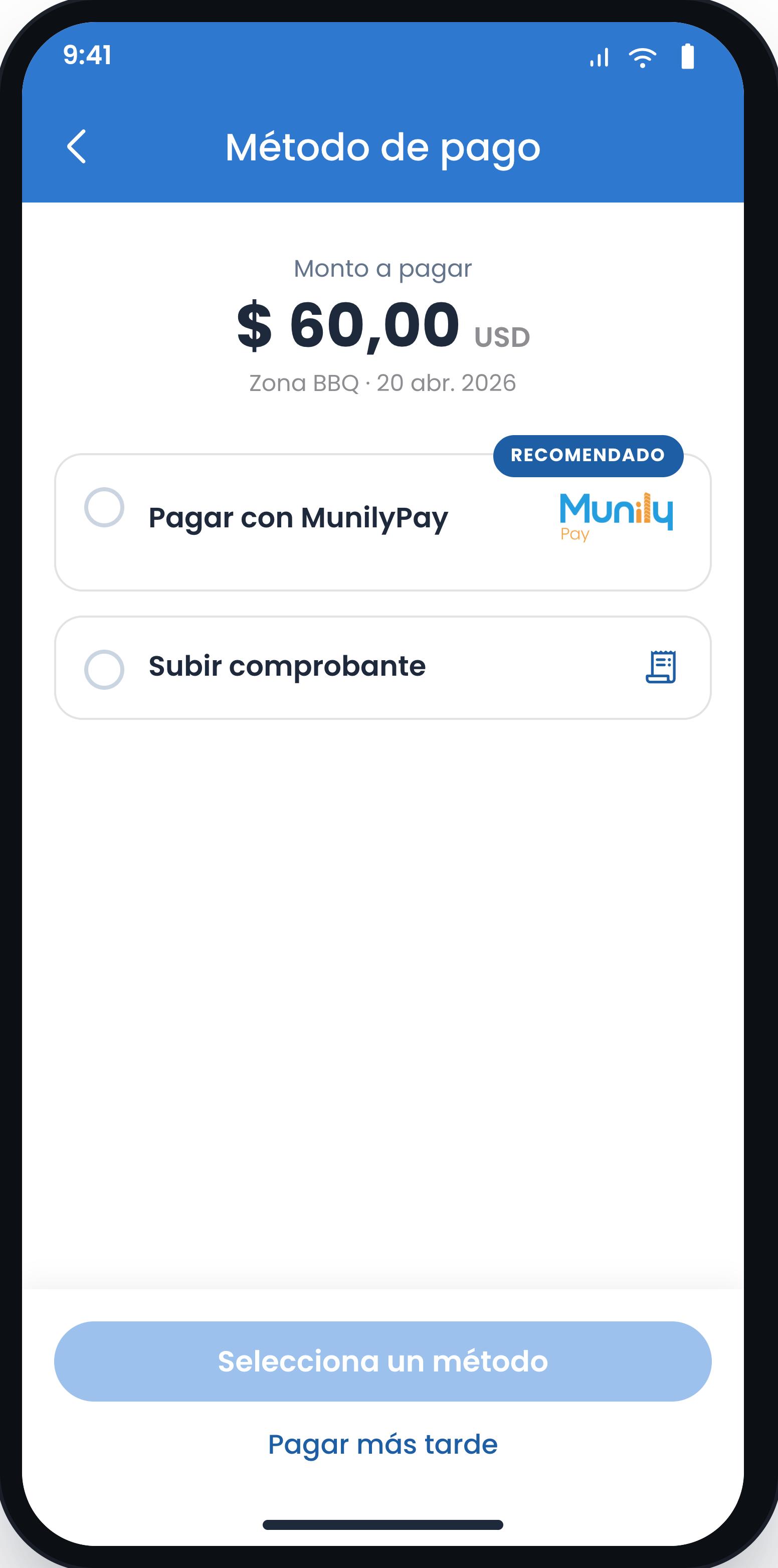 'Payment Method' screen showing the options 'Pay with MunilyPay' and 'Upload Receipt'Close ✕
- Tap 'Upload Receipt' if you're paying by bank transfer.
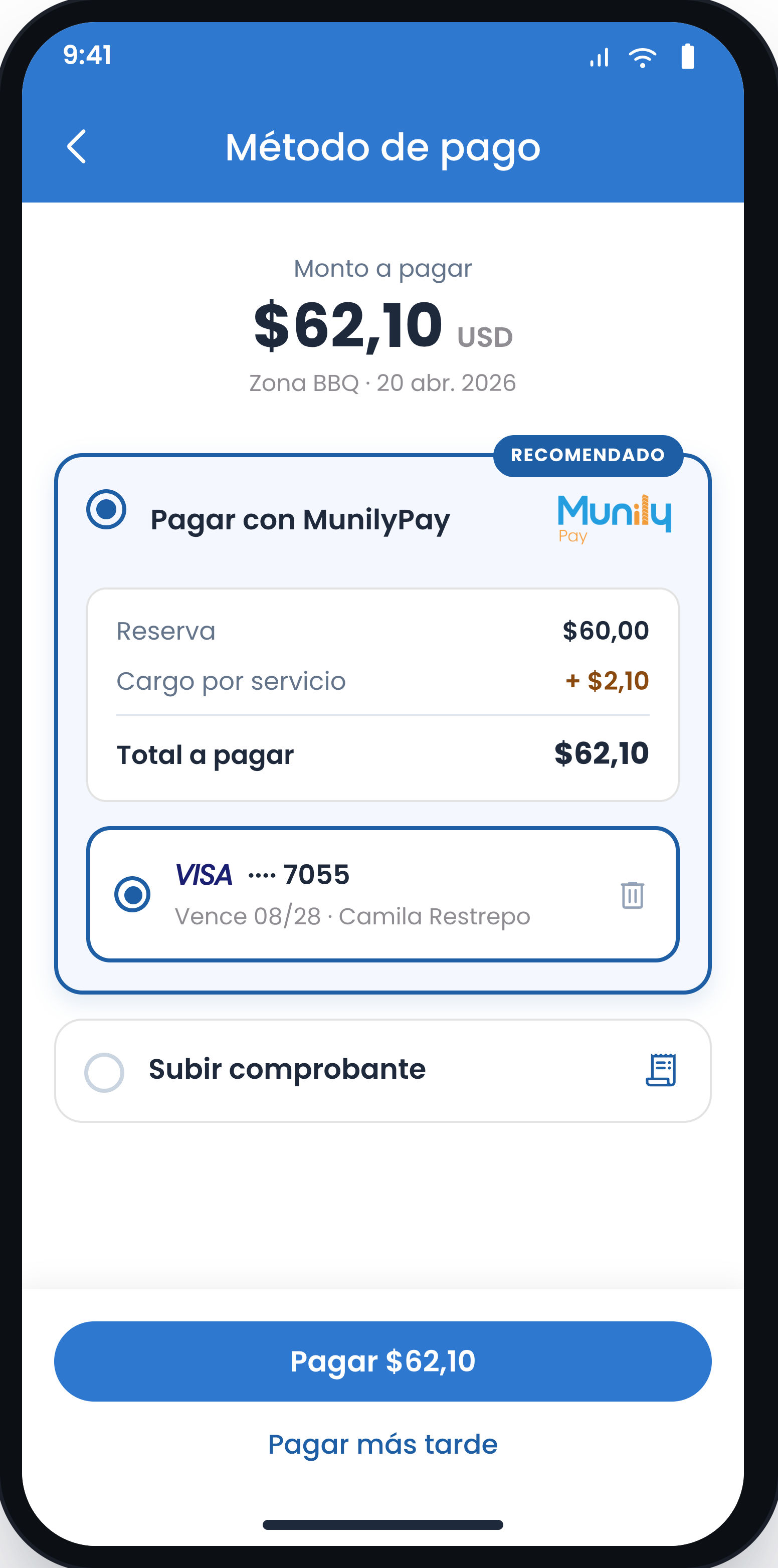 '“Payment Method” screen with the “Upload Receipt” option and the “Pay Later” buttonClose ✕
- Attach a photo of your receipt.
- Tap “Pay with MunilyPay” if you’re paying by card.
The form to register your card will open.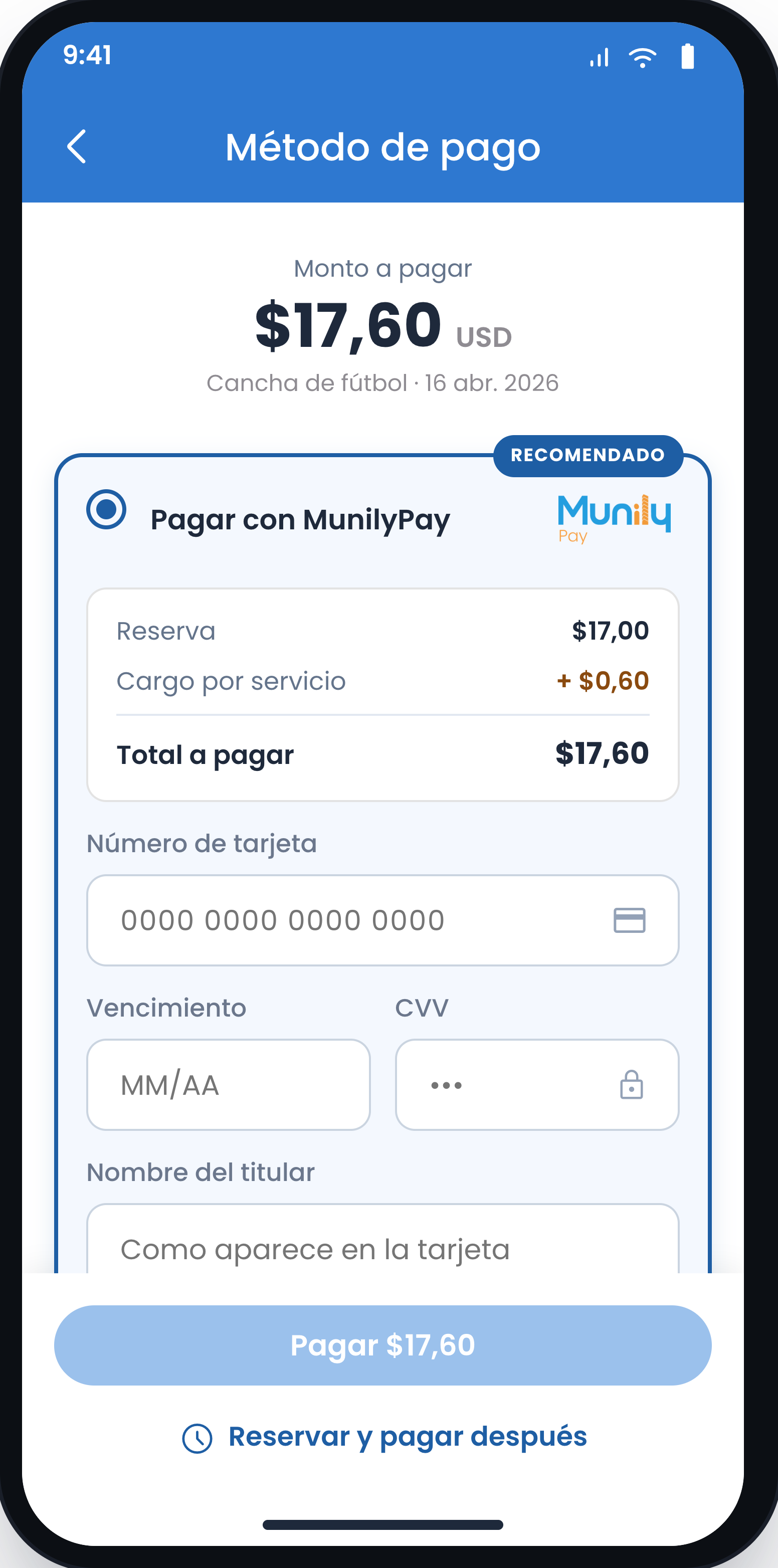 'Payment Method' screen with the fields 'Card Number', 'Expiration Date', 'CVV', and 'Cardholder Name'Close ✕
- Enter the card number in the "Card Number" field.
- Enter the expiration date in the "Expiration" field (for example: 08/27).
- Enter the security code in the "CVV" field.
- Enter the name as it appears on the card in the "Cardholder Name" field.
- Review the “Total Due” field.
- Tap “Reserve and Pay Later.”
Your card is saved for this reservation. - Open your reservation history to view your payments.
Each reservation shows its payment status. - If you booked and paid for an amenity but no longer plan to use it, you can request a refund through the app. Simply cancel the reservation, and the administrator will receive a notification to process the refund.
- Tap "View Reservation Details."
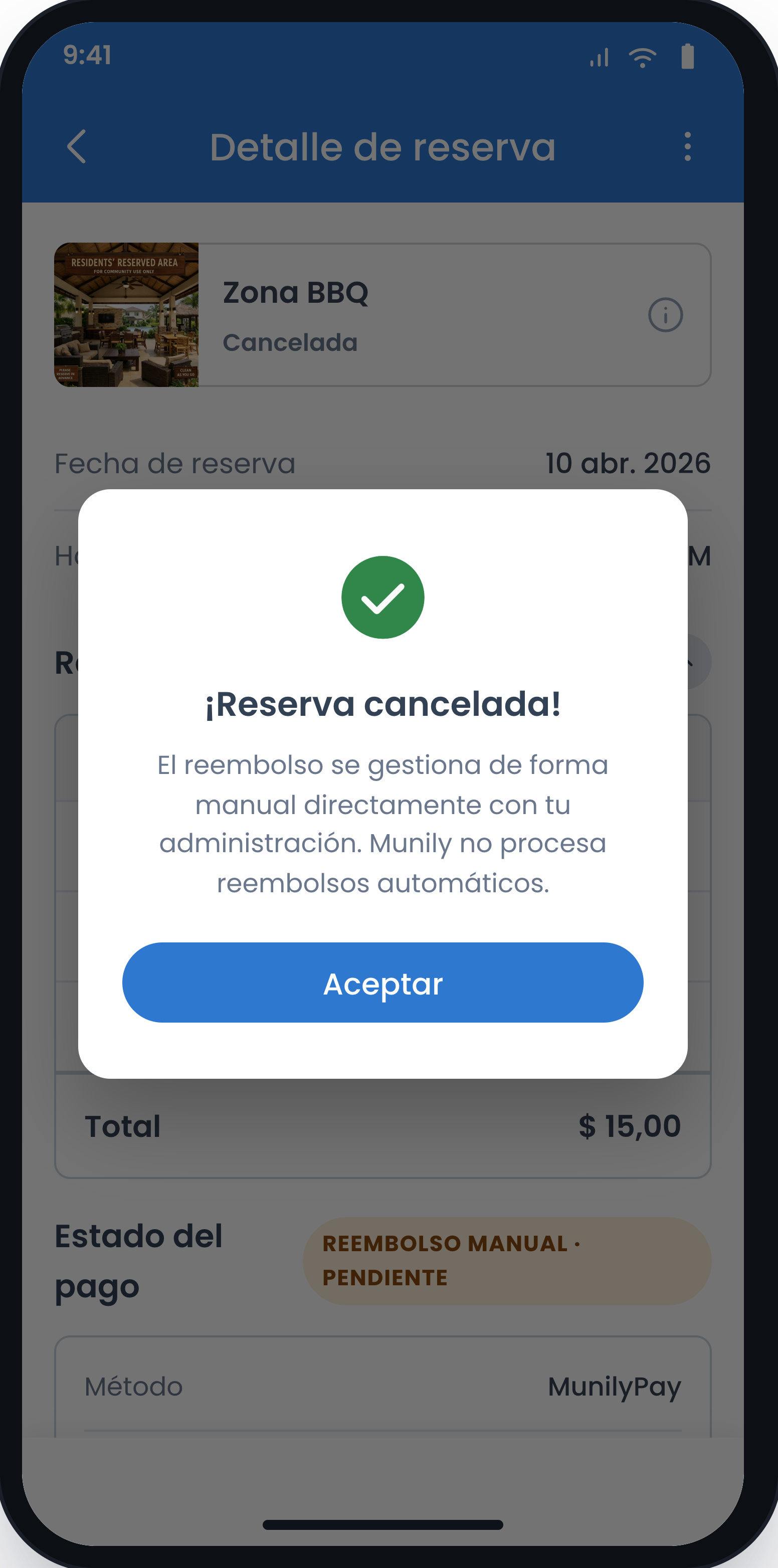 “Reservation Details” screen with the message “Reservation canceled!” and the “Accept” buttonClose ✕
- Confirm the cancellation.
The reservation status will show as “Canceled,” and the refund will be pending. - Wait for the refund. The PH (HOA) administrator processes it manually.
Still need help? Reach us on WhatsApp or at soporte@munily.com.
Con Amor 💙 Munily