

How to Use Your DIGITAL LOGBOOK? 🚀
Welcome to the Munily Help Center! Here, we’ll explain how to use your digital logbook to efficiently manage your building or residential community.
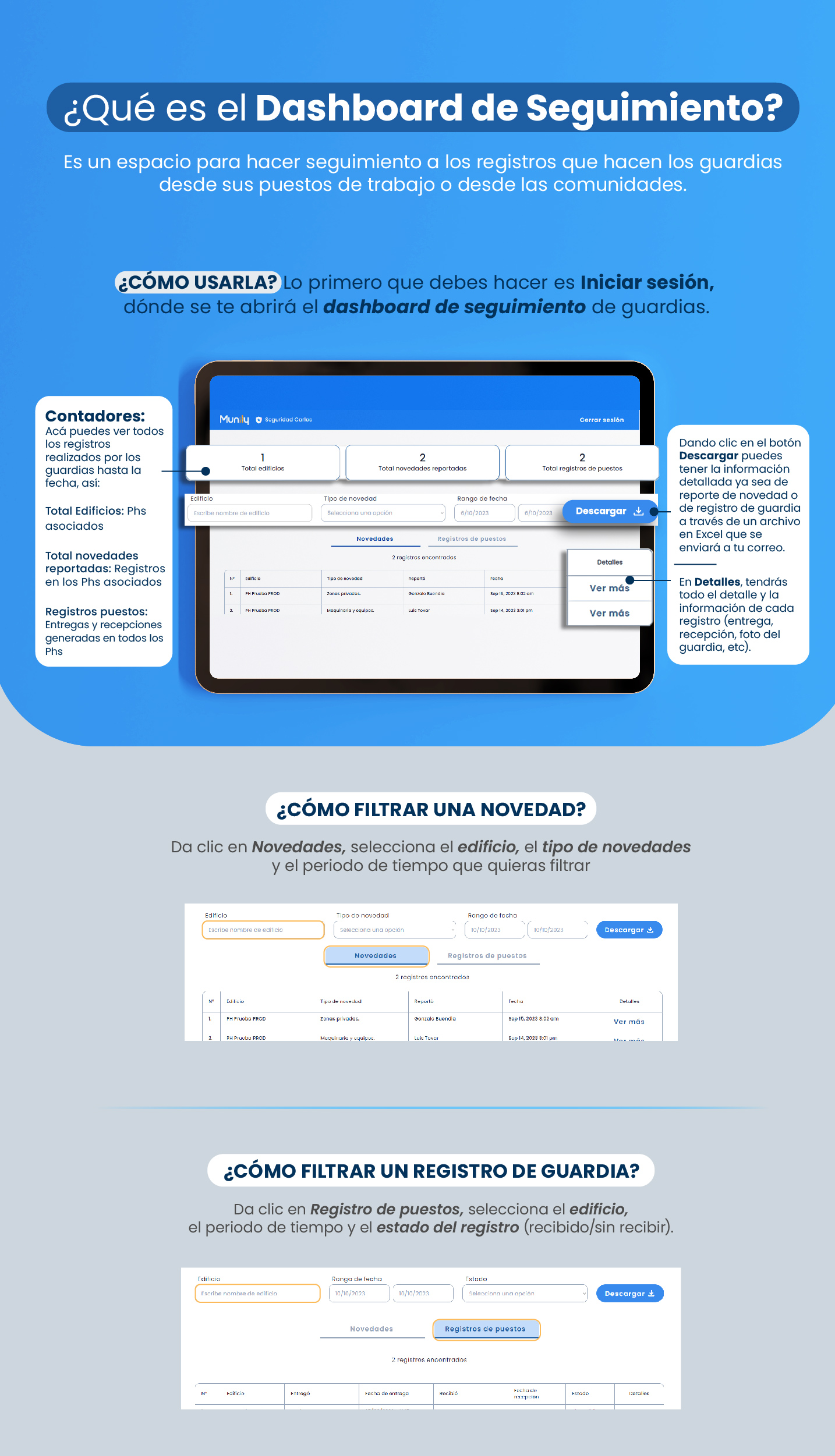
What is the Monitoring Dashboard?
It’s a space designed to let you track the logs created by security guards, whether from their workstations or from the communities.
How do I use it?
The first thing you need to do is Log in to access the security guard tracking dashboard.
Once logged in, you’ll see a general summary:
- Counters: Here you can view all entries made by security guards to date.
- Total Buildings: Displays the total number of associated buildings.
- Total Incidents Reported: Indicates the number of incident reports at associated PHS locations.
- Post Records: Shows handoffs and takeovers generated at all PHS locations.
At the top of the screen, you’ll find key information such as:
- 1 Total Buildings
- 2 Total Reported Updates
- 2 Total Post Entries
Below these counters, you’ll find options to filter the information:
- Building: Enter the building name to filter.
- Incident Type: Select an option from the drop-down menu to filter by incident type.
- Date Range: Select the start and end dates to filter by time period.
"Download" button: By clicking this button, you can obtain detailed information—whether from incident reports or security guard logs—via an Excel file that will be sent to your email.
Details: By clicking "Details" and then "View More," you’ll have access to all the information for each record, including handoff, check-in, a photo of the security guard, etc.
How do I filter an incident?
To filter an incident, click on Incidents, select the building, the incident type, and the time period you want to filter by.
In the incidents section, you’ll find:
- Building: Name of the building where the incident was reported.
- Incident Type: Category of the reported incident.
- Reported By: Name of the person who reported the incident.
- Date: Date and time the incident was reported.
- Details: "View More" button to access the full information.
How do I filter a duty log entry?
To filter a shift log, click on Shift Logs, select the building, the log status (received/unreceived), and the time period you want to filter by.
In the shift logs section, you’ll find:
- Building: Name of the building associated with the log.
- Handover: Who performed the handover.
- Handover Date: Date and time of the handover.
- Received By: Who received the delivery.
- Receipt Date: Date and time of receipt.
- Status: Indicates whether the record was “Received” or “Not Received.”
- Details: “View More” button to access the full information.
We hope you find this guide very useful. If you have any other questions, please don’t hesitate to contact us.
Guide images
Still need help? Reach us on WhatsApp or at soporte@munily.com.
Con Amor 💙 Munily