

Qpass Dashboard: How Can a Security Company Manage Its Revenue? 🚀
Are you a security company? Manage your visitors’ arrivals and departures.
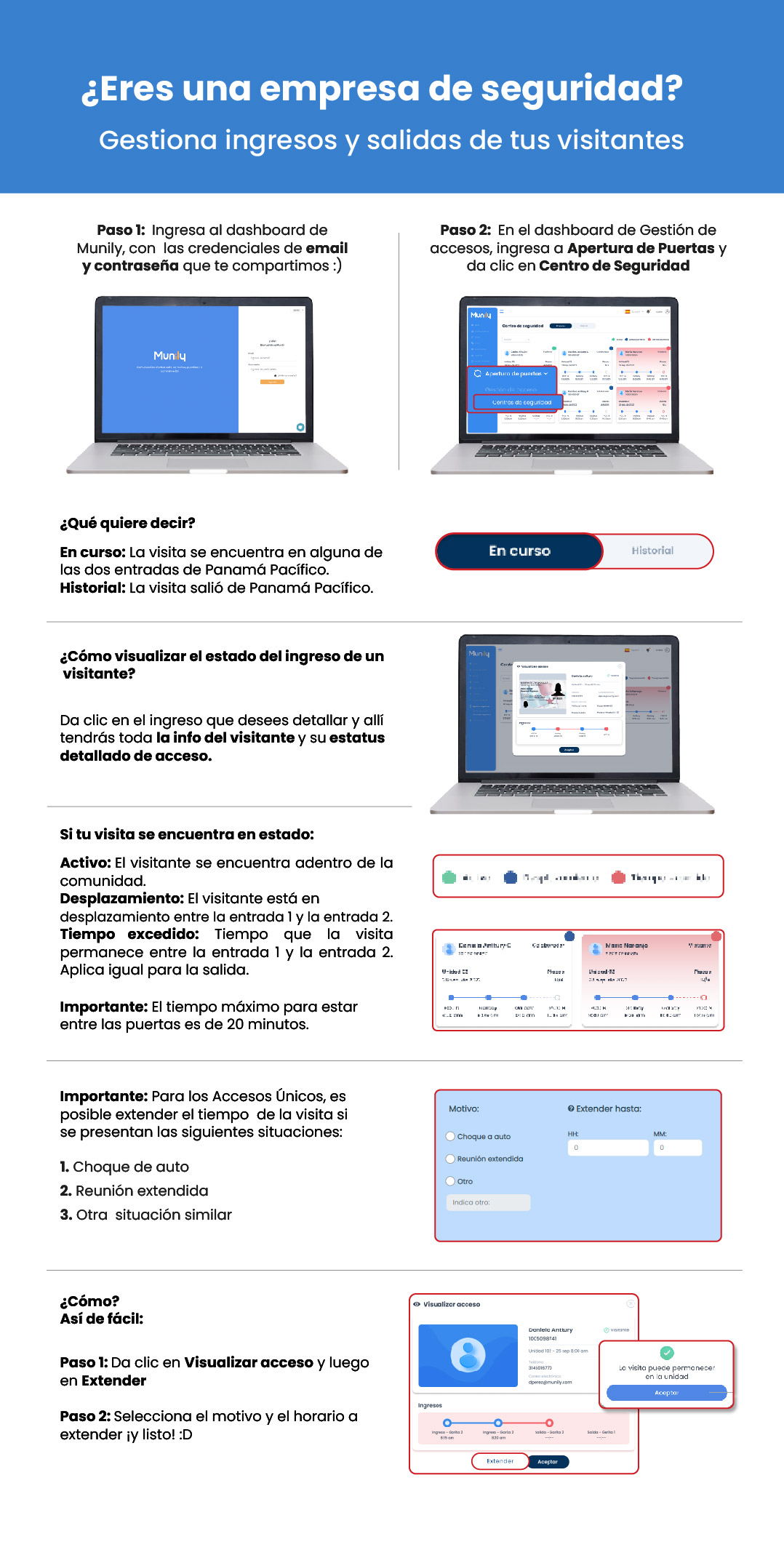
How can you manage arrivals as a security company?
Here’s how you can efficiently manage your visitors’ arrivals and departures using Munily.
Step 1: Log in to the Munily dashboard
Use the email and password we’ve provided to access your account.
(An image of a laptop displaying the Munily login screen is shown)
Step 2: Navigate to “Door Opening” and select “Security Center”
Once inside the dashboard, go to the “Gestión de accesos (Access Management)” section, then click “Door Opening,” and finally select “Security Center.”
(An image of a laptop displaying the Munily dashboard is shown, highlighting the "" menu and the "Security Center" option)
What does a visitor’s status mean?
- En curso (In progress): The visitor is at one of the two entrances to Panama Pacifico.
- Historial (History): The visitor has left Panama Pacifico.
(Two buttons are displayed: “En curso” and “Historial”)
How do I view a visitor’s entry status?
Click on the entry you want to view in detail, and you’ll see all the visitor’s information and their access status.
(An image of a laptop is displayed showing the details of a visitor’s entry, including their photo, name, and status)
If your visitor’s status is:
- Active: The visitor is inside the community.
- In Transit: The visitor is moving between Entrance 1 and Entrance 2.
- Time Exceeded: The time the visitor has spent between Entrance 1 and Entrance 2. This also applies to exits.
Important: The maximum time allowed between the gates is 20 minutes.
Important: For one-time access passes, it is possible to extend the visitor duration in the following situations:
- Car accident
- Extended meeting
- Other similar situation
(A box appears with options for reasons to extend the time: “Car Accident,” “Extended Meeting,” “Other,” and a field to specify the reason if “Other” is selected)
How do I extend the visitor duration?
It’s that easy:
Step 1: Click “View Access” and then “Extend.”
Step 2: Select the reason and the time period to extend—and you’re done! :D
(A “View Access” interface is displayed with an “Extend” button and a box to select the reason and the extension time. Upon acceptance, a confirmation message reads “The visitor may remain in the unit” with an “Accept” button)
Guide images
Still need help? Reach us on WhatsApp or at soporte@munily.com.
Con Amor 💙 Munily