

Samsung Update
Here's a guide to updating the notification settings for your apps on your Samsung device.
Samsung Update
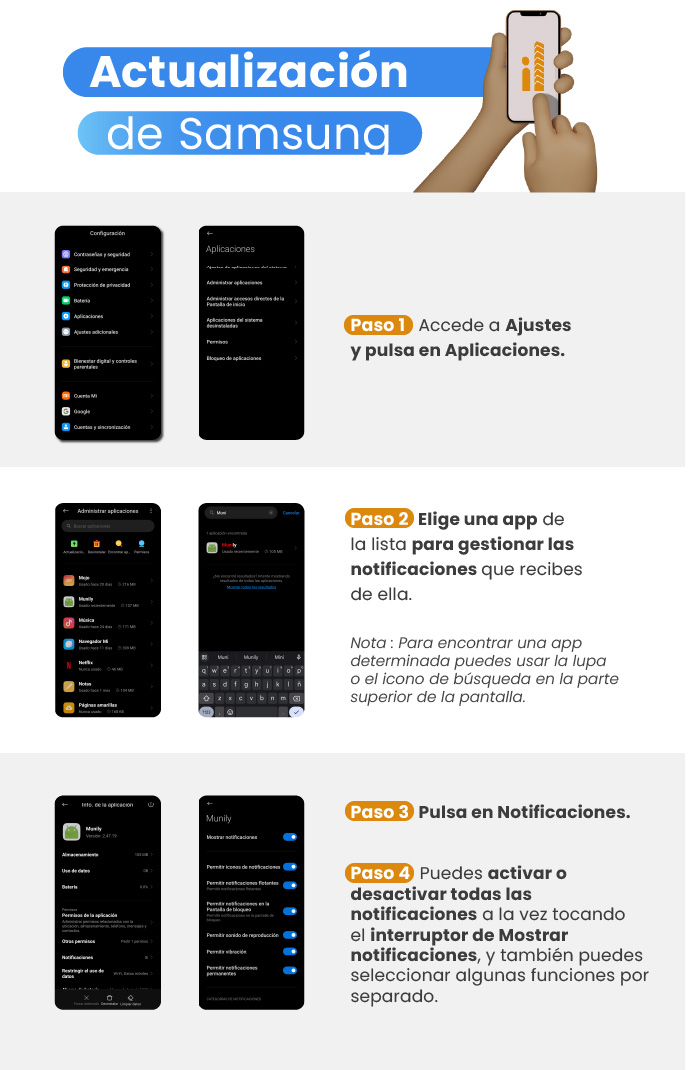
Step 1: Go to Settings and tap Apps.
- On your device’s home screen, find and select the Settings option.
- In Settings, scroll down until you find Apps, then tap it.
- On the next screen, select Manage Apps.
Step 2: Choose an app from the list to manage the notifications you receive from it.
You’ll see a list of all the apps installed on your device.
Scroll through the list until you find the app for which you want to manage notifications. For example, you can search for Munily.
Tap the name of the selected app.
- Note: To find a specific app faster, you can use the magnifying glass or the search icon at the top of the screen.
Step 3: Tap Notifications.
- Once you’re in the app’s settings, find and select the Notifications option.
Step 4: You can enable or disable all notifications at once by toggling the “Show Notifications” switch, and you can also select specific features individually.
- On the app’s notification settings screen, you’ll find a main toggle labeled Show Notifications. Toggling it on or off controls all notifications for that app.
- Below this main toggle, you’ll see specific options to customize what types of notifications you want to receive. You can turn each of these options on or off individually. For example, you can choose whether you want to receive:
- Allow notification icons
- Allow floating notifications
- Allow notifications on the Lock Screen
- Allow sound playback
- Allow vibration
- Allow persistent notifications
By following these steps, you can customize how you receive notifications from your apps on your Samsung device.
Guide images
Still need help? Reach us on WhatsApp or at soporte@munily.com.
Con Amor 💙 Munily