

Vehicle License Plate Registration at QPass
QPass: License Plates
What is the purpose of the license plate registration feature on QPass?
License plate registration allows visitors to enter basic vehicle information, such as the license plate number, or to indicate if they are entering on foot. This information is validated at the entrance using the system’s hardware, which facilitates the tracking and control of vehicles entering the community.
In addition, both residents and administrators can access the visitor history to view a record of the vehicles that have entered the PH (HOA).
Note: Applies only to records created via QPass, Fastpass, and Acceso Frecuente (Frequent Access).
Visitor:
If you are a visitor, you must enter your license plate number as soon as you open the link you receive via WhatsApp message. Here’s how to do it:
Historial (History)
In the visitor history, you’ll see the “License Plate” field if the security guard confirmed the registration. If confirmed, that information will be saved; otherwise, the registration entered by the visitor will be saved.
Frequent Access
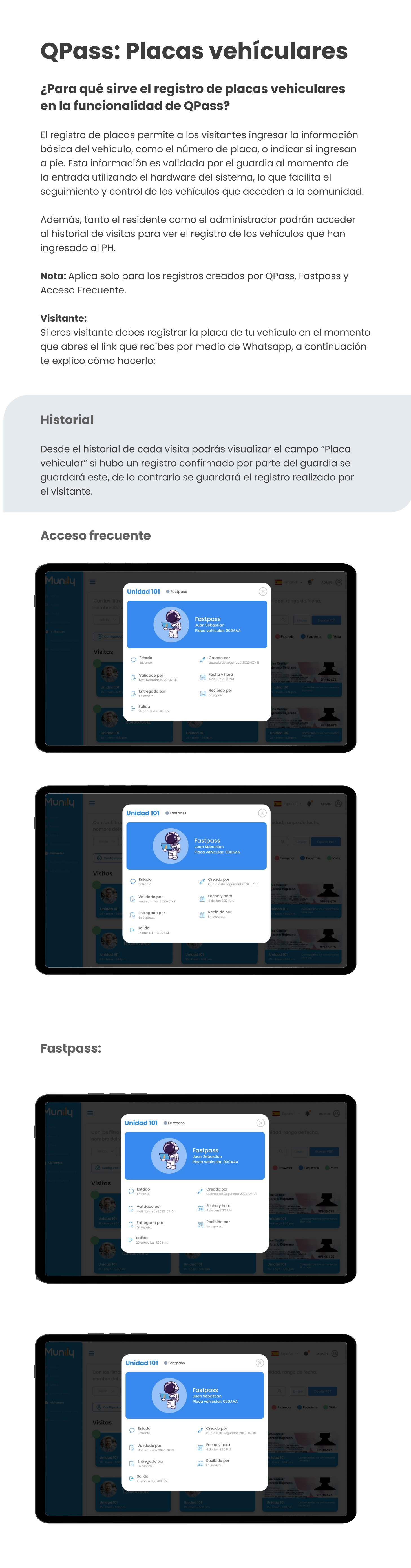
In the “Frequent Access” section, you can view details of your visits. When you click on a visit, a window will open displaying the registration information.
Example of a visit record:
When you select a visit, you’ll see a window similar to this:
- Unit 101 Fastpass
- Visitor Name: Juan Sebastian
- License Plate: 000AAA
- Status: Incoming
- Validated by: Security Guard 2020-07-31
- Date and time: June 4, 3:30 p.m.
- Issued by: Pending...
- Departure: Jan. 25, at 3:00 p.m.
At the top of this window, you’ll find a button with an “X” to close the detailed visitor information.
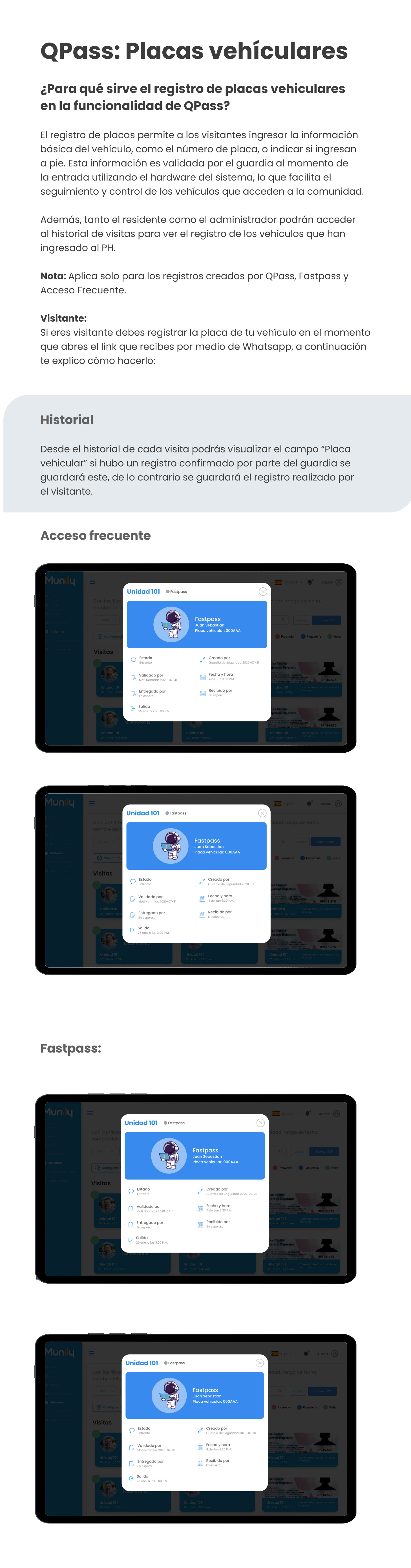
Fastpass:
The Fastpass feature allows for faster, automated vehicle check-in.
Example of a Fastpass registration:
Just like with frequent access passes, when you select a visit registered with Fastpass, a window will pop up with the following information:
- Unit 101 Fastpass
- Visitor Name: Juan Sebastian
- License Plate: 000AAA
- Status: Entering
- Validated by: Security Guard 2020-07-31
- Date and Time: June 4, 3:30 p.m.
- Issued by: Pending...
- Departure: Jan. 25, at 3:00 p.m.
To close this window, click the "X" button in the upper-left corner.
Viewing Visitor History:
On the app’s main screen, you’ll see a list of visitors. Each visitor displays relevant information such as:
- Unit: The residential unit associated with the visitor.
- Visitor’s Name: The name of the person visiting.
- Date and time: The time of the visit.
- Comments: Whether any comments have been added to the visit.
- License plate: The license plate number of the vehicle associated with the visit (if applicable).
You’ll also find filters to search for visitors by:
- Visitor’s Name
- Outgoing (to view only outgoing visits)
- Settings (to access configuration options)
Additionally, you’ll see buttons for:
- Search: To perform a specific search.
- Clear: To clear the applied filters.
- Export PDF: To download a PDF report of the visitors.
At the bottom of the screen, you’ll see indicators for the type of visitor:
- Proveedor (Service Provider) (red circle)
- Packages (blue circle)
- Visitor (green circle)
Guide images
Still need help? Reach us on WhatsApp or at soporte@munily.com.
Con Amor 💙 Munily