

Vehicle License Plate Registration at QPass
Here we explain how the license plate registration feature works on QPass and how you can validate it.
What is the purpose of the license plate registration feature on QPass?
License plate registration allows visitors to enter basic vehicle information, such as the license plate number, or to indicate if they are entering on foot. This information is validated by the system upon entry, which facilitates the tracking and control of vehicles accessing the community.
In addition, both residents and administrators can access the visitor history to view a record of the vehicles that have entered the PH (HOA).
Note: Applies only to records created via QPass, Fastpass, and Acceso Frecuente (Frequent Access).
You can now validate vehicle entries into the community through QPass.
Learn how to do it:
When the visitor receives the invitation, they can enter the vehicle’s license plate number or indicate that they are entering on foot. Each time a visitor scans the QR code at the Munily hardware terminal, you’ll receive a push notification on your tablet or see a pop-up window allowing you to confirm or edit the vehicle’s license plate. If necessary, you can correct the entered license plate or delete it if the visitor is not entering by vehicle.
This applies only to entries via hardware on Fastpass and Acceso Frecuente.
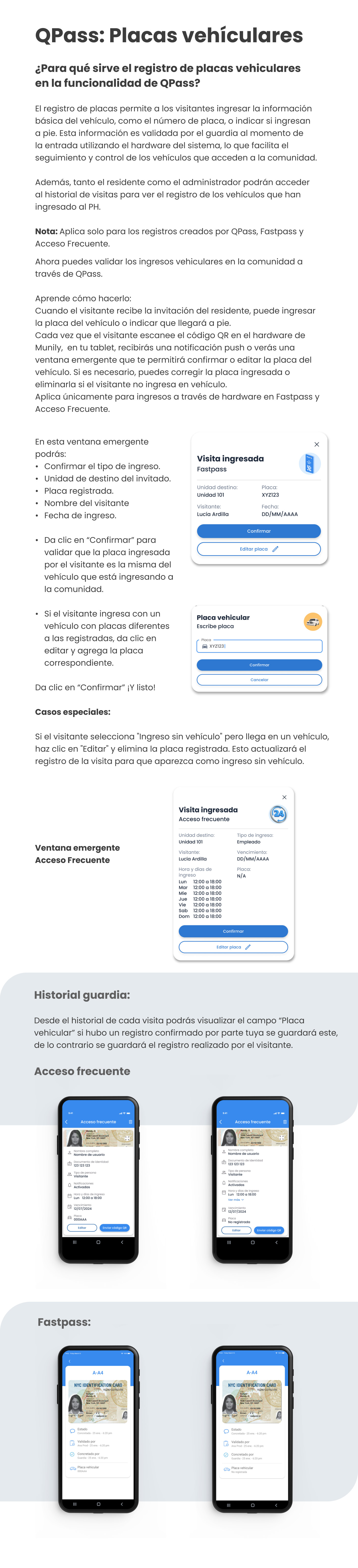
In this pop-up window, you can:
- Confirm the entry type.
- The guest’s destination unit.
- Registered license plate.
- Visitor’s name.
- Date of entry.
Steps to validate entry:
- Look at the pop-up window that appears on your tablet.
- Verify the information displayed: type of entry, destination unit, registered license plate, visitor’s name, and date of entry.
- If the information is correct: Click the "Confirm" button. This verifies that the license plate entered by the visitor matches the vehicle entering the community.
- If the visitor is entering in a vehicle with license plates different from the registered ones: Click the "Edit License Plate" button. This will allow you to correct or add the correct license plate.
- Once the license plate has been edited, click "Confirm", and you’re done!
Special Cases:
If the visitor selects "Entry without a vehicle" but arrives in a vehicle, click "Edit" and delete the registered license plate. This will update the visitor record so that it appears as an entry without a vehicle.
Security guard Historial (History):
From the visitor history for each visit, you’ll be able to view the “License Plate” field if you confirmed the entry. Otherwise, the entry made by the visitor will be saved.
Frequent Access Pass:
In the “Frequent Access Pass” section, you can view the visit details, including the registered license plate or if it is marked as “Not Registered.”
- If the license plate is not registered, you can click "Edit" to enter it.
- You can also "Send QR code" if necessary.
Fastpass:
In the “Fastpass” section, you can view the status of the visit, who validated it, and who completed it. The registered license plate will also be displayed, or it will indicate “Not registered.”
Guide images
Still need help? Reach us on WhatsApp or at soporte@munily.com.
Con Amor 💙 Munily