

How can you automate your homeowners' association's account statements? 💰
How to Automate Your Community's Account Statements?
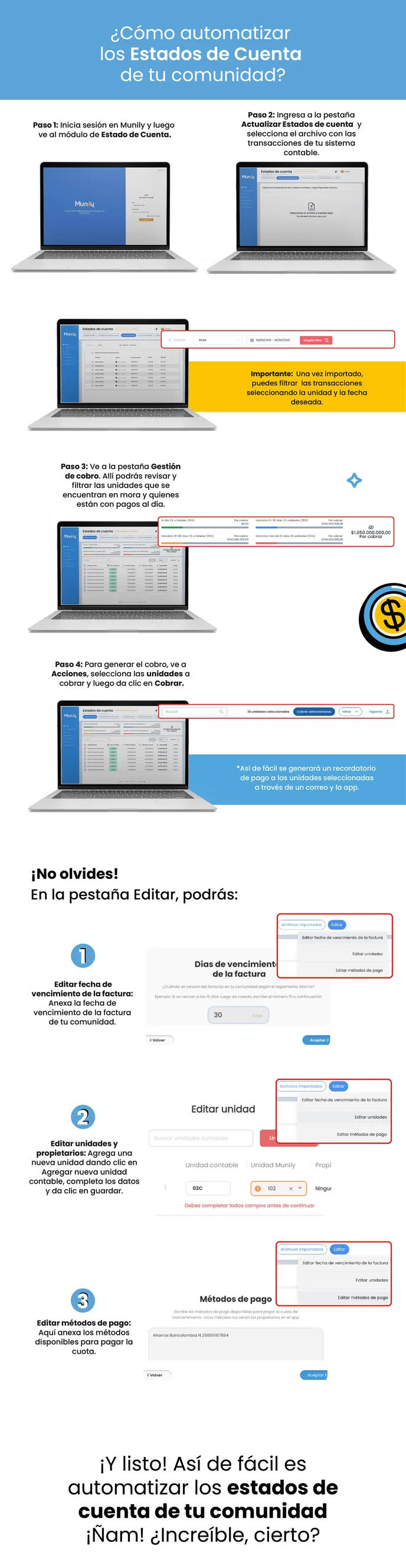
Follow these steps to automate the generation of your community's account statements:
Step 1: Log in to Munily and then go to the "Estado de Cuenta (Account Statement)" module.
- You’ll see the Munily login screen. Enter your credentials.
- Once logged in, navigate to the “Estado de Cuenta” section.
Step 2: Go to the "Update Account Statements" tab and select the file containing the transactions from your accounting system.
- On the "Account Statements" screen, locate and click the "Update Account Statements" tab.
- You’ll be prompted to select a file. Click on it and choose the file containing the transactions from your accounting system.
Important: Once imported, you can filter the transactions by selecting the unit and the desired date.
Step 3: Go to the "Collection Management" tab. There, you can review and filter the units that are in arrears and those that are current.
- Go to the "Collection Management" tab.
- In this section, you’ll see a list of units. Use the filtering options to identify units with outstanding payments (in arrears) and those that are up to date.
Step 4: To generate the billing, go to “Actions,” select the units to be billed, and then click “Bill.”
- In the “Billing Management” view, locate the “Actions” option.
- Select the units for which you want to generate the payment request.
- Finally, click the "Collect" button.
It’s that easy to generate a payment reminder for the selected units via email and the app.
Don’t forget! In the "Edit" tab, you can:
Edit the invoice due date: Enter the due date for your community’s invoice.
- In the edit window, you’ll find the “Edit Invoice Due Date” option.
- You’ll be asked to enter the number of days until the due date. For example, if invoices are due 15 days after creation, enter the number 15 here.
- Click “OK” to save your changes.
Edit Units and Owners: Add a new unit by clicking “Add New Accounting Unit,” fill in the details, and click “Save.”
- In the “Edit” tab, select “Edit Units.”
- On the "Edit Unit" screen, you can search for existing accounting units or add a new one.
- To add a new unit, click the "Accounting Unit" button and fill in the required fields.
- Be sure to fill in all fields before continuing.
- Click "Save" to save your changes.
Edit Payment Methods: Here, you can add the available methods for paying the fee.
- On the “Edit” tab, select “Edit Payment Methods.”
- In the “Payment Methods” section, enter the payment methods available for paying the maintenance fee. These methods will be visible to homeowners in the app.
- Click "OK" to save the payment methods.
And that’s it! It’s that easy to automate your community’s account statements. Amazing, isn’t it?
Guide images
Still need help? Reach us on WhatsApp or at soporte@munily.com.
Con Amor 💙 Munily